Building a Non-Blocking URL Health Checker in Python with Tkinter and Threading
A code walkthrough of azario0/url-health-checker, a desktop GUI app that checks whether a website is online, using Python, Tkinter/ttk, the requests library, and a threading + queue pattern to keep the UI responsive during network calls.
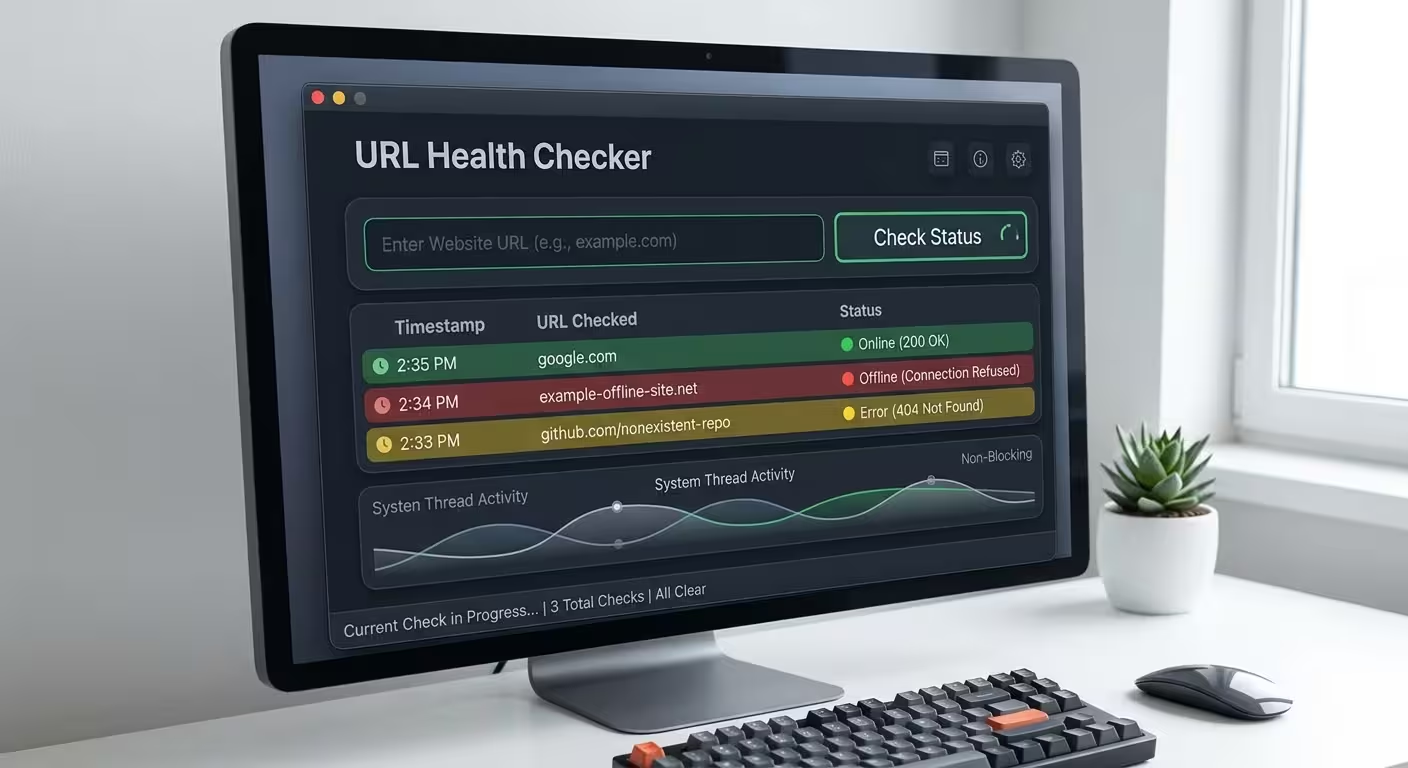
Building a Non-Blocking URL Health Checker in Python with Tkinter and Threading
Checking if a website is up sounds trivial — send a request, look at the status code, done. The interesting engineering problem shows up the moment you put that check behind a GUI button: a network request can take up to several seconds (or hang entirely), and if you run it on the same thread that draws your window, the whole application freezes while it waits.
azario0/url-health-checker is a small, single-file
Python project that solves exactly this problem. It’s a good example to study because it’s compact
enough to read end-to-end in a few minutes, yet it demonstrates a pattern — background threads
communicating with the UI thread through a queue — that shows up constantly in real desktop
software. This article walks through the source code
piece by piece and explains how the pieces fit together.
What the app does
It’s a ~170-line desktop application, built with Python’s built-in Tkinter GUI toolkit, that:
- Shows a single text field for a URL and a “Check Status” button
- Sends an HTTP GET request to that URL using the
requestslibrary - Reports back whether the site is online (2xx status), returning an error (4xx/5xx), or unreachable
- Does all of this without freezing the window, even if the request is slow
The whole thing lives in one file, app.py, structured as a single class, URLCheckerApp.
Tech stack
| Piece | Role |
|---|---|
| Python 3.7+ | Language |
Tkinter + ttk | GUI toolkit (standard library) and its themed widget extension for a more modern look |
requests | Makes the actual HTTP call |
threading | Runs the network call off the main/UI thread |
queue | Thread-safe hand-off of results from the background thread back to the UI thread |
Nothing here is exotic — that’s the point. tkinter and queue ship with Python itself; requests
and threading are about as standard as Python HTTP/concurrency tooling gets. The value of the
project is in how these pieces are wired together, not in any single library.
Structuring the app as a class
class URLCheckerApp:
    def __init__(self, root):
        self.root = root
        self.root.title("URL Health Checker")
        self.root.geometry("500x350")
        self.root.resizable(False, False)
        ...
        self.result_queue = queue.Queue()

        self.setup_styles()
        self.create_widgets()
        self.process_queue()
Wrapping the app in a class instead of writing top-level script code is a small but important
choice. It lets self carry shared state — the root window, color constants, fonts, the queue,
and widget references — across methods without a pile of global variables. __init__ does three
jobs in order: configure styles, build the widgets, and kick off process_queue(), a self-scheduling
loop explained below.
Styling ttk widgets
def setup_styles(self):
    style = ttk.Style(self.root)
    style.theme_use('clam')

    style.configure('TEntry',
                    fieldbackground=self.ENTRY_BG,
                    foreground=self.FG_COLOR,
                    ...)

    style.configure('Modern.TButton', ...)
    style.map('Modern.TButton',
              background=[('active', self.BUTTON_HOVER),
                          ('pressed', self.BUTTON_HOVER)],
              relief=[('pressed', 'flat')])
Plain tkinter widgets are notoriously hard to restyle — colors and borders are inconsistent across
platforms. ttk (the “themed Tk” module) fixes this by separating widgets from their visual style.
style.theme_use('clam') switches to a theme that actually honors custom colors (the default theme
on some platforms ignores background-color settings), and style.configure(...) defines a named
style — 'Modern.TButton' — that’s later attached to the button widget. style.map(...) is the
part that gives interactive feedback: it says “when this widget’s state includes active (mouse
hover) or pressed, swap in this other background color,” which is how the button gets a hover
effect without any manual event binding.
Building the layout
def create_widgets(self):
    main_frame = tk.Frame(self.root, bg=self.BG_COLOR, padx=40, pady=30)
    main_frame.pack(expand=True, fill='both')

    title_label = tk.Label(main_frame, text="URL Health Checker", ...)
    title_label.pack(pady=(0, 20))

    self.url_entry = ttk.Entry(main_frame, style='TEntry', font=self.label_font, width=40)
    self.url_entry.pack(fill='x')
    self.url_entry.insert(0, "e.g., https://www.google.com")
    self.url_entry.bind("<FocusIn>", self.on_entry_focus_in)
    self.url_entry.bind("<FocusOut>", self.on_entry_focus_out)
    self.url_entry.bind("<Return>", lambda event: self.start_check_thread())

    check_button = ttk.Button(main_frame, text="Check Status",
                              style='Modern.TButton', command=self.start_check_thread)
    check_button.pack(pady=20)

    self.result_label = tk.Label(main_frame, text="Enter a URL to check its status", ...)
    self.result_label.pack(pady=(10, 0))
This uses Tkinter’s pack geometry
manager, which stacks widgets vertically (or horizontally) in the order they’re packed — simple
and sufficient for a single-column layout like this one.
Two details worth calling out:
- Manual placeholder text. Tkinter’s
Entrywidget has no built-in placeholder attribute, so the app fakes one: it inserts"e.g., https://www.google.com"on creation, then binds<FocusIn>/<FocusOut>events to clear it when the user clicks in and restore it when they click away leaving the field empty. - Enter-to-submit.
self.url_entry.bind("<Return>", lambda event: self.start_check_thread())wires the Enter key to the same handler as the button, so the user isn’t forced to reach for the mouse.
The threading problem, and how it’s solved
This is the core idea of the whole project. Here’s the check-triggering method:
def start_check_thread(self):
    url = self.url_entry.get().strip()
    if not url or url == "e.g., https://www.google.com":
        self.update_result("Please enter a valid URL.", self.ERROR_COLOR)
        return

    self.update_result(f"Checking {url}...", self.FG_COLOR)

    thread = threading.Thread(target=self.perform_check, args=(url,), daemon=True)
    thread.start()
If perform_check (the function that actually calls requests.get) ran directly in this method,
the whole Tkinter event loop would stall until the HTTP response came back — no redraws, no
responding to clicks, nothing, for up to the length of the request timeout. Instead, start_check_thread
spins up a new threading.Thread targeting perform_check, so the network I/O happens off the
main thread while the GUI keeps running normally. daemon=True marks the thread as a background
thread that Python will kill automatically when the main program exits, so a slow or hung request
can’t keep the app alive after the window is closed.
def perform_check(self, url):
    if not url.startswith(('http://', 'https://')):
        url = f"https://{url}"

    try:
        headers = {'User-Agent': 'Python-URL-Checker/1.0'}
        response = requests.get(url, timeout=10, headers=headers)

        if 200 <= response.status_code < 300:
            result_message = f"✅ Online!\nStatus Code: {response.status_code}"
            self.result_queue.put(("success", result_message))
        else:
            result_message = f"❌ Error!\nStatus Code: {response.status_code}"
            self.result_queue.put(("error", result_message))

    except requests.exceptions.RequestException as e:
        result_message = f"❌ Offline or Invalid URL\nError: Could not connect."
        self.result_queue.put(("error", result_message))
A few practical touches here:
- Scheme normalization. If the user types
google.cominstead ofhttps://google.com, the app prependshttps://automatically rather than failing or forcing the user to retype it. - A custom
User-Agent. Some servers reject or throttle requests that don’t identify a client; setting one avoids false negatives. timeout=10. Without an explicit timeout,requests.getcan hang indefinitely if a server never responds — this line is what actually guarantees the background thread (and therefore the check) terminates in bounded time.- Status code range check.
200 <= response.status_code < 300covers the whole 2xx success range, not just200, so201 Createdor204 No Contentstill count as “online.” requests.exceptions.RequestExceptionis the base class for every errorrequestscan raise — DNS failures, connection refusals, timeouts, malformed URLs — so this oneexceptclause catches all of them uniformly.
Notice this method never touches a widget directly. That’s deliberate: Tkinter is not thread-safe,
and calling .config(...) on a widget from a background thread can corrupt the UI or crash the
app unpredictably. Instead, the result is packaged as a (status, message) tuple and pushed onto
self.result_queue, a queue.Queue — a data
structure specifically designed to be safely shared between threads.
Draining the queue from the main thread
def process_queue(self):
    try:
        status, message = self.result_queue.get_nowait()
        if status == "success":
            self.update_result(message, self.SUCCESS_COLOR)
        else:
            self.update_result(message, self.ERROR_COLOR)
    except queue.Empty:
        pass
    finally:
        self.root.after(100, self.process_queue)
This is the other half of the handshake, and it runs entirely on the main thread. get_nowait()
checks the queue for a result without blocking; if nothing’s there yet, queue.Empty is caught
and ignored. Either way, self.root.after(100, self.process_queue) reschedules this exact method
to run again 100ms later, using Tkinter’s built-in event-loop timer (.after) rather than a second
thread. The result is a lightweight polling loop, started once in __init__ and never explicitly
stopped, that checks roughly ten times a second whether the background thread has finished and,
if so, safely updates the label on the main thread.
This Thread → Queue → after()-polling pattern is a common, portable way to bridge background
work into a UI toolkit that isn’t thread-safe, and it generalizes well beyond this project — the
same shape works for any Tkinter app that needs to do file I/O, database calls, or other
potentially slow operations without freezing the window.
Tying it together
def update_result(self, message, color):
    self.result_label.config(text=message, fg=color)


if __name__ == "__main__":
    root = tk.Tk()
    app = URLCheckerApp(root)
    root.mainloop()
update_result is a small shared helper — both the “checking…” message and the final
success/error message flow through it, so the label’s text and color are always updated in one
place. The bottom if __name__ == "__main__": block is the standard Tkinter bootstrap: create the
root window, instantiate the app, and call root.mainloop(), which starts the event loop that
keeps the window alive and responsive (and is also what .after() schedules its callbacks
against).
Why this is worth studying
There’s no framework magic in this project, which is exactly what makes it a useful reference. It’s a clean, minimal illustration of three things that come up constantly in real applications:
- Never do blocking I/O on the UI thread. Any GUI toolkit — Tkinter, Qt, Swing, whatever — will freeze if you run slow work synchronously in the same thread that draws the window.
- Use a thread-safe hand-off, not direct widget mutation, to get data back to the UI. A
queue.Queue(or an equivalent thread-safe structure) is the standard tool for this in Python. - Poll from the main thread instead of pushing from the background thread. Scheduling a
recurring check with
.after()keeps all widget mutation on the one thread that’s allowed to touch it, sidestepping thread-safety bugs entirely.
You can find the full source and setup instructions in the repository and its README, and see more of the author’s projects at github.com/azario0.

Written by
Benmalek Zohir
Founder, AI Engineer & Full Stack Developer
Benmalek Zohir is an AI Engineer, Full Stack Developer, and technology enthusiast focused on artificial intelligence, software development, and emerging technologies. He is the founder of SoftwareJournal.blog, where he shares practical insights, software discoveries, AI tools, and the latest developments in technology.