Inside a Typing Speed Tracker: Tkinter, Flask, and Chart.js Working as One System
A code walkthrough of azario0's Typing Speed Test app — a Tkinter desktop client that measures WPM/accuracy in real time and streams results to a Flask + Chart.js web dashboard over a simple REST API.
Inside a Typing Speed Tracker: Tkinter, Flask, and Chart.js Working as One System
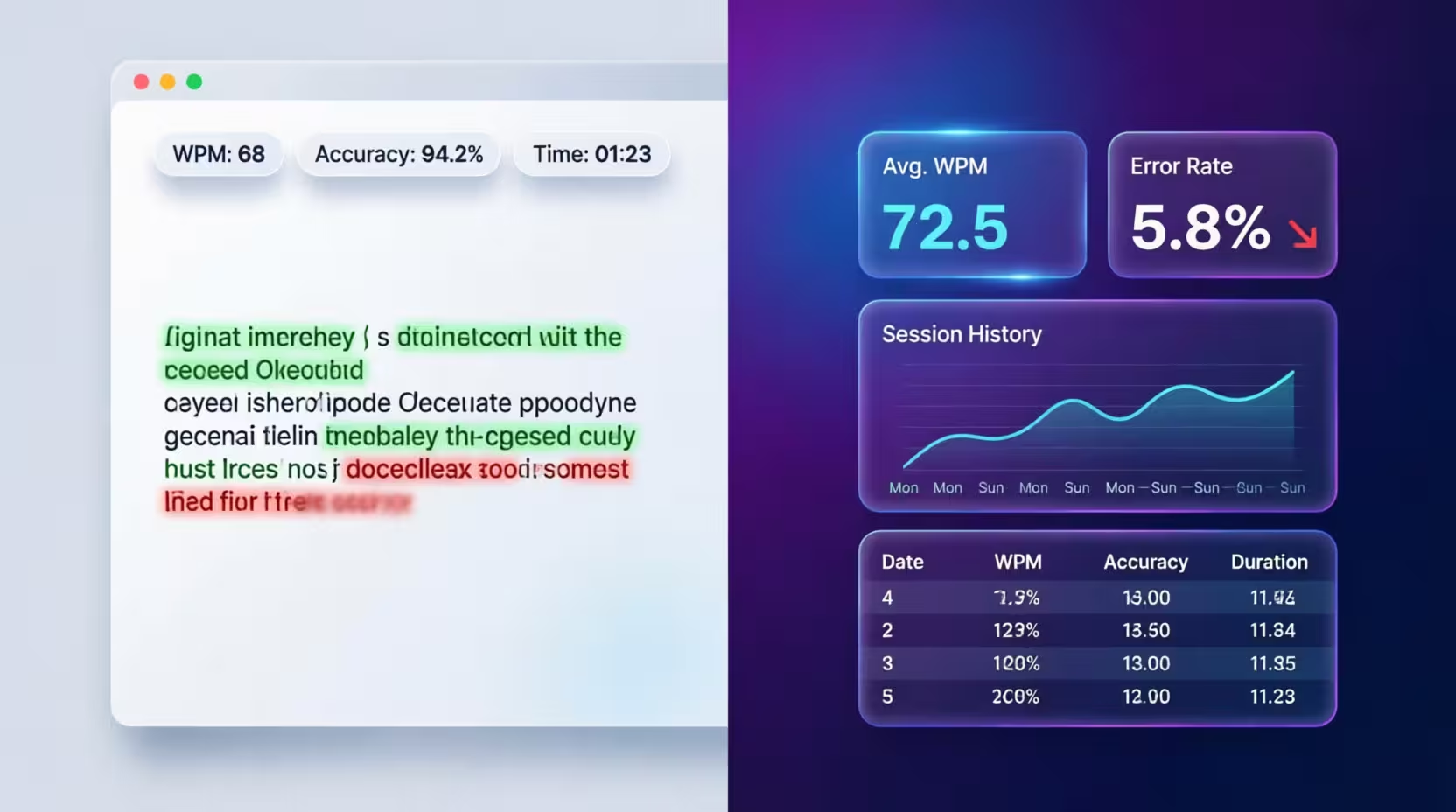
Most typing-test tutorials stop at “highlight the correct letters green.” azario0’s Typing-Speed-with-tracking goes one step further and turns a single-session toy into a small two-tier system: a native desktop client that runs the test, and a web service that persists and visualizes the history. It’s a good, compact example of gluing a GUI to a backend over HTTP — worth dissecting piece by piece.
What the project actually is
Strip away the emoji-laden README and the repo is two independent Python programs that agree on one contract: a JSON payload with wpm and accuracy.
app.py(repo root) — a Tkinter desktop app that renders a sentence, tracks keystrokes, computes WPM/accuracy live, and POSTs the final result somewhere.server/app.py— a Flask service that accepts that POST, appends it to a CSV, and renders a dashboard with Chart.js using Bootstrap 5 for layout.
They don’t share a process, a database, or even a virtual environment necessarily — they share an HTTP endpoint and a CSV schema. That’s the whole architecture, and it’s worth noticing because it’s a pattern you’ll reuse constantly: thin client → dumb persistence → templated view.
One thing worth flagging up front since it’ll trip you up if you clone the repo: the README tells you to run python typing_speed_test.py, but the actual GUI file in the repo is app.py at the root — and there’s a second, differently-scoped app.py inside server/. Documentation drift, not a bug, but you’ll want to rename one of them if you fork this.
The desktop client: app.py
UI construction
The whole interface is built imperatively in setup_ui() using plain Tkinter widgets — no framework, no .ui file. Two tk.Text widgets do double duty: one (sample_text_widget) is disabled and used purely as a rich-text canvas for colored character tags, the other (input_text) is the live input field. Using Text instead of Entry for the sample display is the key trick that makes character-level color tagging possible — Entry has no concept of per-character styling; Text does via tag objects.
self.sample_text_widget.tag_config("correct", foreground=CORRECT_COLOR)
self.sample_text_widget.tag_config("incorrect", foreground=INCORRECT_COLOR, underline=True)
The event loop that drives everything
There’s no explicit “Start” button. The test begins on the first keystroke, detected inside check_input, which is bound to <KeyRelease>:
self.input_text.bind("<KeyRelease>", self.check_input)check_input is the busiest method in the file and runs on every single keystroke. Each call it:
- Bails early if the test is already completed.
- Starts the timer on the first non-modifier keypress (filtering out
Shift,Control,Alt,Tab,Returnso holding shift doesn’t falsely start the clock). - Reads the full input buffer with
self.input_text.get("1.0", "end-1c")— Tkinter text indices areline.column, andend-1cmeans “end, minus one character,” which strips the trailing newline Tkinter always appends. - Clears old tags and re-tags every character as
correctorincorrectby comparing index-by-index against the sample string. - Recomputes WPM and accuracy from scratch.
- Checks for completion.
Recomputing the diff over the entire string on every keystroke is O(n) per keystroke rather than incremental — fine at sentence length, but worth noting as a design choice that wouldn’t scale to a paragraph-length test without debouncing or diffing only the changed suffix.
The WPM formula
wpm = (correct_chars / 5) / (self.elapsed_time / 60)This is the standard typing-test convention: one “word” = 5 characters, regardless of actual word boundaries, because it normalizes for word length across languages and sentences. Note it only counts correct_chars, so garbled typing doesn’t inflate your score — accuracy and speed are coupled, not independent.
Timer without threads
Rather than spinning up a threading.Timer or asyncio loop, the timer is implemented with Tkinter’s own event scheduler:
self.timer_job = self.root.after(100, self.update_timer)after() schedules a callback on the Tkinter main loop itself, so there’s no cross-thread synchronization to worry about — it’s single-threaded, cooperative, and self-cancelling via stop_timer()’s root.after_cancel(self.timer_job). This is the idiomatic way to do periodic UI updates in Tkinter; spinning up a real thread to touch Tkinter widgets from outside the main thread is a common beginner mistake this code correctly avoids.
Persistence: local CSV, then network, independently
On completion, complete_test() does two separate, sequential writes:
self.save_progress(final_wpm, final_accuracy)        # local CSV
self.send_progress_to_server(final_wpm, final_accuracy)  # HTTP POST
save_progress is a local, synchronous append using the csv module — it’s the offline fallback, and it always succeeds independent of whether the server is up. send_progress_to_server uses requests with a hard timeout=5 and wraps the call in a try/except requests.exceptions.RequestException, degrading gracefully into a messagebox.showwarning if the Flask server isn’t running rather than crashing the GUI. This “local write always, network write best-effort” ordering is a reasonable resilience pattern for a desktop app talking to a possibly-absent local server.
The backend: server/app.py
Two responsibilities, one process
Flask’s app here does exactly two things: serve a dashboard (GET /) and accept new results (POST /api/save_result), plus a /debug/csv escape hatch for inspecting raw file state without SSH-ing anywhere.
@app.route('/api/save_result', methods=['POST'])
def save_result():
    data = request.get_json()
    if not data or 'wpm' not in data or 'accuracy' not in data:
        return jsonify({"status": "error", "message": "Invalid data"}), 400
    ...
    if wpm < 0 or wpm > 500:
        return jsonify({"status": "error", "message": "Invalid WPM value"}), 400
Worth pointing out for anyone building their own API endpoints: this validates shape (keys present), type (float() coercion, caught in a try/except (ValueError, TypeError)), and range (sane WPM/accuracy bounds) before ever touching disk. That’s the right order of checks, and it’s the kind of defensive input handling that’s easy to skip in a demo project but is exactly what stops a malformed client from corrupting your data file.
CSV as a database, with self-healing
There’s no SQLite, no ORM — the “database” is a CSV file with a fixed three-column header (Timestamp, WPM, Accuracy). What’s more interesting is validate_and_fix_csv(), called before every read and write:
expected_header = ["Timestamp", "WPM", "Accuracy"]
if header != expected_header:
    backup_file = f"{PROGRESS_FILE}.backup"
    ...
    os.rename(PROGRESS_FILE, backup_file)
    init_progress_file()
If the header doesn’t match — corrupted file, manual edit, partial write — it renames the bad file to .backup (never deletes data) and recreates a clean one. It’s a small but genuine example of defensive I/O: treat an external file as untrusted input, validate it, and fail toward safety (preserve + reset) rather than crashing the whole dashboard route. The dashboard() view additionally wraps its row-parsing loop in per-row try/except so one malformed row doesn’t take down the whole page — it just gets logged and skipped.
Server-side rendering with Jinja2
The / route does the aggregation work in Python — total_tests, avg_wpm, avg_accuracy, best_wpm — and hands a plain dict plus the row list to render_template, which Jinja2 drops into index.html:
{% for record in history %}
  <tr>
    <td>{{ record.Timestamp }}</td>
    <td><span class="badge bg-primary">{{ record.WPM }}</span></td>
  </tr>
{% else %}
  <tr><td colspan="4">No tests completed yet.</td></tr>
{% endfor %}
Jinja’s {% for %}...{% else %} is the templating equivalent of if not history: — the else block only fires when the loop iterates zero times, which is a clean way to handle the empty state without a separate conditional wrapping the whole table.
The dashboard: Bootstrap + Chart.js hand-off
The chart is where server-rendered data crosses back into client-side JavaScript. Flask’s history list (already Python dicts) gets serialized straight into the page:
const rawHistoryData = {{ history | tojson }};
const historyData = [...rawHistoryData].reverse();
| tojson is a Jinja filter that safely serializes a Python object to a JSON literal embedded directly in the HTML — this is how the same data that filled the table rows becomes the dataset for Chart.js, with no second AJAX round-trip. The reversal matters: the Python side sorts newest-first for the table (history.reverse() in the view, most recent at the top), but a line chart needs chronological (oldest → newest) order on the x-axis, so the template reverses it back before charting.
The chart itself uses dual y-axes — a genuinely useful technique when plotting two metrics with different scales on the same timeline:
yWPM: { type: 'linear', position: 'left', ticks: { beginAtZero: true } },
yAccuracy: { type: 'linear', position: 'right', min: Math.max(0, Math.min(...accuracyData) - 10), max: 100 }
WPM is unbounded and starts at zero; accuracy is a percentage that’s almost always clustered near 100. Sharing one axis would flatten the accuracy line into a nearly invisible strip at the top of the chart, so binding yAccuracy to position: 'right' with a dynamically computed min (ten points below your worst recorded accuracy, floored at 0) keeps both series visually legible at once.
How the pieces actually talk
┌─────────────────────┐         POST /api/save_result          ┌──────────────────────┐
│   app.py (Tkinter)  │  {"wpm": 65.5, "accuracy": 98.2}        │  server/app.py (Flask)│
│  - runs the test     │ ───────────────────────────────────▶  │  - validates payload   │
│  - computes WPM/acc  │                                        │  - appends to CSV      │
│  - writes local CSV  │                                        │  - GET / renders chart │
└─────────────────────┘                                        └──────────────────────┘
                                                                           │
                                                                           ▼
                                                                 typing_progress.csv
                                                              (Timestamp, WPM, Accuracy)
Note the two processes each maintain their own copy of typing_progress.csv by default (PROGRESS_FILE is defined independently in both files, relative to wherever each script is launched from) — so unless you run both from the same working directory, the “local file” and the “server file” silently diverge. It’s a subtle coupling-by-convention rather than a shared resource, and exactly the kind of thing that’s invisible in a demo but worth fixing (e.g., an absolute shared path, or dropping the client-side CSV entirely and treating the server as the single source of truth) before this becomes anything more than a personal project.
Takeaways worth stealing for your own projects
tk.Textfor rich inline formatting, even when you don’t need multi-line input — it’s the only stock Tkinter widget with per-character tagging.root.after()over threads for any periodic UI update in Tkinter; it keeps you on the main thread for free.- Validate shape → type → range, in that order, on any API boundary, and prefer “backup and reset” over “crash” when parsing files you don’t fully control.
{% for %}...{% else %}in Jinja2 is an underused way to collapse empty-state handling into the loop itself.- Dual-axis charts are the right call whenever you’re plotting two series with structurally different ranges (a bounded percentage next to an unbounded count) — don’t force them onto one axis.
The full source is on GitHub: azario0/Typing-Speed-with-tracking.

Written by
Benmalek Zohir
Founder, AI Engineer & Full Stack Developer
Benmalek Zohir is an AI Engineer, Full Stack Developer, and technology enthusiast focused on artificial intelligence, software development, and emerging technologies. He is the founder of SoftwareJournal.blog, where he shares practical insights, software discoveries, AI tools, and the latest developments in technology.