Building a Desktop Image-to-PDF Converter with Python, Tkinter, Pillow, and ReportLab
A code walkthrough of azario0's open-source Image to PDF Converter — a Tkinter desktop app that uses Pillow for live page-accurate previews and ReportLab to compile ordered images into a single PDF.
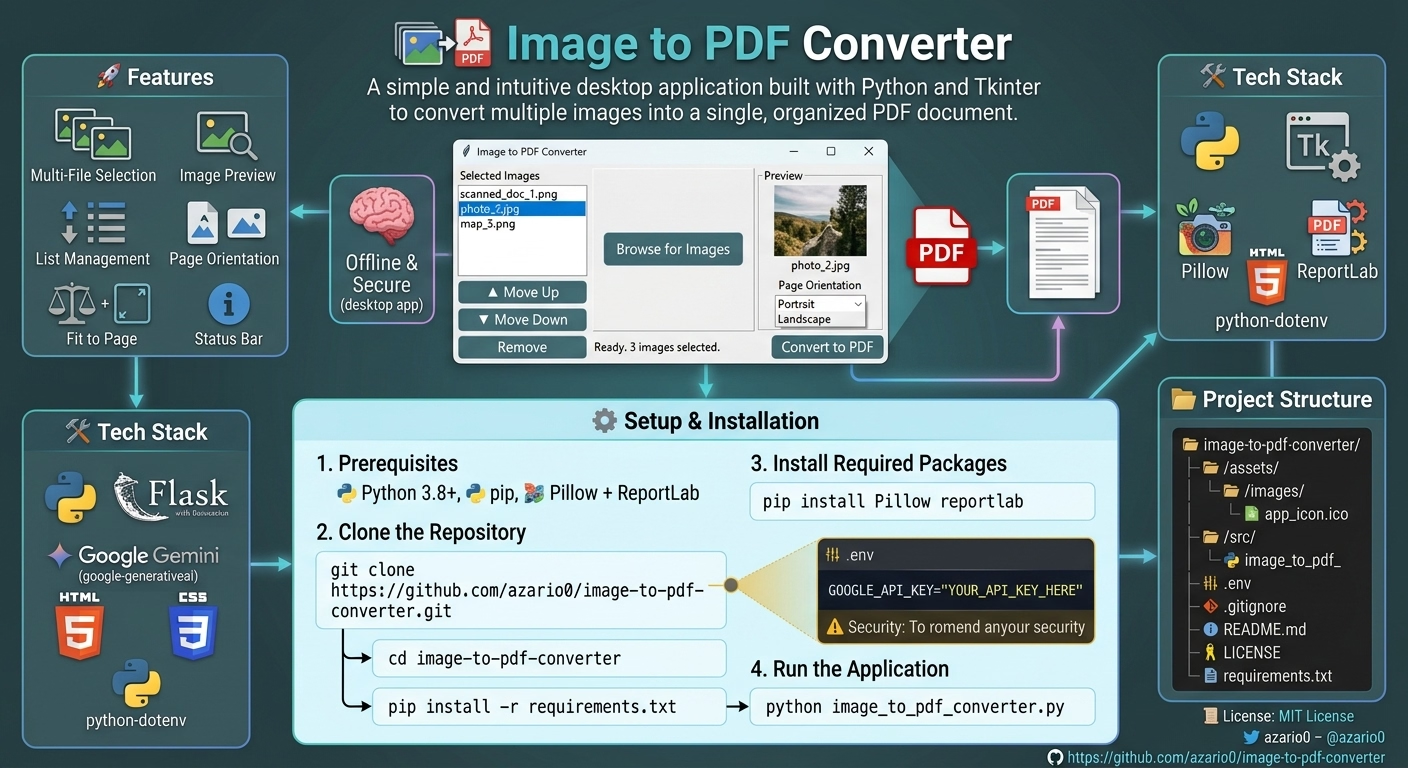
Building a Desktop Image-to-PDF Converter with Python, Tkinter, Pillow, and ReportLab
Turning a stack of scattered images into one clean PDF sounds trivial until you actually build the tool: you need a GUI, file handling, image previewing, reordering logic, and correct PDF page math — all without leaning on a single web service. azario0/image-to-pdf-converter is a compact, single-file Python project that does exactly this, and it’s a great case study in composing three very different libraries into one coherent desktop app.
This article walks through the entire codebase — architecture, libraries, and the trickier bits of the math — as if reviewing it line by line.
Note: I pulled this analysis directly from the source in the linked repository. If you want to verify any detail, the file in question is
app.py.
The Stack
The project rests on three libraries, each doing one job:
| Library | Role |
|---|---|
tkinter | GUI: windows, widgets, layout, events |
Pillow (PIL) | Loading images, generating the live preview canvas |
ReportLab | Drawing images onto actual PDF pages |
There’s no async, no threading, no external services — it’s a single-class, single-file Tkinter application (ImageToPdfConverter, a subclass of tk.Tk), which keeps the whole thing readable in one sitting.
Architecture: One Class, Three Responsibilities
The app is structured around a single tk.Tk subclass whose __init__ builds the entire UI, and whose methods act as event handlers wired up via command= and .bind(). Broadly, the class handles three concerns:
- State —
self.image_paths(an ordered list of file paths) andself.preview_image(a reference held to prevent Tkinter’s PhotoImage from being garbage-collected — a classic Tkinter gotcha). - UI construction — a two-column grid: a listbox + reorder controls on the left, a live preview pane on the right, plus a top toolbar and a status bar.
- Business logic — browsing, reordering, previewing, and the actual PDF export.
Layout via grid + pack
The app mixes Tkinter’s two main geometry managers: .grid() for the outer frame structure (rows/columns for the toolbar, list panel, and preview panel) and .pack() inside each sub-frame for simpler linear stacking of widgets like buttons. This is a common, pragmatic pattern — grid for the skeleton, pack for the details — rather than committing to one manager everywhere.
main_frame.grid_rowconfigure(1, weight=1)
main_frame.grid_columnconfigure(0, weight=1, minsize=200)
main_frame.grid_columnconfigure(1, weight=3)
The weight values give the preview pane roughly 3x the space of the list pane when the window resizes, and minsize=200 keeps the list panel from collapsing too far.
Managing the Image List
browse_images() opens a native multi-select file dialog via filedialog.askopenfilenames, filtered to common image extensions, and appends new paths to self.image_paths — deduplicating with a simple if file not in self.image_paths check.
Reordering is handled without any drag-and-drop complexity — move_up() and move_down() just swap adjacent list elements:
self.image_paths[idx], self.image_paths[idx-1] = self.image_paths[idx-1], self.image_paths[idx]…then call update_image_listbox() to redraw the Listbox from self.image_paths, and re-select the moved item so keyboard/mouse focus doesn’t jump around. remove_image() follows the same “mutate the list, then redraw” pattern, with a small piece of UX polish: after deletion it selects whichever item now occupies the same index (or the last one, via min(idx, len - 1)), so the user doesn’t lose their place.
This “single source of truth list + full redraw” approach trades a bit of efficiency for a lot of simplicity — there’s no diffing or partial updates, just deterministic re-renders from self.image_paths.
The Live Preview: Simulating a PDF Page in Pillow
The most interesting method in the file is create_page_preview(). Its job is to show the user, before they commit to exporting, roughly how their image will be placed on an actual A4 PDF page — accounting for orientation and aspect-ratio-preserving scaling.
It does this entirely in Pillow, without touching ReportLab:
- Pick A4 dimensions in millimeters (
210×297portrait or297×210landscape) purely to compute an aspect ratio — not for pixel-accurate rendering. - Build a small on-screen canvas (
Image.new('RGB', ..., 'white')) whose pixel dimensions match that aspect ratio, capped atcanvas_size = 400. - Draw a light border with
ImageDrawso the page edges are visible. - Compare the image’s aspect ratio to the page’s aspect ratio to decide whether to fit-to-width or fit-to-height, scaling to 90% of the page (a fixed margin).
- Center the resized image on the canvas and paste it in.
if img_aspect > page_canvas_aspect:
    draw_width = int(canvas_width * margin_factor)
    draw_height = int(draw_width / img_aspect)
else:
    draw_height = int(canvas_height * margin_factor)
    draw_width = int(draw_height * img_aspect)
This is the classic “contain” scaling algorithm — the same logic you’d write for object-fit: contain in CSS, just done manually with aspect-ratio comparisons.
What makes this section notable is that this exact scaling math is duplicated in convert_to_pdf() for the real PDF output. The preview isn’t a wrapper around the PDF renderer — it’s an independent Pillow-based reimplementation of the same geometry, kept in sync by hand. That’s a reasonable trade-off for a small project (ReportLab has no easy “render to a raster preview” API), but it’s also a maintenance risk: if you tweak the margin or scaling logic in one method, you have to remember to mirror it in the other.
show_preview() ties this together: it reads the selected listbox index, opens the image via Image.open(), generates the page-preview canvas, thumbnails it to fit the actual widget size using Image.Resampling.LANCZOS, wraps it in ImageTk.PhotoImage (the Pillow-to-Tkinter bridge class), and assigns it to the preview Label. The self.preview_image = ... assignment right before displaying it is essential — without keeping a Python reference, Tkinter’s PhotoImage gets garbage collected and the label goes blank, a well-known trap for anyone new to Tkinter + Pillow.
PDF Generation: ReportLab’s Canvas API
convert_to_pdf() is where ReportLab does the real work. The core object is reportlab.pdfgen.canvas.Canvas, which is a low-level, imperative drawing API — you tell it exactly where to place things in PDF-space (points, with the origin at the bottom-left), rather than working with a layout engine.
page_size = A4
if self.orientation_var.get() == "Landscape":
    page_size = landscape(A4)

c = canvas.Canvas(output_path, pagesize=page_size)
reportlab.lib.pagesizes.landscape() is a small helper that just swaps width and height for you — a nice example of the library keeping common transforms one function call away.
For each image, the app uses ImageReader (a ReportLab utility that wraps Pillow under the hood) to read the image’s pixel dimensions without fully decoding/drawing it yet, then runs the same fit-to-page aspect-ratio math shown above — this time in PDF points rather than preview pixels — before calling:
c.drawImage(image_path, x_pos, y_pos, width=draw_width, height=draw_height, preserveAspectRatio=True)
c.showPage()
drawImage places the image at the computed position/size, and preserveAspectRatio=True is a safety net on top of the manual math. c.showPage() finalizes the current page and starts a fresh one — this is what turns N images into N separate PDF pages rather than one page with overlapping images.
Each image is wrapped in its own try/except so a single corrupt or unreadable file doesn’t abort the entire batch — the loop just logs the error to the console and continues to the next image. Once every image is processed, c.save() writes the file to disk.
UX Details Worth Noting
A few small choices elevate this from a bare script to something pleasant to use:
- Status bar feedback (
update_status()) is called at nearly every step — file count, “Converting…”, per-image progress, and errors (rendered in red viaforeground="red") — so the user is never left wondering if the app has hung. self.update()calls inside the conversion loop force Tkinter to repaint the status bar mid-loop. This matters because Tkinter is single-threaded: without manually pumping the event loop, the UI would freeze and the status text wouldn’t visibly update until the whole conversion finished.- Orientation changes trigger a live re-preview (
on_orientation_change→show_preview()), so switching Portrait/Landscape instantly shows how the currently selected image would be affected — good, fast feedback loop for a design decision the user might otherwise only see after export.
What You Could Add From Here
The codebase is intentionally minimal, which makes it a good extension exercise:
- Threading the export. Right now conversion runs on the main thread with manual
self.update()calls — athreading.Thread(with UI updates dispatched back via.after()) would keep the app responsive on large batches. - Unifying the scaling logic. Since the preview and export duplicate the same fit-to-page math, factoring it into one shared function (parameterized by unit — pixels vs. points) would remove the risk of the two drifting apart.
- Configurable page size and margins. A4 and the 90% margin are hardcoded; exposing these as UI options (or even just constants at the top of the file) would make the tool more flexible.
- Drag-and-drop reordering, as an alternative/complement to the Up/Down buttons.
Source
- Repository: github.com/azario0/image-to-pdf-converter
- Main file:
app.py - License: MIT

Written by
Benmalek Zohir
Founder, AI Engineer & Full Stack Developer
Benmalek Zohir is an AI Engineer, Full Stack Developer, and technology enthusiast focused on artificial intelligence, software development, and emerging technologies. He is the founder of SoftwareJournal.blog, where he shares practical insights, software discoveries, AI tools, and the latest developments in technology.