Deep Dive into AutoScreenCapture: Building an Automated Screenshot App in Python
Explore how AutoScreenCapture utilizes Python, Tkinter, PyAutoGUI, and Pillow to create a responsive, automated desktop screen-capturing application.
Deep Dive into AutoScreenCapture: Building an Automated Screenshot App in Python
Whether you are monitoring automated testing, creating a time-lapse of your design process, or just keeping track of your screen activity, an automated screenshot utility is an incredibly handy tool. In this article, we are going to explore AutoScreenCapture, an open-source Python project by GitHub user azario0.
We will break down exactly how this application works under the hood, exploring the programming language, the libraries used, and the methods that make the code tick.
The Tech Stack: Language and Libraries
At its core, AutoScreenCapture is built entirely using Python (specifically Python 3.x). The beauty of this project lies in its smart combination of standard Python libraries and powerful third-party modules to handle graphics, automation, and user interface.
Here is a breakdown of the specific dependencies driving the application:
- Tkinter & TTK (Standard Library): Tkinter is Python’s de facto standard GUI (Graphical User Interface) package. The application uses Tkinter alongside the
ttkmodule to create a modern, clean, and intuitive windowed interface. - PyAutoGUI: This is a cross-platform GUI automation Python module. In this project, PyAutoGUI is responsible for the heavy lifting of actually snapping the screenshot of your desktop.
- Pillow (PIL): Pillow is the friendly Python Imaging Library fork. It is utilized here to handle the images in memory, process them, and generate resized thumbnails for the live preview feature.
- Threading (Standard Library): To prevent the application from crashing or freezing during automation loops, the
threadingmodule is used for concurrent execution.
How It Works: Methods and Architecture
The source code relies on several fundamental programming methods to create a seamless user experience. Here is an explanation of the core mechanics working together behind the scenes.
1. The Graphical User Interface (GUI)
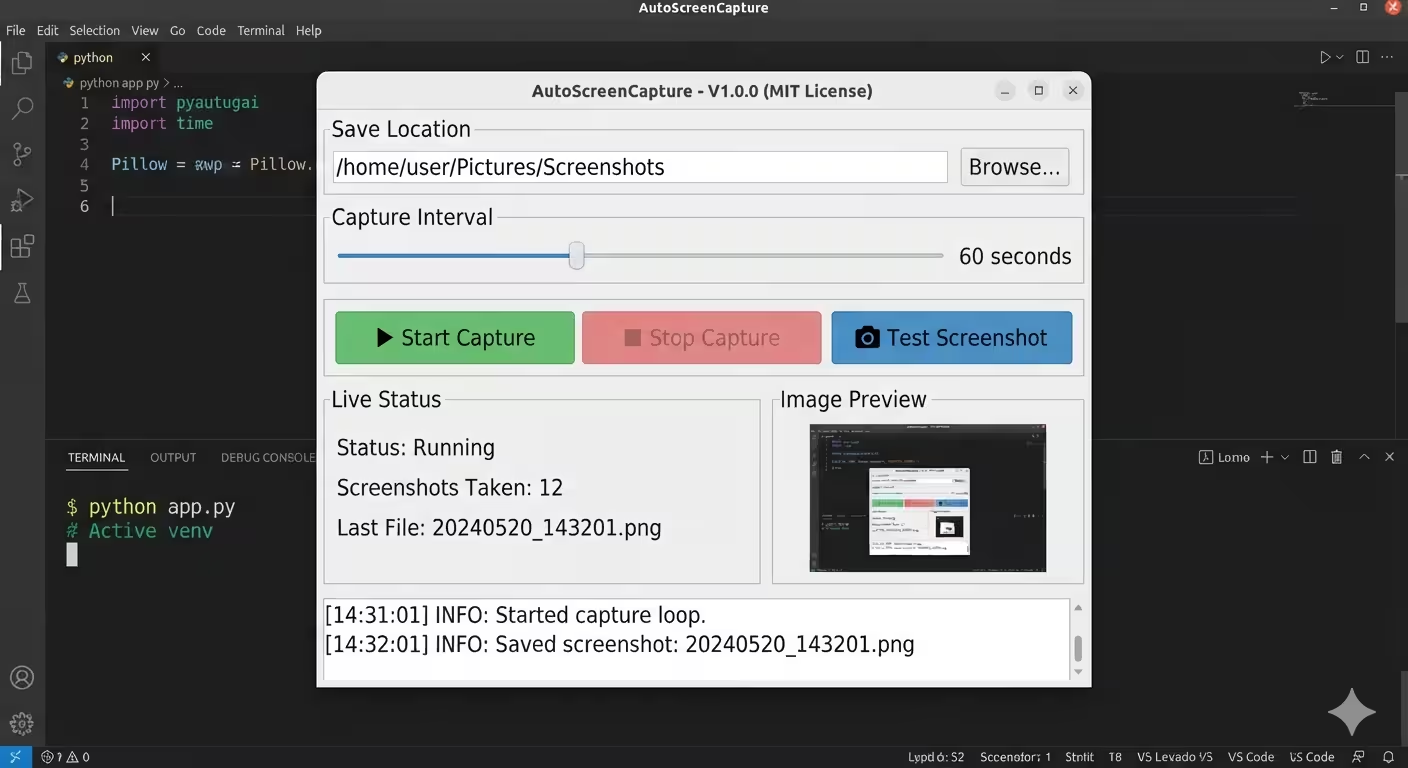
When you launch the app, a Tkinter Tk() instance constructs the main application window. The developer uses modern ttk widgets to map out the interface, grouping functionalities logically:
- Directory Selection: A browse method opens a standard file dialog allowing users to dictate exactly where screenshots will be saved. By default, it sets the path to the user’s desktop.
- Interval Slider: A slider widget calculates the time interval (ranging from 5 to 300 seconds) dictating how often the app will take a screenshot.
2. Capturing and Saving Data
The primary method of this application is triggered when the user starts the capture loop or presses the “Test Screenshot” button. The application invokes pyautogui.screenshot(), which immediately captures the pixel data of the active screen.
To ensure files don’t overwrite each other, the program dynamically generates a filename using Python’s datetime functions. Every image is saved safely into the user-selected folder with a YYYYMMDD_HHMMSS timestamp, guaranteeing chronological and organized file storage.
3. Concurrency via Multithreading
If you have ever built a basic Tkinter application, you know that running an infinite while True loop inside the main application thread will completely freeze the UI.
To solve this, AutoScreenCapture utilizes multithreading. When the user clicks “Start Capture,” the capture loop doesn’t run on the main thread. Instead, a method initiates a new threading.Thread.
- The Main Thread keeps the Tkinter GUI responsive so you can move the window, see live status updates, or click the “Stop” button.
- The Worker Thread silently handles the countdown interval and triggers the PyAutoGUI screenshot command repeatedly without disrupting the user interface.
4. Dynamic Image Rendering and Live Preview
A standout feature of this app is the live image preview. Taking a massive 1080p or 4K screenshot and displaying it directly inside a small GUI window would normally warp the window size.
Here, the application intercepts the screenshot using the Pillow library. The method takes the raw image file, resizes it down to a manageable thumbnail dimensions (maintaining the aspect ratio), and converts it into an ImageTk.PhotoImage object. This object is then pushed to a Tkinter Canvas or Label widget, giving the user instant visual feedback on their last capture.
Conclusion
The AutoScreenCapture repository is an excellent case study on how to weave different Python libraries together to build a lightweight, highly functional desktop application. By elegantly combining PyAutoGUI for OS-level interactions, Pillow for image processing, and Threading for non-blocking UI updates, it serves as a brilliant template for Python developers looking to automate desktop tasks.
Want to check out the code or contribute to the project? Head over to the AutoScreenCapture GitHub Repository.

Written by
Benmalek Zohir
Founder, AI Engineer & Full Stack Developer
Benmalek Zohir is an AI Engineer, Full Stack Developer, and technology enthusiast focused on artificial intelligence, software development, and emerging technologies. He is the founder of SoftwareJournal.blog, where he shares practical insights, software discoveries, AI tools, and the latest developments in technology.