Inside Advanced Screen Recorder: Building a Desktop Screen Capture App with Python, Tkinter, and OpenCV
A code walkthrough of azario0's Advanced Screen Recorder — a Python/Tkinter desktop app that lets you visually select a screen region and record it to MP4/AVI/MOV with OpenCV, threading, and pyautogui.
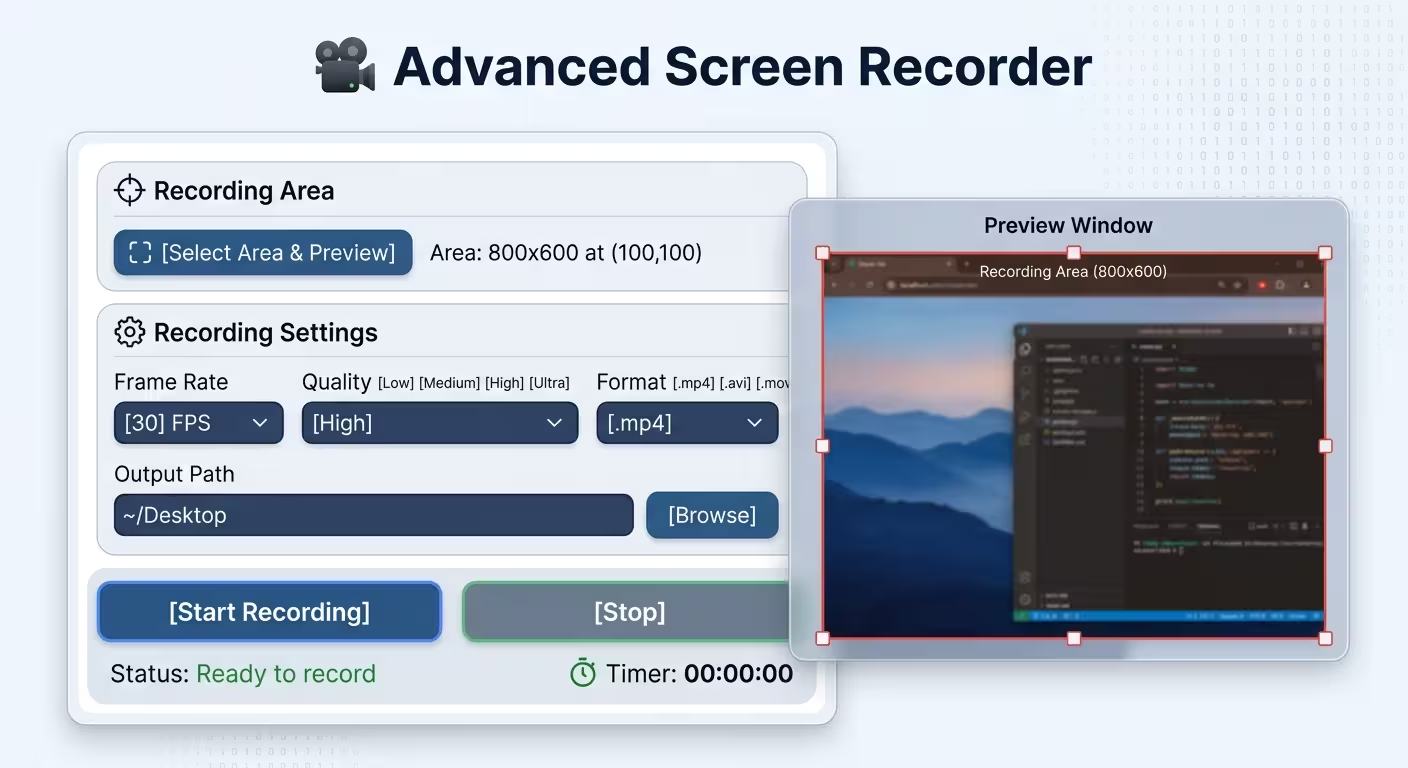
Inside Advanced Screen Recorder: Building a Desktop Screen Capture App with Python, Tkinter, and OpenCV
Screen recorders look simple from the outside: pick an area, hit record, get a video file. Underneath, though, they touch a surprisingly wide slice of the stack — GUI event loops, image buffers, video codecs, and multithreading, all of which have to cooperate without freezing the interface. advanced-screen-recorder by azario0 is a compact, single-file Python project that does exactly this, and it’s a good specimen to dissect because every layer of the problem is visible in about 400 lines of code.
This article walks through the source (app.py) and explains what it’s doing, which libraries it leans on, and how the pieces fit together.
What the project is
At a high level, this is a desktop GUI application that:
- Shows a control panel window (frame rate, quality, format, output path).
- Lets you drag/resize a semi-transparent overlay window to define a rectangular screen region.
- Optionally live-previews that region inside the overlay before recording.
- Captures the chosen region frame-by-frame with
pyautogui.screenshot(), converts each frame with OpenCV, and writes it to a video file withcv2.VideoWriter. - Runs the capture loop on a background thread so the Tkinter UI stays responsive, complete with a live recording timer.
There’s no separate build system, packaging, or test suite — it’s meant to be cloned and run directly, per the README.
The stack
| Concern | Library | Why it’s used |
|---|---|---|
| GUI / windowing | tkinter, tkinter.ttk | Ships with Python, cross-platform, no extra install needed for the widgets |
| Screen capture | pyautogui | Simple screenshot(region=...) API that grabs a region of the screen as a PIL.Image |
| Video encoding | opencv-python (cv2) | cv2.VideoWriter handles encoding frames into MP4/AVI/MOV with a chosen codec (fourcc) |
| Array/image math | numpy | Converts the PIL screenshot into a NumPy array that OpenCV can consume |
| Image handling for the preview | Pillow (PIL.Image, PIL.ImageTk) | Resizes screenshots to fit the preview canvas and converts them into a Tk-displayable photo image |
| Concurrency | threading | Runs the preview loop and the record loop off the main GUI thread |
| Misc | os, datetime, time | File paths, timestamped filenames, frame timing |
All of this is declared right at the top of app.py:
import tkinter as tk
from tkinter import ttk, filedialog, messagebox
import cv2
import numpy as np
import threading
import time
from PIL import Image, ImageTk
import pyautogui
import os
from datetime import datetime
Nothing exotic — every dependency is either in the standard library or a well-known package, which is part of why the project is easy to read end to end.
Architecture: one class holding the state machine
The whole app is built around a single class, ScreenRecorder, instantiated once in __main__. Rather than scattering state across global variables, __init__ centralizes everything the app needs to track:
self.is_recording = False
self.is_previewing = False
self.video_writer = None
self.preview_thread = None
self.record_thread = None
self.preview_window = None

self.fps = tk.IntVar(value=30)
self.quality = tk.StringVar(value="High")
self.output_format = tk.StringVar(value=".mp4")
self.output_path = tk.StringVar(value=os.path.expanduser("~/Desktop"))

self.start_x = 100
self.start_y = 100
self.width = 800
self.height = 600
Two things stand out here for anyone coming from other GUI toolkits:
tk.IntVar/tk.StringVarare Tkinter’s data-binding primitives. Widgets like the FPS slider or the quality dropdown are wired directly to these variables (variable=self.fps,textvariable=self.quality), so reading a widget’s current value later is justself.fps.get()— no manual event wiring needed to keep UI and state in sync.- Booleans as thread control flags (
is_recording,is_previewing) are the entire synchronization mechanism. There’s nothreading.Eventor lock; the background loops just poll these flags each iteration and exit when they flip toFalse. It’s simple and works fine here because only one thread ever writes to each flag, but it’s worth knowing this is a lightweight pattern, not a general-purpose concurrency primitive.
setup_ui(): building the control panel
setup_ui() constructs the main window using ttk (themed Tk widgets) and Tkinter’s grid geometry manager. It’s a good example of grid-based layout in practice:
- A
ttk.LabelFramegroups the “Recording Area” controls (the button that opens the region-picker, and a label showing the currentwidth x height at (x, y)). - Another
LabelFramegroups “Recording Settings”: anttk.Scale(slider) bound toself.fpsfor 10–60 FPS,ttk.Comboboxdropdowns for quality (Low/Medium/High/Ultra) and format (.mp4/.avi/.mov), and a folder browser tied tofiledialog.askdirectory. - Buttons for “Start Recording” / “Stop Recording” call back into
toggle_recording()andstop_recording(). columnconfigure(..., weight=1)calls at the end make specific columns stretch when the window resizes, which is how the layout stays responsive instead of clipping.
Nothing here does the actual capture work — this method’s only job is wiring UI elements to the state defined in __init__ and to the methods described next.
Selecting the recording area: the overlay-window trick
This is the project’s most interesting UI idea. Instead of drawing a custom selection rectangle over the desktop (which typically requires OS-specific screen-grab APIs), it repurposes an ordinary Tkinter window as the selection tool:
self.preview_window = tk.Toplevel(self.root)
self.preview_window.geometry(f"{self.width}x{self.height+50}+{self.start_x}+{self.start_y}")
self.preview_window.attributes('-alpha', 0.7)
self.preview_window.configure(bg='red')tk.Toplevelcreates a second, independent top-level window.attributes('-alpha', 0.7)makes it semi-transparent, so you can see what’s underneath while positioning it.- Because it’s a real OS window, the user can drag and resize it using normal window-manager controls — no custom hit-testing code required.
- A
<Configure>event binding (self.preview_window.bind('<Configure>', self.on_preview_resize)) fires whenever the window moves or resizes, andon_preview_resize()reads the window’s new geometry back out (winfo_width(),winfo_x(), etc.) to updateself.width,self.height,self.start_x,self.start_y— which are the exact coordinates later passed topyautogui.screenshot(region=...).
It’s a clever reuse of window-manager behavior to avoid writing manual drag/resize/hit-testing logic.
Live preview loop
Clicking “Start Preview” spins up a background thread running preview_loop():
def preview_loop(self):
    while self.is_previewing and self.preview_window and self.preview_window.winfo_exists():
        screenshot = pyautogui.screenshot(region=(self.start_x, self.start_y, self.width, self.height))
        ...
        screenshot = screenshot.resize((canvas_width, canvas_height), Image.LANCZOS)
        photo = ImageTk.PhotoImage(screenshot)
        self.preview_canvas.delete("all")
        self.preview_canvas.create_image(canvas_width//2, canvas_height//2, image=photo, anchor=tk.CENTER)
        self.preview_canvas.image = photo  # Keep a reference
        time.sleep(1/30)
A few implementation details worth calling out:
self.preview_canvas.image = photois a well-known Tkinter gotcha:PhotoImageobjects get garbage-collected if nothing in Python holds a reference to them, even though the canvas is displaying them. Stashing it as an attribute keeps it alive.- The preview is capped at roughly 30 FPS via
time.sleep(1/30), independent of the FPS setting used for actual recording — it’s just for visual feedback while positioning the overlay. Image.LANCZOSis a high-quality resampling filter used to fit the captured region into the (usually smaller) preview canvas.
Note that this method takes a screenshot of the region including the overlay window itself sitting on top of it, since the overlay is a real window on the desktop — a subtlety worth knowing if you build on this code.
The actual recording pipeline
This is the core of the app, and it’s a textbook producer loop for screen capture:
def record_loop(self):
    frame_duration = 1.0 / self.fps.get()
    while self.is_recording:
        frame_start = time.time()
        screenshot = pyautogui.screenshot(region=(self.start_x, self.start_y, self.width, self.height))
        frame = cv2.cvtColor(np.array(screenshot), cv2.COLOR_RGB2BGR)
        if self.video_writer:
            self.video_writer.write(frame)
        elapsed = time.time() - frame_start
        sleep_time = max(0, frame_duration - elapsed)
        if sleep_time > 0:
            time.sleep(sleep_time)
Step by step:
pyautogui.screenshot(region=...)grabs the selected region as aPIL.Imagein RGB order.np.array(screenshot)converts it into a NumPy array — this is the “bridge” between PIL’s image representation and OpenCV’s, since OpenCV operates on NumPy arrays.cv2.cvtColor(..., cv2.COLOR_RGB2BGR)swaps channel order. This matters because PIL/most image libraries use RGB, but OpenCV internally expects BGR — skipping this step is a classic bug that makes recordings look color-inverted.self.video_writer.write(frame)hands the frame to OpenCV’s video writer, which encodes it into the output file incrementally, frame by frame, rather than buffering the whole recording in memory.- Frame-rate pacing: rather than sleeping a fixed amount, it measures how long the capture+encode actually took (
elapsed) and only sleeps the remainder of the target frame interval (frame_duration - elapsed). This keeps the effective frame rate close to the target even though capturing and encoding aren’t instantaneous — a small but important correctness detail. If a frame takes longer than the budget,max(0, ...)prevents a negative sleep.
Setting up the writer and choosing a codec
start_recording() prepares everything before the loop starts:
timestamp = datetime.now().strftime("%Y%m%d_%H%M%S")
filename = f"screen_recording_{timestamp}{self.output_format.get()}"
self.output_file = os.path.join(self.output_path.get(), filename)

quality_factor, fourcc = self.get_codec_and_quality()

self.video_writer = cv2.VideoWriter(
    self.output_file, fourcc, self.fps.get(), (self.width, self.height)
)- Filenames are auto-timestamped (
screen_recording_20260826_143012.mp4), so recordings never collide or overwrite each other. get_codec_and_quality()maps the quality dropdown and format dropdown to a fourcc — a 4-character code (likemp4vorXVID) that tells OpenCV/FFmpeg’s underlying codec which compression algorithm to use. This is where “Quality” and “Format” settings actually translate into encoder behavior. Worth noting: the returned “quality_factor” values (15/20/25/30) are computed but not currently passed into theVideoWritercall — the codec choice is what really drives output differences today, so quality is mostly determined by format/codec rather than a tunable bitrate.- If
video_writer.isOpened()returnsFalse(e.g., an unsupported codec on the current OS), it raises an exception that’s caught and shown viamessagebox.showerror.
Once initialized, start_recording() launches record_loop() on a daemon thread and calls update_timer(), which recursively reschedules itself with self.root.after(1000, self.update_timer) — Tkinter’s idiomatic way to run periodic UI updates without blocking the event loop or needing a separate thread for something UI-bound.
Stopping cleanly
stop_recording() flips is_recording to False, joins the recording thread with a timeout (self.record_thread.join(timeout=2)) so the app doesn’t hang waiting forever, then calls self.video_writer.release() to flush and finalize the video file — an essential step, since video containers typically need proper finalization to be playable.
Why threading matters here
Tkinter’s mainloop() runs on the main thread and is single-threaded by design: any long-running operation performed directly inside a button callback would freeze the whole UI (no repainting, no responding to clicks) until it finishes. Screen capture and video encoding are exactly this kind of blocking work if done frame-by-frame in a loop.
The project sidesteps this by running preview_loop() and record_loop() as daemon threads (daemon=True), which:
- Let the UI remain interactive (drag the overlay, change settings, click Stop) while capture is happening.
- Automatically get killed when the main program exits, so they don’t prevent the app from closing.
The trade-off is that the background threads never touch Tkinter widgets directly except through the after()-scheduled update_timer, which is the safer pattern — mutating Tk widgets from a non-main thread is generally unsafe in Tkinter.
Shutdown handling
on_closing() is bound to the window’s close event (WM_DELETE_WINDOW protocol) and makes sure recording and preview loops are stopped, and any writer resources released, before the root window is destroyed — avoiding orphaned threads or unflushed video files if the user just closes the window mid-recording.
An unused piece: PreviewWindow
The file also defines a small PreviewWindow class that creates its own semi-transparent overlay with an instructional label. It’s never instantiated anywhere in __main__ or ScreenRecorder — functionally, ScreenRecorder.open_preview_window() already does this job inline. It reads like an earlier iteration of the area-selection UI that was superseded but left in the file, which is a useful reminder when reading someone else’s codebase: not every class present is necessarily wired into the live code path.
Taking it further
The README’s roadmap lists natural next steps — audio capture, multi-monitor selection, hotkeys, pause/resume — and the current architecture makes several of them approachable:
- Pause/resume would mainly mean adding an
is_pausedflag thatrecord_loop()checks before capturing a frame, without touching the writer. - Hotkeys could hook in via a library like
keyboardorpynput, calling the sametoggle_recording()/stop_recording()methods already exposed. - Audio is the biggest structural change, since
cv2.VideoWriteronly handles video — audio would need a separate capture stream (e.g., viasounddeviceorpyaudio) muxed together with the video afterward, typically withffmpeg.
Wrapping up
What makes this repository a good learning example isn’t novelty — screen recorders are a well-trodden idea — it’s that the whole pipeline, from “user drags a window” to “bytes land in an MP4,” is visible in one readable file: Tkinter for windowing and event binding, PyAutoGUI for the raw pixel grab, NumPy/OpenCV for the color-space conversion and encoding, and plain threading with polled boolean flags to keep it all off the UI thread. If you want to understand how a desktop capture tool is put together without wading through a large codebase, app.py is a compact, complete tour of the problem.
Repository: github.com/azario0/advanced-screen-recorder License: MIT Author: azario0

Written by
Benmalek Zohir
Founder, AI Engineer & Full Stack Developer
Benmalek Zohir is an AI Engineer, Full Stack Developer, and technology enthusiast focused on artificial intelligence, software development, and emerging technologies. He is the founder of SoftwareJournal.blog, where he shares practical insights, software discoveries, AI tools, and the latest developments in technology.