Building a Desktop Web Browser with Python and PyQt5: A Complete Walkthrough of pyqt5-browser
A detailed technical walkthrough of the azario0/pyqt5-browser project, explaining how Python, PyQt5, Qt WebEngine, signals and slots, widgets, tabs, navigation history, and the application's event loop work together to create a lightweight desktop web browser.
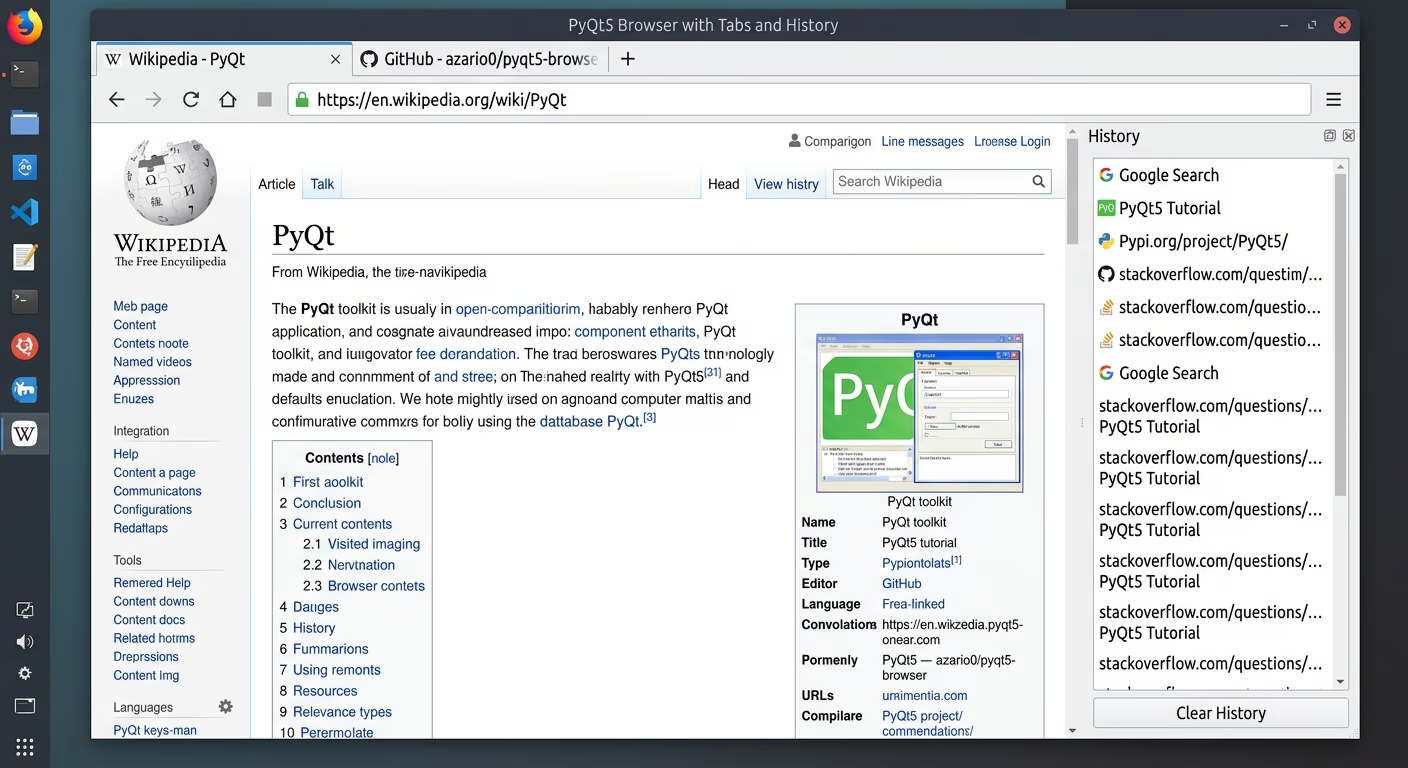
How pyqt5-browser Works: Building a Simple Browser with Python and PyQt5
pyqt5-browser is a small desktop web browser written in Python using PyQt5 and Qt WebEngine.
The project is interesting because it does not implement a web browser engine from scratch. Instead, it builds a graphical browser interface around QWebEngineView, while Python manages tabs, navigation, history, and user interaction.
Technologies Used
The project mainly uses:
- Python for application logic.
- PyQt5 for the graphical interface.
- Qt WebEngine for loading and rendering websites.
The main source file is app.py.
The architecture can be summarized as:
Python
   ↓
PyQt5 GUI
   ↓
QWebEngineView
   ↓
Web pages
The Main Classes
The application is divided into three important classes.
BrowserTab
BrowserTab represents an individual browser tab.
It contains:
- Back, forward, and refresh buttons
- An address bar
- A
QWebEngineView - Navigation history
The browser view is created with:
self.browser = QWebEngineView()A URL is then loaded using:
self.browser.setUrl(QUrl(url))Qt WebEngine handles the actual webpage rendering, JavaScript, networking, and HTML/CSS processing.
HistoryWidget
HistoryWidget provides the history sidebar.
It uses QListWidget to display visited URLs and defines a custom signal:
url_selected = pyqtSignal(str)When a user double-clicks a history item, the widget emits the URL so the main browser can open it.
Browser
Browser is the main application window.
It manages:
- Browser tabs
- The history sidebar
- New-tab creation
- Closing tabs
- Tab titles
- Navigation from history
The interface uses QSplitter to place the browser and history sidebar side by side.
How Tabs Work
New tabs are created with:
tab = BrowserTab(url)
index = self.tabs.addTab(tab, "New Tab")
The project uses QTabWidget, so every BrowserTab becomes a separate browser tab.
When a webpage title changes, the application updates the tab name. Long titles are shortened so they do not consume too much space.
How Navigation Works
The address bar is a QLineEdit:
self.address_bar = QLineEdit()Pressing Enter triggers:
self.address_bar.returnPressed.connect(self.navigate_to_url)navigate_to_url() reads the entered text, converts it to a QUrl, and sends it to QWebEngineView.
Back and forward navigation use a simple Python list:
self.history = []
self.history_index = -1
For example:
A → B → CThe index identifies the currently selected page. Pressing Back decreases the index, while Forward increases it.
Signals and Slots
A major PyQt5 concept demonstrated by this project is the signal-slot system.
For example:
self.back_btn.clicked.connect(self.go_back)The button emits a clicked signal, and go_back() runs in response.
The same idea is used for:
Address bar → navigate_to_url()
URL changes → update_address_bar()
Page loading → on_load_finished()
History selection → navigate_from_history()
This makes the program event-driven instead of continuously checking for user actions.
How History Works
There are effectively two history systems.
The BrowserTab stores history for Back and Forward navigation.
The HistoryWidget stores URLs displayed in the global history sidebar.
When a URL changes, the browser adds it to the sidebar:
tab.browser.urlChanged.connect(
    lambda url: self.history_widget.add_url(url.toString())
)
This connects webpage navigation to the application’s history interface.
Starting the Application
At the end of app.py, the program creates the Qt application:
app = QApplication(sys.argv)Then it creates and displays the browser:
window = Browser()
window.show()
Finally:
app.exec_()starts Qt’s event loop.
From that point, the application waits for events such as clicks, URL changes, tab changes, and page loads.
How Everything Fits Together
A typical navigation flow looks like:
User enters URL
      ↓
QLineEdit
      ↓
navigate_to_url()
      ↓
QWebEngineView
      ↓
Web page loads
      ↓
urlChanged
      ↓
History + Address Bar updated
      ↓
titleChanged
      ↓
Tab title updated
Strengths and Limitations
The project is small and easy to understand, making it useful for learning Python GUI development and PyQt5.
However, it is still a basic browser. Features such as persistent bookmarks, downloads, private browsing, and advanced browser security are not implemented.
The important part is that the project demonstrates how an application can combine Python logic, PyQt5 widgets, Qt signals, and an existing web engine to create a functional desktop browser without implementing a browser engine from scratch.
Project Links

Written by
Benmalek Zohir
Founder, AI Engineer & Full Stack Developer
Benmalek Zohir is an AI Engineer, Full Stack Developer, and technology enthusiast focused on artificial intelligence, software development, and emerging technologies. He is the founder of SoftwareJournal.blog, where he shares practical insights, software discoveries, AI tools, and the latest developments in technology.