Dir-To-Txt Explained: How This Python Tkinter App Merges an Entire Folder Into One TXT File
Deep dive into Dir-To-Txt, a 52-line Python GUI tool by azario0. Learn how Python, Tkinter, os.walk, and pathlib work together to recursively scan folders and export all file contents into a single TXT file.dir-to-txt-python-tkinter-folder-to-text-explained
Dir-To-Txt Explained: How a 52-Line Python App Exports Your Entire Folder to a Single TXT File
Source Repository: azario0/Dir-To-Txt on GitHub Main File Analyzed: app.py (52 lines, 1.56 KB) | README.md | Raw Source
Have you ever needed to send an entire codebase to ChatGPT, share a project folder with a colleague, or create a backup snapshot of all text files? Dir-To-Txt is a minimal, open-source utility that does exactly that — select a folder, click export, and get every file merged into one organized .txt document.
In this article, we break down the entire codebase line-by-line.
1. Project Overview
Folder File Exporter is described in the README as:
A simple Python GUI application built with Tkinter that allows you to select a folder and export the contents of all files within that folder and its subdirectories into a single
.txtfile.
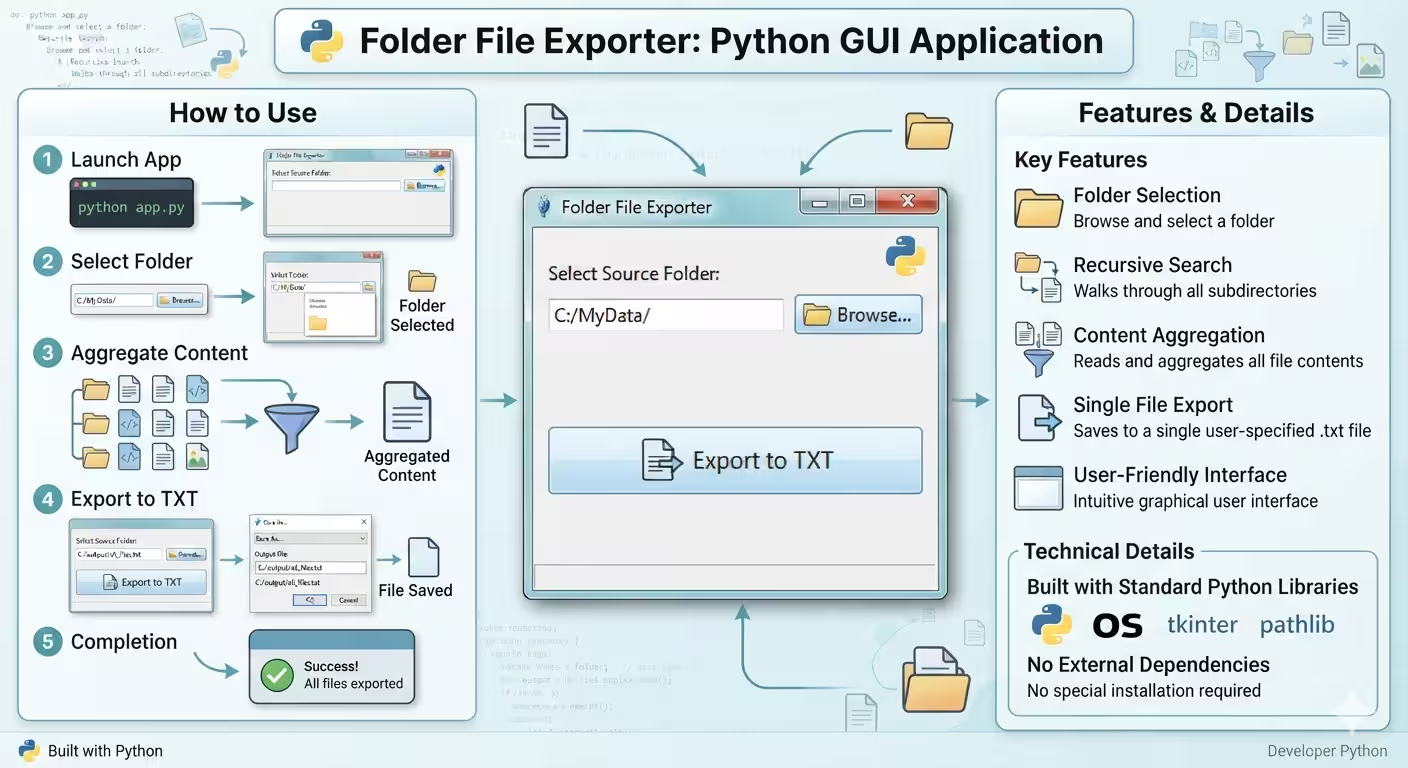
Key Features:
- Folder Selection via native system dialog
- Recursive File Search through all subdirectories
- Content Aggregation with file path headers
- Single File Export to a user-chosen
.txtlocation - User-Friendly Interface with zero setup
No pip install needed. It’s 100% Python Standard Library.
2. Language & Tech Stack Used
This project uses only one language: Python 3.
It relies on 3 standard libraries:
| Library | Purpose | Docs |
|---|---|---|
os | Recursive directory traversal with os.walk() | Core filesystem navigation |
tkinter | Cross-platform GUI framework. Includes filedialog and messagebox | Window, buttons, inputs, dialogs |
pathlib | Modern object-oriented paths with Path | Safe path joining Path(root) / file |
Why Tkinter? Because it’s bundled with Python. No dependencies like PyQt or Kivy needed, making it perfect for simple utilities.
3. Complete Code Breakdown
You can view the full source here: app.py - Raw
import os
import tkinter as tk
from tkinter import filedialog, messagebox
from pathlib import Path
3.1. Method 1: browse_folder() - The Folder Picker
def browse_folder():
    folder = filedialog.askdirectory()
    if folder:
        folder_path.set(folder)
How it works:
- Calls
filedialog.askdirectory()- opens the native OS folder chooser. - If user cancels, it returns an empty string.
- If a folder is selected, it updates the global
tk.StringVar()calledfolder_path, which is automatically reflected in theEntrywidget.
3.2. Method 2: save_all_documents() - The Core Engine
This is the heart of the app (lines 10-37):
def save_all_documents():
    folder = folder_path.get()
    if not folder:
        messagebox.showerror("Error", "Please select a folder first.")
        return

    output_file = filedialog.asksaveasfilename(
        defaultextension=".txt",
        filetypes=[("Text files", "*.txt")]
    )
    if not output_file:
        return

    with open(output_file, "w", encoding="utf-8") as out:
        for root, _, files in os.walk(folder):
            for file in files:
                file_path = Path(root) / file
                out.write(f"\n===== FILE: {file_path} =====\n")
                try:
                    with open(file_path, "r", encoding="utf-8", errors="ignore") as f:
                        content = f.read()
                        out.write(content + "\n")
                except Exception as e:
                    out.write(f"[Could not read file: {e}]\n")

    messagebox.showinfo("Done", f"All files saved to {output_file}")
Step-by-Step Flow:
a) Validation:
folder_path.get()checks if user actually picked a folder. If not,messagebox.showerror()alerts them.
b) Ask Where to Save:
asksaveasfilename()opens the “Save As” dialog.defaultextension=".txt"ensures the file is always a.txt.
c) The Recursive Walk:
os.walk(folder)is a generator that yields(root, dirs, files)for every directory. It’s recursive by default, soC:\Project\will also scanC:\Project\src\,C:\Project\src\utils\, etc.
d) Path Handling:
Path(root) / filefrompathlibsafely joins paths cross-platform (/works on Windows, Mac, and Linux).
e) Safe File Reading:
open(file_path, "r", encoding="utf-8", errors="ignore")reads as text.errors="ignore"skips unreadable characters (crucial for avoiding crashes on binary files).- The
try/exceptcatches permission errors or locked files and writes[Could not read file: ...]instead of crashing.
f) Structured Output: Each file is written with a clear header for readability/LLM parsing:
===== FILE: /home/user/project/app.py =====
[content here]

===== FILE: /home/user/project/README.md =====
[content here]
g) Completion:
messagebox.showinfo()confirms success.
3.3. The GUI - Event-Driven Architecture
# GUI
root = tk.Tk()
root.title("Folder File Exporter")
root.geometry("500x200")

folder_path = tk.StringVar()

tk.Label(root, text="Select a folder to scan:", font=("Arial", 12)).pack(pady=10)
tk.Entry(root, textvariable=folder_path, width=50).pack(pady=5)
tk.Button(root, text="Browse", command=browse_folder).pack(pady=5)
tk.Button(root, text="Export to TXT", command=save_all_documents).pack(pady=20)

root.mainloop()
How it works together:
tk.Tk()creates the main window.StringVaris a Tkinter variable that links the logic (browse_folder) to the UI (Entry). When one changes, the other updates automatically.- Widgets are stacked vertically with
.pack()geometry manager. command=browse_folderandcommand=save_all_documentsbind button clicks to functions (Callback pattern).root.mainloop()starts the infinite event loop that listens for clicks.
4. How It All Works Together: Execution Flow
User Runs `python app.py`
        ↓
Tkinter Window Opens [500x200] → User clicks [Browse]
        ↓
browse_folder() → filedialog.askdirectory() → folder_path.set(path) → Entry updates
        ↓
User clicks [Export to TXT]
        ↓
save_all_documents() → Validation → asksaveasfilename() → os.walk() Loop
        ↓
pathlib builds path → try: read file → write to output.txt with header
        ↓
messagebox "Done" → User opens merged file
It’s a classic Event-Driven GUI pattern: The UI sleeps until an event (button click) wakes a specific handler.
5. How to Run It
Since it uses only the standard library from Python.org:
# 1. Clone the repo
git clone https://github.com/azario0/Dir-To-Txt.git
cd Dir-To-Txt

# 2. Run (Python 3.6+ required)
python app.py
# On Linux/Mac you might need: python3 app.py
No pip install -r requirements.txt needed!
6. Strengths, Limits & What You Could Add Next
Strengths:
- Zero dependencies, <60 lines of code.
- Cross-platform (Tkinter works on Windows, macOS, Linux).
- Handles errors gracefully without crashing.
Current Limitations (Great for Forking):
- Tries to read all files (including
.jpg,.exe,.zip) as text - will produce gibberish for binaries. - No file filter (e.g., ignore
.git,node_modules,__pycache__). - UI freezes on huge folders because
os.walkruns on the main thread. A fix would be threading. - No progress bar for large exports.
Pro Upgrade Ideas:
- Add checkboxes to filter by extension
[.py, .js, .txt] - Add
ignore_errorsor encoding detection withchardet - Use
tkinter.ttk.Progressbar
7. Final Verdict
Dir-To-Txt is a perfect example of what makes Python powerful for automation: With just os, pathlib, and tkinter, you can build a useful, shippable desktop tool in under an hour.
Perfect for beginners studying GUI development and file I/O, and for developers who need a fast way to dump a codebase into a single prompt for LLMs like ChatGPT or Muse.
Fork it, star it, and improve it: github.com/azario0/Dir-To-Txt

Written by
Benmalek Zohir
Founder, AI Engineer & Full Stack Developer
Benmalek Zohir is an AI Engineer, Full Stack Developer, and technology enthusiast focused on artificial intelligence, software development, and emerging technologies. He is the founder of SoftwareJournal.blog, where he shares practical insights, software discoveries, AI tools, and the latest developments in technology.