Building a Python Image Watermark Tool with Tkinter and Pillow: A Deep Dive into the `watermarkapp` Project
A detailed technical walkthrough of the [`azario0/watermarkapp`](https://github.com/azario0/watermarkapp) project, explaining how its Python/Tkinter GUI works, how Pillow processes images, how watermark positioning, opacity, rotation, repetition, preview rendering, and image export are implemented, and how all of the components work together.
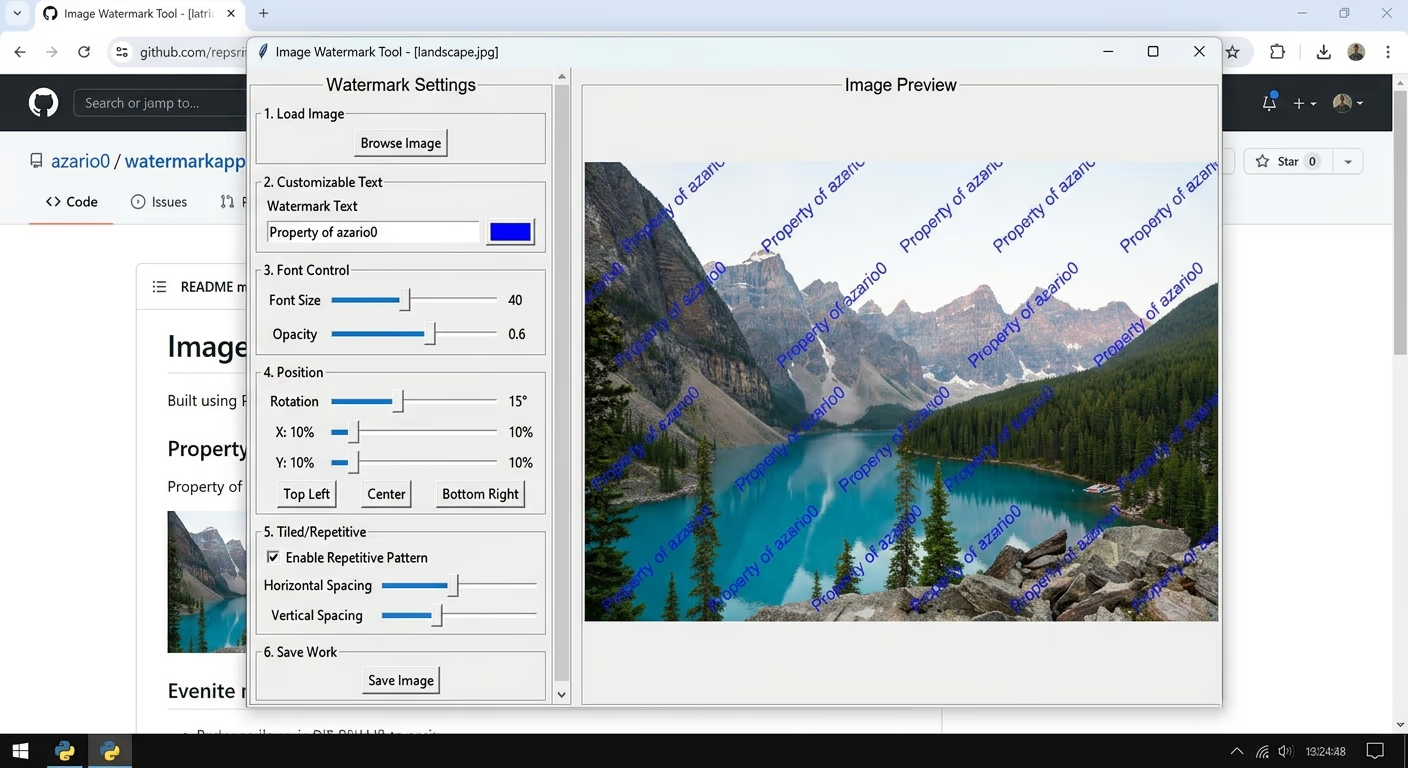
Building a Python Image Watermark Tool with Tkinter and Pillow
Adding a watermark to an image sounds like a very small programming task: open an image, draw some text on top of it, and save the result.
However, turning that basic operation into a usable desktop application introduces many interesting programming problems:
- How do you create a graphical interface?
- How do you let users choose an image?
- How do you control font size and opacity?
- How do you rotate text?
- How do you position the watermark accurately?
- How do you generate a repeated watermark pattern?
- How do you display a large image inside a smaller application window?
- How do you preserve transparency while compositing the watermark?
- How do you export the result as PNG or JPEG?
The watermarkapp repository is a compact example of solving these problems using Python, Tkinter, and Pillow.
The repository currently contains a README.md, an app.py, and a LICENSE. The application is distributed under the MIT License.
1. What This Project Does
The application is a desktop image watermarking tool.
The user loads an image, enters watermark text, adjusts the watermark’s appearance and position, previews the result, and saves the processed image.
The README describes support for common image formats, customizable watermark text, font size, opacity, color, rotation, percentage or pixel positioning, quick-position buttons, repetitive watermark patterns, live preview, and PNG/JPEG export.
The interesting part is that the project does not rely on a web browser or a server. Everything happens locally on the user’s computer.
Conceptually, the architecture looks like this:
User
  │
  ▼
Tkinter GUI
  │
  ├── Select image
  ├── Enter watermark text
  ├── Change font size
  ├── Change opacity
  ├── Change color
  ├── Change rotation
  ├── Change position
  └── Enable repetition
  │
  ▼
WatermarkApp state
  │
  ▼
Pillow image processing
  │
  ├── Load image
  ├── Create transparent overlay
  ├── Render watermark
  ├── Rotate if necessary
  ├── Repeat if enabled
  └── Alpha composite
  │
  ▼
Preview
  │
  ▼
Save PNG/JPEG
That separation between the GUI state and the image-processing operations is one of the most important ideas in the project.
2. The Main Language: Python
The entire application is written in Python.
The repository’s main source file is app.py, and it contains the application class, user-interface creation, image loading, watermark generation, preview rendering, saving, and program entry point.
Python is particularly suitable for this type of application because it provides:
- straightforward GUI programming through Tkinter
- easy filesystem interaction
- convenient exception handling
- object-oriented programming
- access to powerful image-processing libraries such as Pillow
The program uses a relatively small dependency stack:
import tkinter as tk
from tkinter import ttk, filedialog, messagebox, colorchooser
from PIL import Image, ImageTk, ImageDraw, ImageFont
import os
import io
The code can be examined directly in the repository’s app.py.
3. Understanding the Imports
The first part of the program is important because it tells us what technologies the application depends on.
Tkinter
import tkinter as tkTkinter is Python’s standard interface to the Tk GUI toolkit.
It provides the basic window and GUI functionality used by the application.
The program uses objects such as:
tk.Tk()
tk.Canvas()
tk.StringVar()
tk.IntVar()
tk.BooleanVar()
Tkinter is responsible for the actual desktop interface.
ttk
The program also imports:
from tkinter import ttkttk provides themed Tkinter widgets.
The application uses widgets such as:
ttk.Frame
ttk.Label
ttk.Button
ttk.Scale
ttk.Entry
ttk.Checkbutton
ttk.Radiobutton
ttk.LabelFrame
ttk.Scrollbar
This gives the application a more structured desktop UI than using only the base Tk widgets.
The GUI implementation can be seen throughout setup_ui().
4. File Dialogs, Message Boxes, and the Color Picker
The program imports:
from tkinter import filedialog, messagebox, colorchooserThese modules provide higher-level desktop interactions.
filedialog
The application uses:
filedialog.askopenfilename(...)to let the user choose an image.
It later uses:
filedialog.asksaveasfilename(...)to select where the processed image should be saved.
messagebox
The application uses message boxes for warnings, errors, and successful saves.
For example, if a user attempts to save before processing an image, the program displays a warning.
colorchooser
The color picker allows the user to select a watermark color visually instead of entering a hexadecimal color manually.
The choose_color() method handles this functionality.
5. Pillow: The Image-Processing Engine
The most important external dependency is Pillow.
The project imports:
from PIL import Image, ImageTk, ImageDraw, ImageFontPillow is the Python Imaging Library used to manipulate image files.
Each imported object has a different purpose.
Image
Used for loading, copying, creating, resizing, converting, and saving images.
For example:
Image.open(file_path)loads the selected image.
The watermark overlay is later created with:
Image.new('RGBA', img.size, (0, 0, 0, 0))ImageDraw
Provides drawing operations.
The application uses it to draw watermark text.
ImageFont
Used to load fonts and specify font sizes.
ImageTk
Connects Pillow images with Tkinter so that processed images can be displayed inside the GUI.
The preview ultimately uses:
ImageTk.PhotoImage(...)The complete image-processing pipeline is implemented in create_watermarked_image().
6. The WatermarkApp Class
The application is centered around one class:
class WatermarkApp:This is a classic object-oriented design.
Instead of keeping all application state in unrelated global variables, the program stores the state inside a WatermarkApp instance.
The constructor is:
def __init__(self, root):The root parameter is the main Tkinter window.
The application immediately configures it:
self.root = root
self.root.title("Image Watermark Tool")
self.root.geometry("1000x700")
self.root.configure(bg='#f0f0f0')
So the constructor performs two major tasks:
- initialize application state
- build the user interface
The constructor calls:
self.setup_ui()which creates the entire GUI.
7. Application State
Before constructing the GUI, the application initializes several important variables.
self.original_image = None
self.watermarked_image = None
self.preview_image = None
self.image_path = None
These represent different stages of the image-processing lifecycle.
original_image
This is the image loaded from disk.
It should remain unchanged while previews are generated.
watermarked_image
This stores the processed image created from the original.
preview_image
This is the version prepared specifically for display inside the Tkinter canvas.
This is an important distinction.
The application does not necessarily display the full-resolution image directly. Instead, it creates a scaled preview.
image_path
This stores the location of the source image on the filesystem.
8. Tkinter Variables
The application makes extensive use of Tkinter’s variable classes:
self.watermark_text = tk.StringVar(value="WATERMARK")
self.font_size = tk.IntVar(value=50)
self.opacity = tk.IntVar(value=128)
self.rotation = tk.IntVar(value=0)
self.position_x = tk.IntVar(value=50)
self.position_y = tk.IntVar(value=50)
self.position_mode = tk.StringVar(value="percentage")
self.repetitive = tk.BooleanVar(value=False)
self.repeat_spacing_x = tk.IntVar(value=200)
self.repeat_spacing_y = tk.IntVar(value=200)
This is more than a convenience.
Tkinter widgets can bind directly to these variables.
For example, an entry field can use:
textvariable=self.watermark_textand a slider can use:
variable=self.font_sizeThat creates a two-way relationship between the GUI and the application’s state.
When the user moves a slider, the variable changes.
When the variable changes, the application’s processing logic can read its current value.
9. Building the GUI
The setup_ui() method is responsible for constructing the entire interface.
The main container is:
main_frame = ttk.Frame(self.root, padding="10")The project uses Tkinter’s grid geometry manager for the overall structure:
main_frame.grid(...)The interface has two major sections:
┌─────────────────────────────────────────────────────────┐
│ Watermark Settings       │ Preview                     │
│                          │                             │
│ Image File               │                             │
│ Watermark Text           │                             │
│ Font Settings            │                             │
│ Position                 │     Image                   │
│ Repetitive Watermark     │     Preview                 │
│                          │                             │
│ Apply                    │                             │
│ Save                     │                             │
│ Reset                    │                             │
└─────────────────────────────────────────────────────────┘
The left section contains the controls.
The right section displays the image.
The source code creates these sections in setup_ui().
10. Creating a Scrollable Settings Panel
One of the more interesting GUI techniques in the project is the scrollable settings panel.
Tkinter does not automatically make arbitrary frames scrollable.
The application therefore creates a combination of:
- a
Canvas - a vertical
Scrollbar - an internal
Frame
The relevant structure is:
scroll_canvas = tk.Canvas(control_frame_container)
scrollbar = ttk.Scrollbar(
    control_frame_container,
    orient="vertical",
    command=scroll_canvas.yview
)
The two components are connected:
scroll_canvas.configure(yscrollcommand=scrollbar.set)The actual controls are placed inside another frame:
content_frame = ttk.Frame(scroll_canvas)
scroll_canvas.create_window(
    (0, 0),
    window=content_frame,
    anchor="nw"
)
Then the program watches for changes in the content frame’s dimensions:
def on_frame_configure(event):
    scroll_canvas.configure(
        scrollregion=scroll_canvas.bbox("all")
    )
This allows the scrollbar to know how much content exists.
It is a useful Tkinter pattern for building a settings panel that can contain more controls than fit vertically on the screen.
11. Selecting an Image
The browse_image() method handles image selection.
The application defines supported file types:
file_types = [
    ("Image files", "*.jpg *.jpeg *.png *.bmp *.tiff *.gif"),
    ("JPEG files", "*.jpg *.jpeg"),
    ("PNG files", "*.png"),
    ("All files", "*.*")
]
Then it opens a file selection dialog:
file_path = filedialog.askopenfilename(...)Once the user chooses a file, Pillow loads it:
self.original_image = Image.open(file_path)The application stores the path:
self.image_path = file_pathand updates the filename displayed in the GUI.
It also reports the source image’s dimensions:
self.original_image.size[0]
self.original_image.size[1]
Finally, it calls:
self.update_position_scales()
self.update_preview()
This immediately creates a preview after the image has been loaded.
12. Entering the Watermark Text
The watermark text is represented by:
self.watermark_textThe GUI creates an entry field:
text_entry = ttk.Entry(
    text_frame,
    textvariable=self.watermark_text
)
The program also listens for keyboard changes:
text_entry.bind(
    '<KeyRelease>',
    self.on_setting_change
)
That means typing a new watermark triggers the application’s settings update mechanism.
This contributes to the live-preview behavior.
13. Font Size
Font size uses an integer Tkinter variable:
self.font_size = tk.IntVar(value=50)and a slider:
ttk.Scale(
    font_frame,
    from_=10,
    to=200,
    variable=self.font_size,
    ...
)
This gives the user a font-size range of 10 to 200.
Later, Pillow uses this value when loading the font:
ImageFont.truetype("arial.ttf", self.font_size.get())So the flow is:
Slider
  ↓
self.font_size
  ↓
font_size.get()
  ↓
ImageFont.truetype(...)
  ↓
Rendered watermark
That is a good example of how the GUI layer feeds data into the image-processing layer.
14. Opacity
Opacity is represented as:
self.opacity = tk.IntVar(value=128)and controlled between:
0 → 255The important part here is understanding how Pillow represents alpha.
A value of:
0means fully transparent.
A value of:
255means fully opaque.
The default value:
128therefore produces a roughly half-transparent watermark.
The code eventually combines the RGB watermark color with this alpha value:
rgba_color = rgb_color + (self.opacity.get(),)So a color such as:
FFFFFFbecomes something conceptually similar to:
(255, 255, 255, 128)That RGBA value is then passed into Pillow’s drawing functions.
15. Choosing the Watermark Color
The default color is:
self.watermark_color = "#FFFFFF"which is white.
When the user presses the color button, choose_color() opens Tkinter’s color chooser:
color = colorchooser.askcolor(
    color=self.watermark_color
)[1]
If the user chooses a color, the application updates:
self.watermark_color = colorand also changes the button’s background color:
self.color_button.config(bg=color)Then it calls:
self.on_setting_change()which causes the preview to be regenerated.
16. Rotation
The application supports rotation between:
-180° and +180°The GUI defines:
ttk.Scale(
    font_frame,
    from_=-180,
    to=180,
    variable=self.rotation,
    ...
)
The actual rotation is implemented inside:
draw_single_watermark()The important detail is that Pillow does not rotate the text directly on the main image.
Instead, the program creates a temporary transparent image containing the text.
Then it rotates that temporary image.
17. Rendering the Watermark
The core of the application is:
create_watermarked_image()This function takes all of the current settings and generates a new image.
The first step is:
img = self.original_image.copy()This is important because the application does not want to permanently modify the original source image each time the user changes a slider.
Each preview starts from a fresh copy.
18. Why the Application Uses a Transparent Overlay
One of the most important design decisions is this:
overlay = Image.new(
    'RGBA',
    img.size,
    (0, 0, 0, 0)
)
This creates an image the same size as the source, but initially completely transparent.
The overlay has four channels:
R = Red
G = Green
B = Blue
A = Alpha
The alpha channel controls transparency.
Instead of drawing the watermark directly into the source image, the application draws the watermark onto this transparent layer.
Conceptually:
Original image
       +
Transparent watermark layer
       =
Final image
This makes transparency, rotation, and composition much easier to manage.
19. Drawing Context
The application creates a drawing object:
draw = ImageDraw.Draw(overlay)This gives Pillow drawing functionality associated with the overlay.
It can now perform operations such as:
draw.text(...)to render the watermark.
20. Loading the Font
The application uses a fallback strategy:
try:
    font = ImageFont.truetype(
        "arial.ttf",
        self.font_size.get()
    )
except:
    try:
        font = ImageFont.truetype(
            "DejaVuSans.ttf",
            self.font_size.get()
        )
    except:
        font = ImageFont.load_default()
This is an important portability technique.
The application first tries Arial.
If Arial is not available, it tries DejaVu Sans.
If that also fails, it falls back to Pillow’s default font.
This is useful because fonts are not guaranteed to exist at the same location on every operating system.
21. Measuring the Text Before Drawing
Before positioning the watermark, the program needs to know how large it is.
It uses:
bbox = draw.textbbox(
    (0, 0),
    text,
    font=font
)
This returns the bounding box of the text.
The width is calculated as:
text_width = bbox[2] - bbox[0]and the height as:
text_height = bbox[3] - bbox[1]This matters because the application does not position the watermark solely based on the image dimensions.
It needs to know the watermark’s dimensions too.
For example, placing something at 100% of the image width would be incorrect if the watermark itself extends beyond the right edge.
The project compensates for this when percentage-based positioning is used.
22. Converting a Hexadecimal Color to RGB
The color picker returns a hexadecimal color such as:
#FFFFFFThe code removes the #:
color = self.watermark_color.lstrip('#')Then it splits the hexadecimal string into three pairs:
color[i:i+2]using:
for i in (0, 2, 4)Each pair is converted from hexadecimal to an integer:
int(..., 16)The result is an RGB tuple:
(R, G, B)Then the program adds the opacity value:
rgba_color = rgb_color + (self.opacity.get(),)The final result is an RGBA color ready for Pillow.
23. Single Watermark Positioning
The application offers two modes:
Percentage
Pixels
This is represented by:
self.position_mode = tk.StringVar(
    value="percentage"
)
The GUI creates two radio buttons:
ttk.Radiobutton(
    ...,
    text="Percentage",
    value="percentage"
)

ttk.Radiobutton(
    ...,
    text="Pixels",
    value="pixels"
)
The processing logic then checks:
if self.position_mode.get() == "percentage":or otherwise treats the coordinates as pixel values.
24. Percentage-Based Positioning
Percentage mode uses:
x = int(
    (self.position_x.get() / 100)
    * (img.size[0] - text_width)
)

y = int(
    (self.position_y.get() / 100)
    * (img.size[1] - text_height)
)
This is a clever detail.
Instead of calculating:
x = percentage * image_widththe program calculates the position relative to:
image width - watermark widthand similarly:
image height - watermark heightThat makes the percentage describe where the whole watermark should fit rather than where its top-left point should be relative to the entire raw image.
For example:
0%  → left/top
50% → roughly center
100% → right/bottom
The adjustment for watermark dimensions helps prevent the text from simply running outside the image.
25. Pixel-Based Positioning
Pixel mode is simpler:
x = self.position_x.get()
y = self.position_y.get()
Here, the coordinates are interpreted as actual image pixels.
So:
x = 100
y = 50
means approximately:
100 pixels from the left
50 pixels from the top
However, there is an implementation detail worth noticing.
The GUI’s X/Y sliders are initially configured with a 0–100 range, and update_scales_recursive() currently contains only a pass. The code comments indicate that the intention was to dynamically change these controls to match the image dimensions when pixel mode is active, but that part has not been implemented yet.
Therefore, the processing code supports pixel coordinates, but the GUI does not fully expose an image-dimension-aware pixel slider in the current implementation.
That is an excellent example of the difference between a feature being represented in the processing logic and being completely implemented in the user interface.
26. Quick Position Buttons
The application provides predefined locations:
positions = [
    ("Top Left", 10, 10),
    ("Top Center", 50, 10),
    ("Top Right", 90, 10),
    ("Center Left", 10, 50),
    ("Center", 50, 50),
    ("Center Right", 90, 50),
    ("Bottom Left", 10, 90),
    ("Bottom Center", 50, 90),
    ("Bottom Right", 90, 90)
]
The code dynamically creates buttons for them.
For example:
Top Left
Top Center
Top Right

Center Left
Center
Center Right

Bottom Left
Bottom Center
Bottom Right
When clicked, each button eventually calls:
self.set_quick_position(x, y)That method simply updates the X/Y values and triggers the normal settings-change flow.
This is a good example of avoiding duplicated logic.
Instead of having nine different functions, the application has one function that receives coordinates.
27. Repetitive Watermarks
The application also has a pattern mode.
Users can enable:
Enable Repetitive Patternand control:
Horizontal Spacing
Vertical Spacing
The defaults are:
Horizontal: 200
Vertical:   200
The sliders range from 50 to 500.
This feature is especially useful for photography, document previews, or images where a single watermark would be too easy to crop out.
28. How the Repetition Algorithm Works
When repetition is enabled, the code reads the spacing:
spacing_x = self.repeat_spacing_x.get()
spacing_y = self.repeat_spacing_y.get()
It calculates how many columns and rows are needed:
cols = (img.size[0] // spacing_x) + 2
rows = (img.size[1] // spacing_y) + 2
The + 2 provides some extra iterations so that the pattern can cover the image boundaries.
Then it loops over rows and columns:
for row in range(rows):
    for col in range(cols):
The coordinates are:
x = col * spacing_x
y = row * spacing_y
So the pattern effectively becomes:
Watermark       Watermark       Watermark

Watermark       Watermark       Watermark

Watermark       Watermark       Watermark
Every generated position is passed to:
draw_single_watermark(...)This is another strong design decision because both single and repeated watermarks use the same rendering function.
29. The draw_single_watermark() Method
The reusable rendering helper is:
def draw_single_watermark(
    self,
    draw,
    text,
    font,
    rgba_color,
    x,
    y,
    text_width,
    text_height,
    overlay
):
The purpose of this method is simple:
Render exactly one watermark at a specified location.
It handles two cases:
Rotation = 0
Rotation ≠ 0
This keeps the core image-generation function cleaner.
30. Drawing Without Rotation
When rotation is zero:
draw.text(
    (x, y),
    text,
    font=font,
    fill=rgba_color
)
Pillow draws the text directly onto the watermark overlay.
The watermark inherits:
- the selected font
- the selected size
- the selected color
- the selected opacity
This is the simplest part of the rendering process.
31. Handling Rotated Text
Rotating text is more complicated.
The application first creates a temporary transparent image:
max_dim = max(text_width, text_height) * 2

text_img = Image.new(
    'RGBA',
    (max_dim, max_dim),
    (0, 0, 0, 0)
)
The extra space is important.
If the application created a tiny image exactly equal to the text dimensions, rotation could cause part of the text to be clipped.
The text is therefore placed in the middle of a larger transparent canvas.
32. Centering the Text Before Rotation
The program calculates:
text_x = (max_dim - text_width) // 2
text_y = (max_dim - text_height) // 2
Then draws:
text_draw.text(
    (text_x, text_y),
    text,
    font=font,
    fill=rgba_color
)
The watermark is now centered inside the temporary canvas.
This makes the later rotation easier to handle.
33. Rotating the Temporary Image
The rotation is performed using:
text_img.rotate(
    self.rotation.get(),
    expand=True
)
The expand=True option is important.
Without expansion, a rotated image might remain trapped inside its original rectangular dimensions and lose pixels at the corners.
With expand=True, Pillow enlarges the resulting image so the rotated content can fit.
34. Recalculating the Position After Rotation
Rotation changes the dimensions of the temporary image.
The code obtains:
rot_width, rot_height = text_img.sizeThen calculates:
final_x = x - (rot_width - text_width) // 2
final_y = y - (rot_height - text_height) // 2
This attempts to keep the rotated watermark centered around the requested original position.
Finally:
overlay.paste(
    text_img,
    (final_x, final_y),
    text_img
)
The third argument acts as a mask, preserving the transparency information of the rotated image.
35. Alpha Compositing
Once the watermark has been drawn into the transparent overlay, the two images need to be combined.
The source image may not already be RGBA, so the application checks:
if img.mode != 'RGBA':
    img = img.convert('RGBA')
Then the critical operation occurs:
watermarked = Image.alpha_composite(
    img,
    overlay
)
Alpha compositing combines the base image with the transparent watermark layer.
This is the heart of the watermarking process.
Conceptually:
Source Image
     +
RGBA Overlay
     ↓
Alpha Composite
     ↓
Watermarked Image
This approach is much better than simply replacing pixels because transparency must be respected.
36. Preserving the Original Image Mode
After compositing, the result is in RGBA format.
The program checks whether the original image was RGB:
if self.original_image.mode == 'RGB':
    watermarked = watermarked.convert('RGB')
This matters because JPEG does not support an alpha channel.
So for ordinary RGB JPEG images, the application converts the final image back to RGB before returning it.
37. The Complete Processing Pipeline
The complete image-processing algorithm can be summarized as:
Original image
      │
      ▼
Create a copy
      │
      ▼
Create transparent RGBA overlay
      │
      ▼
Load font
      │
      ▼
Measure watermark text
      │
      ▼
Convert watermark color to RGBA
      │
      ├───────────────┐
      │               │
      ▼               ▼
Single mode       Repetitive mode
      │               │
      ▼               ▼
Calculate         Calculate grid
position          positions
      │               │
      └───────┬───────┘
              ▼
     Draw watermark(s)
              │
              ▼
      Alpha composite
              │
              ▼
       Final image
The implementation is contained primarily in create_watermarked_image().
38. Live Preview
The application is designed around continuous preview updates.
The central method is:
update_preview()It first creates the processed image:
watermarked = self.create_watermarked_image()Then stores it:
self.watermarked_image = watermarkedThe application subsequently scales that image to fit the preview canvas.
This means the GUI preview is not a separate approximation of the watermark.
It is based on the actual image-processing function.
That is an important architectural advantage because the preview and saved image are derived from the same underlying processing logic.
39. Scaling the Preview
The source image could be thousands of pixels wide, while the preview area may only be several hundred pixels wide.
The program therefore obtains the canvas dimensions:
canvas_width = self.canvas.winfo_width()
canvas_height = self.canvas.winfo_height()
and compares them with the image dimensions:
img_width, img_height = watermarked.sizeIt calculates two scale values:
scale_x = canvas_width / img_width
scale_y = canvas_height / img_height
Then it chooses:
scale = min(scale_x, scale_y, 1.0)The min() call means the application chooses whichever dimension is the limiting factor.
The 1.0 also ensures that the preview is not enlarged beyond its original resolution.
40. Resizing With LANCZOS
The scaled dimensions are calculated:
new_width = int(img_width * scale)
new_height = int(img_height * scale)
Then Pillow resizes the image:
watermarked.resize(
    (new_width, new_height),
    Image.Resampling.LANCZOS
)
LANCZOS is a high-quality resampling filter.
It is particularly useful when producing smaller previews because it generally preserves image detail better than simpler nearest-neighbor-style scaling.
41. Connecting Pillow and Tkinter
Pillow images cannot simply be passed directly to Tkinter’s canvas.
The project therefore converts the Pillow image into:
ImageTk.PhotoImage(preview_img)and stores it as:
self.preview_imageThe canvas then displays it:
self.canvas.create_image(
    x,
    y,
    image=self.preview_image,
    anchor=tk.NW
)
One subtle but important detail is that the application retains the PhotoImage in:
self.preview_imagerather than creating it anonymously.
This is necessary because Tkinter image objects need to remain referenced while they are being displayed.
42. Centering the Preview
The application calculates:
x = (canvas_width - new_width) // 2
y = (canvas_height - new_height) // 2
This places the preview in the center of the canvas.
So even if the image has a different aspect ratio than the application window, it remains visually centered.
43. Applying the Watermark
The Apply Watermark button calls:
self.apply_watermarkThe implementation checks whether an image exists:
if self.original_image:If it does, it calls:
self.update_preview()and changes the status text:
self.status_var.set(
    "Watermark applied to preview"
)
This means “Apply” does not write anything to disk.
It updates the application’s processed image and preview.
The actual disk export is a separate operation.
44. Saving the Image
The save_image() method handles export.
First, it checks:
if not self.watermarked_image:If no processed image exists, the application displays a warning.
Then it asks the user where to save the file:
filedialog.asksaveasfilename(...)The supported output choices include:
PNG
JPEG
All files
The default extension is:
.pngThe save logic then checks the selected filename.
45. JPEG Handling
The application specifically handles JPEG files:
if file_path.lower().endswith(
    ('.jpg', '.jpeg')
):
It converts the image:
save_img = self.watermarked_image.convert('RGB')and saves it using:
save_img.save(
    file_path,
    "JPEG",
    quality=95
)
The RGB conversion is important because JPEG does not support alpha transparency.
This is a practical example of why image mode matters during image processing.
46. PNG Handling
For other formats, including PNG, the program simply calls:
self.watermarked_image.save(file_path)PNG is capable of preserving transparency, so it does not require the same RGB conversion.
47. Error Handling
The project makes frequent use of:
try:
    ...
except Exception as e:
    ...
For example, image loading is protected:
try:
    self.original_image = Image.open(file_path)
    ...
except Exception as e:
    messagebox.showerror(
        "Error",
        f"Could not load image: {str(e)}"
    )
Saving is similarly protected.
This prevents a filesystem error or unsupported image problem from immediately terminating the desktop program.
Instead, the user receives a visible error message.
48. Updating the Interface
The method:
on_setting_change()is the bridge between GUI controls and image processing.
It updates labels such as:
self.font_size_label
self.opacity_label
self.rotation_label
self.x_pos_label
self.y_pos_label
Then, if an image exists:
if self.original_image:
    self.update_preview()
This creates the live-preview loop.
For example:
User moves opacity slider
        ↓
Tkinter changes self.opacity
        ↓
on_setting_change()
        ↓
update_preview()
        ↓
create_watermarked_image()
        ↓
Pillow renders new watermark
        ↓
Preview updates
This is one of the most important interactions in the entire project.
49. The Reset Function
The reset_image() method might initially look like it should remove the watermark from the source image.
However, the architecture already keeps the original image untouched.
So reset simply regenerates the preview from:
self.original_imageby calling:
self.update_preview()That demonstrates an important design principle:
Keep the source data unchanged and generate derived results from it.
Because the original image is preserved, changing settings repeatedly does not result in watermarks being stacked on top of previous watermarks.
50. Handling Window Resizing
At the end of the application, the program creates an event handler:
def on_configure(event):
    if event.widget == app.canvas:
        app.root.after_idle(
            app.update_preview
        )
It then attaches it to:
app.canvas.bind(
    '<Configure>',
    on_configure
)
This means when the preview canvas changes size, the program schedules a new preview calculation.
That allows the displayed image to adapt when the user resizes the application window.
51. Program Entry Point
The application defines:
def main():Inside it:
root = tk.Tk()
app = WatermarkApp(root)
creates the main Tkinter window and application object.
Finally:
root.mainloop()starts Tkinter’s event loop.
This is essential for GUI applications.
The event loop continuously waits for things such as:
Mouse clicks
Keyboard input
Slider movements
Window resizing
Button presses
and dispatches those events to the appropriate callbacks.
The source ends with the standard Python entry-point check:
if __name__ == "__main__":
    main()
This allows the file to act as a runnable script.
52. How Everything Works Together
The project is easier to understand if we follow one complete user interaction.
Imagine that the user wants to add:
"Copyright 2026"to a photograph.
The process is:
Step 1 — Application starts
Python executes:
main()which creates the Tkinter root window.
Step 2 — Application object is created
WatermarkApp(root)initializes all variables and creates the interface.
Step 3 — Image is selected
The user clicks Browse Image.
Tkinter opens the file dialog.
Pillow loads the selected image.
Step 4 — Watermark text is entered
The text field updates:
self.watermark_textStep 5 — Settings are changed
The user changes:
font size
opacity
color
rotation
position
Each modification triggers:
on_setting_change()Step 6 — Preview is regenerated
update_preview() calls:
create_watermarked_image()Step 7 — Pillow builds the result
Pillow:
- copies the original image
- creates an RGBA overlay
- loads the font
- measures the text
- creates the RGBA watermark color
- determines the position
- renders the text
- rotates it if required
- repeats it if pattern mode is enabled
- alpha-composites the overlay onto the image
Step 8 — Preview is scaled
The final image is resized to fit the Tkinter canvas.
Step 9 — Image is saved
The user clicks Save Image.
Tkinter asks for the destination.
Pillow writes the final image to disk.
That is the complete application lifecycle.
53. Why This Architecture Works
Although the project is contained mainly in a single Python file, there is still a logical separation of responsibilities.
GUI responsibilities
Methods such as:
setup_ui()
browse_image()
choose_color()
set_quick_position()
on_setting_change()
primarily handle user interaction.
Processing responsibilities
Methods such as:
create_watermarked_image()
draw_single_watermark()
perform image manipulation.
Output responsibilities
save_image()handles filesystem export.
Application lifecycle
main()starts the application.
This separation makes the project easier to understand than putting every operation into one giant function.
54. A Particularly Good Design Choice: Reusing the Rendering Function
One of the strongest implementation details is the use of:
draw_single_watermark()for both regular and repetitive watermarking.
Without this helper, the repeated-watermark code would have to duplicate:
- text rendering
- rotation
- alpha handling
- positioning logic
Instead, the main algorithm calculates the coordinates and delegates the actual rendering.
That produces a structure like:
create_watermarked_image()
          │
          ├── single watermark
          │       └── draw_single_watermark()
          │
          └── repeated watermark
                  └── draw_single_watermark()
This is a basic but useful example of code reuse.
55. Another Important Design Choice: Rebuild Instead of Mutate
The application repeatedly starts with:
img = self.original_image.copy()rather than modifying the previous watermark result.
This is important.
Suppose a user first chooses:
Opacity = 100and then changes it to:
Opacity = 200The program does not apply the second watermark on top of the first one.
Instead:
Original
   ↓
New watermark settings
   ↓
New result
This makes the preview deterministic.
The output depends on the current settings and the original image rather than the history of previous slider changes.
56. Why RGBA Is Central to the Project
The project is fundamentally based around RGBA images.
The watermark needs:
Red
Green
Blue
Alpha
because it must be possible to have a watermark such as:
white + 50% transparencyWithout an alpha channel, the watermark would simply overwrite pixels.
Using a transparent overlay also makes rotation much easier.
The pipeline is therefore:
RGB/RGBA source
       +
transparent RGBA layer
       ↓
alpha_composite()
       ↓
final RGBA/RGB image
This is a good illustration of a common technique in graphics programming: compose multiple layers instead of modifying the base layer directly.
57. The Importance of ImageDraw.textbbox()
The call:
draw.textbbox(...)may look like a small detail, but it is critical for correct positioning.
The program needs to know:
How wide is the watermark?
How tall is the watermark?
before deciding where it should be placed.
Without measuring the text first, a “Bottom Right” watermark might actually extend beyond the image.
The bounding box allows the application to calculate a position based on the watermark’s actual rendered dimensions.
58. The README and the Actual Code
The repository README describes the application as a Python/Tkinter/Pillow watermarking program and documents its main features and installation process.
The actual source shows how those features are implemented.
For example:
| Feature | Implementation |
|---|---|
| Image loading | Image.open() |
| Text input | Tkinter Entry |
| Font size | Tkinter Scale + ImageFont |
| Opacity | RGBA alpha channel |
| Color | colorchooser |
| Rotation | Pillow rotate() |
| Positioning | percentage/pixel calculations |
| Repetition | nested row/column loops |
| Preview | Canvas + ImageTk.PhotoImage |
| Export | Pillow .save() |
| Responsive preview | <Configure> event |
| Scrollable controls | Canvas + Scrollbar |
This is why inspecting the source is useful: the README explains what the application does, while the source explains how it does it.
59. An Implementation Detail Worth Fixing
There is at least one incomplete area in the current source.
The application contains:
def update_scales_recursive(self, widget):
    # This is a simplified approach - in a full implementation you'd need to
    # properly reference the scale widgets
    pass
The surrounding code suggests that this method was intended to dynamically update the position sliders when pixel mode is selected.
However, since the method contains only pass, no recursive update actually occurs.
There is a related consequence: the X/Y sliders are initially defined from 0 to 100, even though pixel positioning theoretically needs ranges based on the selected image’s dimensions.
A more complete implementation could keep references to the scale widgets:
self.x_scale = ttk.Scale(...)
self.y_scale = ttk.Scale(...)
and then update their ranges when an image is loaded:
self.x_scale.configure(
    from_=0,
    to=self.original_image.width
)

self.y_scale.configure(
    from_=0,
    to=self.original_image.height
)
That would make pixel mode much more intuitive.
60. Another Small Code Observation
The program imports:
import iobut the current implementation does not appear to use it.
This is harmless, but it is an example of a dependency/import that could be removed during cleanup.
Keeping imports minimal improves readability and makes it clearer which libraries the program actually depends on.
61. Improving the Project Further
The current application is a good foundation, but there are many ways it could evolve.
A more advanced version could add:
Multiple watermark layers
Instead of one text watermark configuration, users could create:
Layer 1 → Logo
Layer 2 → Copyright text
Layer 3 → Website URL
Custom font selection
A font browser could let users select any installed font rather than relying on:
Arial
DejaVu Sans
default font
Drag-and-drop positioning
The watermark could be dragged directly on the preview canvas.
Zoom controls
Users could zoom into the image to precisely position the watermark.
Batch processing
The application could process an entire folder of images.
Watermark presets
Users could save configurations such as:
Photography Copyright
Social Media
Commercial Preview
Draft
Better pixel positioning
The existing unfinished scale-update mechanism could be completed.
Non-destructive editing
A layer-based model could preserve the watermark parameters separately from the final image.
62. What You Can Learn From This Project
Despite being relatively small, the project demonstrates several important software-development concepts.
Python GUI development
You learn how to construct a real desktop interface using Tkinter.
Event-driven programming
The application reacts to:
button clicks
slider movement
text entry
window resizing
rather than executing as a simple sequence from start to finish.
Object-oriented programming
The application’s state and behavior are grouped inside:
WatermarkAppImage processing
Pillow demonstrates:
image loading
drawing
font rendering
rotation
resizing
RGBA compositing
saving
State management
Tkinter variables such as:
StringVar
IntVar
BooleanVar
provide a central state model for the application’s controls.
Reusable methods
The watermark renderer is separated into:
draw_single_watermark()so different features can share the same implementation.
63. How to Install and Run It
The repository README recommends Python 3.6+ and Pillow, and notes that Tkinter may need to be installed separately on some Linux distributions. For Debian/Ubuntu, it gives:
sudo apt-get install python3-tkThe repository can be cloned with:
git clone https://github.com/azario0/watermarkapp.git
cd watermarkapp
Then Pillow can be installed:
pip install Pillowand the application can be launched with:
python app.pyThe repository’s README documents the installation approach and the application workflow.
For Linux, a complete setup could look like:
python3 -m venv venv
source venv/bin/activate
pip install Pillow
python app.py
64. Repository and License
The source code is available on GitHub:
The main implementation is in:
The project also contains an MIT LICENSE.
The repository’s license identifies the copyright holder as Zohir Benmalek and grants the standard MIT permissions to use, copy, modify, publish, distribute, sublicense, and sell the software, subject to the license conditions.
65. Final Architecture
The entire application can ultimately be understood as four layers:
┌─────────────────────────────────────┐
│             Tkinter UI              │
│                                     │
│ buttons, sliders, entry fields,     │
│ dialogs, canvas, status bar         │
└─────────────────┬───────────────────┘
                  │
                  ▼
┌─────────────────────────────────────┐
│         Application State            │
│                                     │
│ image, text, font, opacity, color,  │
│ rotation, coordinates, repetition  │
└─────────────────┬───────────────────┘
                  │
                  ▼
┌─────────────────────────────────────┐
│          Pillow Processing           │
│                                     │
│ load → draw → rotate → composite    │
│ → resize → convert                  │
└─────────────────┬───────────────────┘
                  │
                  ▼
┌─────────────────────────────────────┐
│             File Output              │
│                                     │
│             PNG / JPEG              │
└─────────────────────────────────────┘
That architecture is the real lesson behind this project.
The application is not simply “a script that writes text on a picture.” It combines event-driven programming, object-oriented design, GUI state management, image processing, transparency, coordinate calculations, rendering, and file I/O into one practical desktop program.
The most important flow to remember is:
Tkinter controls
       ↓
Application state
       ↓
create_watermarked_image()
       ↓
Pillow rendering
       ↓
RGBA overlay
       ↓
alpha compositing
       ↓
preview
       ↓
PNG/JPEG export
Once that flow is understood, the rest of the code becomes much easier to read.
The full implementation is available in the app.py source file, while the project documentation and setup instructions are in the README.

Written by
Benmalek Zohir
Founder, AI Engineer & Full Stack Developer
Benmalek Zohir is an AI Engineer, Full Stack Developer, and technology enthusiast focused on artificial intelligence, software development, and emerging technologies. He is the founder of SoftwareJournal.blog, where he shares practical insights, software discoveries, AI tools, and the latest developments in technology.