Building an AI Resume Parser with Flask and Google Gemini: A Full Code Breakdown
A deep dive into azario0's resume-parser-app, explaining how Flask, PyPDF2, and the Google Gemini API work together to turn PDF resumes into structured JSON, plus how the project's prototyping notebook shaped the final code.
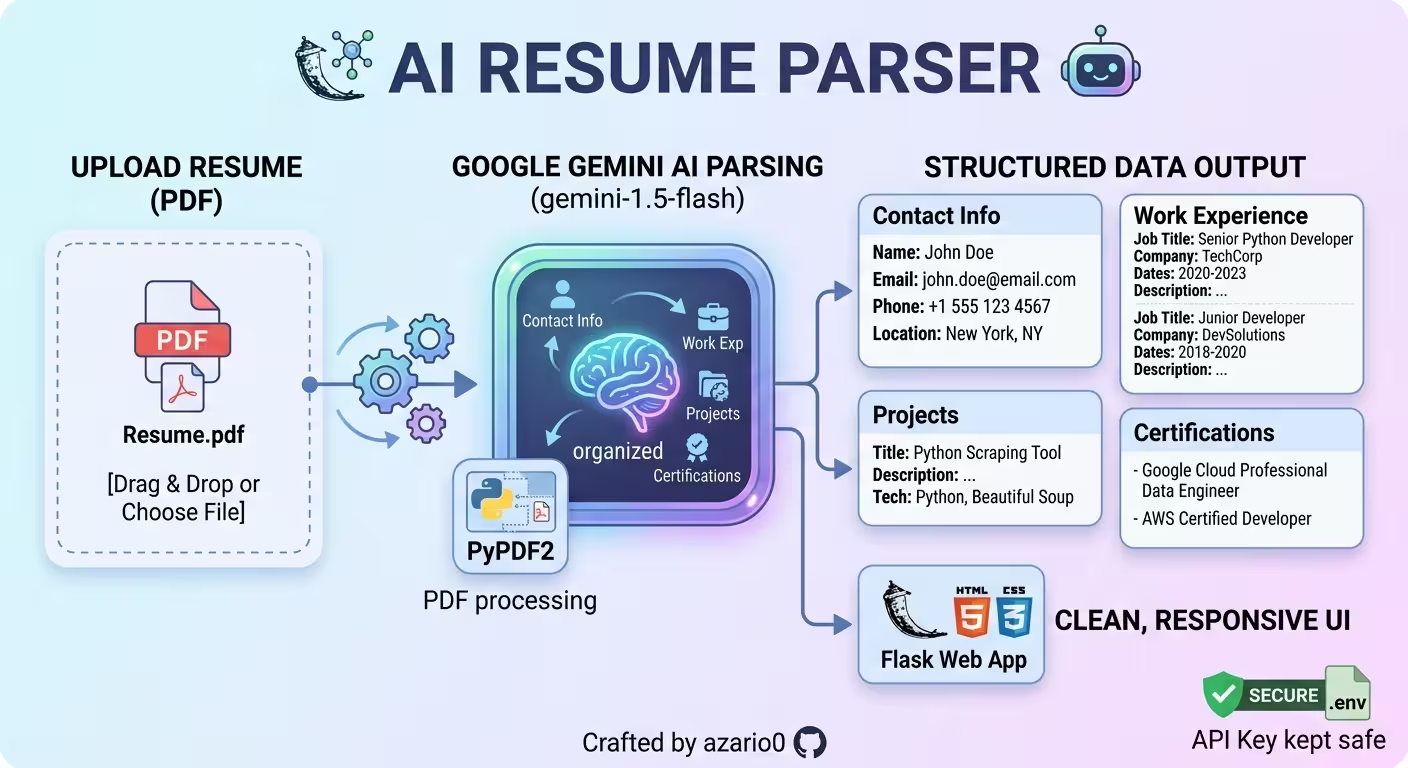
Building an AI Resume Parser with Flask and Google Gemini: A Full Code Breakdown
Parsing resumes has always been one of those “simple to describe, annoying to build” problems. Every resume is formatted differently, PDF text extraction is messy, and writing regex to catch every possible way someone might write “Jan 2022 - Present” is a losing battle. This is exactly the kind of unstructured-to-structured problem large language models are good at, and azario0/resume-parser-app- is a small, clean example of using one to solve it.
In this article I’ll walk through the whole project — a Flask web app that lets you upload a PDF resume and get back a structured breakdown of the candidate’s contact info, work experience, projects, and certifications — and explain how every piece fits together, including the exploratory Jupyter notebook the author used to prototype the approach before writing the app.
The stack at a glance
- Language: Python 3.8+
- Web framework: Flask
- AI model: Google Gemini (
gemini-1.5-flash) via thegoogle-generativeaiSDK - PDF text extraction:
PyPDF2 - Config/secrets:
python-dotenv - Frontend: plain HTML5 + CSS3 with Jinja2 templating (no JS framework, no build step)
The whole app is deliberately tiny — two Python files do essentially all the work. Let’s look at the project layout first, straight from the repo:
/resume-parser-app
|-- app.py                    # Main Flask application logic
|-- helpers.py                # Helper functions for PDF, Gemini API, and JSON
|-- requirements.txt          # Python dependencies
|-- .env                      # For storing the API key (create this yourself)
|-- templates/
|   |-- index.html            # Main HTML template for the UI
|-- static/
|   |-- css/style.css         # Custom stylesheets
|   |-- img/upload-icon.svg   # UI icon
The repo root also contains a notebook.ipynb — this is where the author clearly prototyped the prompt and the parsing logic before wiring it into Flask. I’ll cover that too, because it shows the thinking behind the final code.
Step 1: The prototyping notebook
Before touching Flask at all, the author worked out the core idea in notebook.ipynb. It’s a short, linear notebook that proves out three things: reading a PDF, prompting Gemini correctly, and cleaning the model’s output into real JSON.
Configure the model:
import google.generativeai as genai

genai.configure(api_key='YOUR_API_KEY')
model = genai.GenerativeModel('gemini-1.5-flash')
Extract text from a sample PDF with PyPDF2:
import PyPDF2

with open("resume-1.pdf", "rb") as file:
    reader = PyPDF2.PdfReader(file)
    resume = ""
    for page in reader.pages:
        resume += page.extract_text() + "\n"
This is the simplest possible PDF-to-text pipeline: open the file in binary mode, iterate every page, and concatenate extract_text() output. It’s worth noting this only works on text-based PDFs — a scanned image of a resume would return empty or garbled text, since PyPDF2 doesn’t do OCR.
Prompt Gemini to return structured JSON:
final_prompt = f"""
You are an information extraction system.
Your task is to carefully analyze the following resume and return a JSON object
with the following fields:

- name (string)
- surname (string)
- phone_number (string, or null if not found)
- email (string, or null if not found)
- location (string, e.g. city, country, or null if not found)
- certificates (list of strings, empty if none)
- experience (list of objects, each with:
    - job_title (string)
    - company (string)
    - start_date (string or null if not available)
    - end_date (string or "Present" if ongoing, or null if not available)
    - description (string summarizing responsibilities)
  )
- projects (list of objects, each with:
    - title (string)
    - description (string summarizing the project)
    - technologies (list of strings, empty if not available)
  )

Make sure the JSON is valid and well-formatted.
If some fields are missing in the resume, return them as null or empty lists instead of skipping.

Resume text:
{resume}
"""
This is a classic schema-in-prompt technique: instead of using a separate structured-output API, the prompt itself spells out the exact JSON shape it wants, field by field, including how to handle missing data (null vs. empty list). Interestingly, the notebook also contains a French version of this same prompt (asking for nom, prénom, numéro_téléphone, etc.), which suggests the author was experimenting with multilingual extraction before settling on the English-only version used in the final app.
Clean up the model’s response into real JSON:
Even when you ask an LLM for “only JSON,” it will often wrap the output in markdown code fences (```json ... ```) or add stray text. The notebook handles this with a small cleaning function:
import json
import re

def clean_code_json(response: str) -> dict:
    response = response.strip().lstrip("\ufeff").strip()
    match = re.search(r"\{.*\}", response, re.DOTALL)
    if not match:
        raise ValueError("No valid JSON object found in response")
    json_str = match.group(0)
    data = json.loads(json_str)
    return data
Three things happen here:
- Strip whitespace and a possible UTF-8 BOM character.
- Use a greedy regex (
\{.*\}withre.DOTALL) to grab everything between the first{and the last}, which reliably strips away any markdown fences or explanatory text around the JSON. - Hand that substring to
json.loadsto get an actual Python dictionary.
This notebook is essentially a spike/experiment — once the author confirmed this pipeline (PDF → text → Gemini → cleaned JSON) worked reliably, they moved the same logic into a proper Flask application.
Step 2: The Flask app’s helper functions (helpers.py)
helpers.py is essentially the notebook’s logic, refactored into three reusable, production-shaped functions.
extract_text_from_pdf
def extract_text_from_pdf(pdf_file_stream):
    try:
        reader = PyPDF2.PdfReader(pdf_file_stream)
        text = ""
        for page in reader.pages:
            text += page.extract_text() + "\n"
        return text
    except Exception as e:
        print(f"Error reading PDF: {e}")
        return None
Same logic as the notebook, but now it takes a file stream directly (rather than a path), which matters because Flask hands you an in-memory file-like object from the upload — no need to save it to disk first. It’s also now wrapped in a try/except so a corrupted or malformed PDF doesn’t crash the whole request; it just returns None, which app.py checks for.
get_gemini_response
def get_gemini_response(resume_text):
    try:
        genai.configure(api_key=os.getenv("GOOGLE_API_KEY"))
    except Exception as e:
        raise ValueError("Failed to configure Google AI. Is the GOOGLE_API_KEY set correctly in your .env file?") from e

    model = genai.GenerativeModel('gemini-1.5-flash')

    final_prompt = f"""
    You are a highly skilled information extraction system.
    ...
    """

    try:
        response = model.generate_content(final_prompt)
        return response.text
    except Exception as e:
        print(f"Error calling Gemini API: {e}")
        return None
This is the same prompt-engineering pattern from the notebook, tightened up slightly (“highly skilled information extraction system,” an explicit instruction not to include markdown before/after the JSON). Two production-readiness details stand out here:
- The API key is pulled from an environment variable (
GOOGLE_API_KEY) viaos.getenv, loaded earlier bypython-dotenv— this keeps the secret out of source control. - Both the configuration step and the generation call are wrapped in error handling, so a missing key or an API outage produces a clean failure instead of an unhandled exception bubbling up to the user.
clean_and_parse_json
def clean_and_parse_json(response_text):
    match = re.search(r"\{.*\}", response_text, re.DOTALL)
    if not match:
        raise ValueError("No valid JSON object found in the model's response.")

    json_str = match.group(0)

    try:
        data = json.loads(json_str)
        return data
    except json.JSONDecodeError as e:
        raise ValueError(f"Failed to decode JSON from the model's response: {e}") from e
This is basically the notebook’s clean_code_json, minus the BOM stripping, with more specific error messages so app.py can surface something meaningful to the user via Flask’s flash-message system.
Step 3: The Flask app itself (app.py)
app.py is a single-route Flask app that ties the three helpers together into a request/response cycle.
app = Flask(__name__)
app.secret_key = 'supersecretkey'
app.config['MAX_CONTENT_LENGTH'] = 16 * 1024 * 1024  # 16 MB max upload size

ALLOWED_EXTENSIONS = {'pdf'}

def allowed_file(filename):
    return '.' in filename and \
           filename.rsplit('.', 1)[1].lower() in ALLOWED_EXTENSIONS
A few setup notes:
secret_keyis required by Flask to sign session cookies, which is what makesflash()messages work (temporary one-time notices shown after a redirect). Worth flagging: it’s hardcoded here as'supersecretkey', which is fine for a demo but should be pulled from an environment variable in anything real.MAX_CONTENT_LENGTHcaps uploads at 16 MB, which Flask enforces automatically and rejects oversized requests before they hit your view function.allowed_fileis a simple extension whitelist — only.pdfis accepted.
The single route handles both displaying the upload form (GET) and processing an upload (POST):
@app.route('/', methods=['GET', 'POST'])
def index():
    if request.method == 'POST':
        if 'resume' not in request.files:
            flash('No file part')
            return redirect(request.url)

        file = request.files['resume']

        if file.filename == '':
            flash('No selected file. Please choose a PDF to upload.')
            return redirect(request.url)

        if file and allowed_file(file.filename):
            try:
                # 1. Extract text from the uploaded PDF
                resume_text = extract_text_from_pdf(file.stream)
                if not resume_text:
                    flash('Could not extract text from the PDF...')
                    return redirect(request.url)

                # 2. Get the structured data from Gemini API
                api_response = get_gemini_response(resume_text)
                if not api_response:
                    flash('Error communicating with the AI model...')
                    return redirect(request.url)

                # 3. Clean and parse the JSON response
                extracted_data = clean_and_parse_json(api_response)

                # 4. Render the page with the extracted data
                return render_template('index.html', data=extracted_data)

            except Exception as e:
                flash(f'An error occurred: {str(e)}')
                return redirect(request.url)
        else:
            flash('Invalid file type. Please upload a PDF file.')
            return redirect(request.url)

    return render_template('index.html', data=None)
The flow is a clean, numbered pipeline that mirrors exactly what was prototyped in the notebook:
- Validate the upload — is there a file, does it have a name, is it a PDF?
- Extract text —
extract_text_from_pdf(file.stream)reads directly from the in-memory upload stream viaPyPDF2. - Call Gemini —
get_gemini_response(resume_text)sends the extracted text through the schema-driven prompt. - Parse the result —
clean_and_parse_json(api_response)strips out any markdown wrapping and turns the model’s text into a Python dict. - Render — that dict (
extracted_data) is passed straight into the sameindex.htmltemplate, which now renders a results view instead of the upload form.
Every failure point (bad file, empty PDF text, failed API call, bad JSON) triggers a flash() message and a redirect back to the form — a simple but effective way of surfacing errors in a server-rendered app without any JavaScript.
Step 4: The template (index.html)
templates/index.html does double duty as both the upload form and the results page, switching based on whether data is None:
{% if data %}
    <!-- results view: name, contact info, experience, projects, certificates -->
{% else %}
    <!-- upload form -->
{% endif %}
When there’s no data yet, it shows a drag-and-drop-styled file input:
<form method="post" enctype="multipart/form-data">
    <div class="upload-area">
        <input type="file" name="resume" accept=".pdf" id="resume-file" required>
        ...
    </div>
    <button type="submit" class="submit-btn">Parse Resume</button>
</form>
Note enctype="multipart/form-data" — this is required for file uploads to work in HTML forms at all; without it, the browser would send the filename as plain text instead of the actual file bytes.
When data is present, Jinja2 loops over the structured fields Gemini extracted, e.g.:
{% for job in data.experience %}
<div class="experience-item">
    <span class="job-title">{{ job.job_title }}</span>
    <span class="job-dates">{{ job.start_date }} - {{ job.end_date }}</span>
    <p class="job-company">{{ job.company }}</p>
    <p class="job-description">{{ job.description }}</p>
</div>
{% endfor %}
The same pattern repeats for projects (with a nested loop rendering each technologies list as little tag pills) and certificates (rendered as a plain <ul>). Because the JSON schema was pinned down explicitly in the Gemini prompt, the template can safely assume data.experience, data.projects, etc. exist as lists — the prompt engineering in helpers.py is effectively doing the job a formal API response schema or a Pydantic model would do elsewhere.
How it all connects
Here’s the full request lifecycle, end to end:
- User visits
/→ Flask rendersindex.htmlwithdata=None→ they see the upload form. - User selects a PDF and submits → browser sends a
multipart/form-dataPOSTto/. app.py’sindex()view validates the file, then callsextract_text_from_pdf()fromhelpers.py, which usesPyPDF2to pull raw text out of every page.- That text is handed to
get_gemini_response(), which builds the schema-driven prompt and callsgemini-1.5-flashthrough thegoogle-generativeaiSDK. - Gemini’s text response (ideally pure JSON, but possibly wrapped in markdown) goes through
clean_and_parse_json(), which regexes out the{...}block and parses it with the standard libraryjsonmodule. - The resulting Python dictionary is passed back into
render_template('index.html', data=extracted_data). - Jinja2 re-renders the same template, this time taking the
{% if data %}branch, and displays the candidate’s name, contact info, work experience, projects, and certificates in styled HTML/CSS.
It’s a satisfyingly small system for what it does: two Python files, one template, one stylesheet, and a single third-party API call carrying almost all of the “intelligence.” The notebook is really the design document for the whole thing — every core idea (schema-in-prompt extraction, JSON cleanup via regex) shows up unchanged in the final helpers.py, just wrapped in the error handling and stream-based I/O that a real web app needs.
A few things worth knowing if you build on this
- Only real, selectable-text PDFs work. Since PyPDF2 doesn’t OCR, a resume that’s actually a scanned image will silently produce no usable text.
- The regex-based JSON extraction is a pragmatic workaround, not a guarantee. It works well for
gemini-1.5-flash’s typical output style, but a model that returns multiple JSON-like blocks or malformed braces could still trip it up. Gemini’s structured output / JSON mode (response schemas) would be a more robust alternative to explore. - Secrets and config. The Flask
secret_keyis hardcoded and the Gemini API key relies on a local.envfile — fine for a personal project, but worth hardening (env-based secret key, key rotation, rate limiting) before deploying anywhere public.
Overall, this repo is a good, compact reference for anyone wanting to see the “PDF in, structured JSON out, rendered as a clean webpage” pattern implemented with Flask and a modern LLM, without any unnecessary abstraction layers in the way.
Repository: github.com/azario0/resume-parser-app- Author: azario0 License: MIT

Written by
Benmalek Zohir
Founder, AI Engineer & Full Stack Developer
Benmalek Zohir is an AI Engineer, Full Stack Developer, and technology enthusiast focused on artificial intelligence, software development, and emerging technologies. He is the founder of SoftwareJournal.blog, where he shares practical insights, software discoveries, AI tools, and the latest developments in technology.