Chat With Your CSV: Building a Natural-Language Data Explorer with Flask, PandasAI, and Gemini
A deep dive into azario0/csv-chat-app, a Flask app that lets you upload a CSV or Excel file and query it in plain English using PandasAI and Google's Gemini model — covering the architecture, the LLM integration, session-based state, and the code that turns model output into tables, text, or charts.
Chat With Your CSV: Building a Natural-Language Data Explorer with Flask, PandasAI, and Gemini
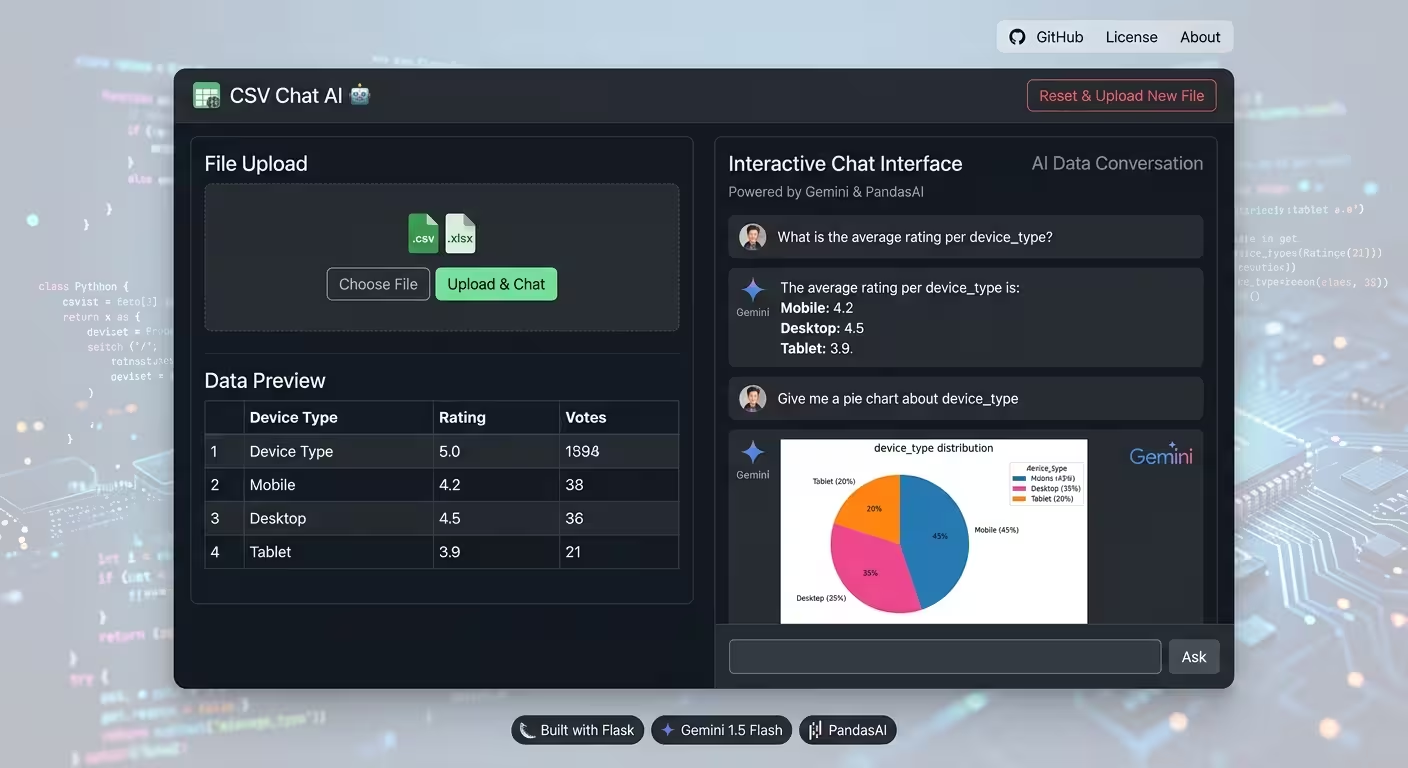
Uploading a spreadsheet and asking it questions in plain English sounds like a magic trick, but the mechanics behind it are refreshingly small. csv-chat-app by azario0 is a ~150-line Flask application that proves the point: upload a .csv or .xlsx file, type a question like “give me a pie chart about device_type”, and get back a table, a sentence, or a rendered chart — all without writing a line of pandas yourself.
This article walks through the whole project: the tech stack, the request/response flow, the accompanying Jupyter notebook that prototypes the idea before it becomes a web app, and the specific design decisions (and trade-offs) worth noticing if you want to build something similar.
The stack, at a glance
| Layer | Library | Role |
|---|---|---|
| Web framework | Flask | Routing, session handling, templating |
| Data handling | pandas | Reading CSV/XLSX into DataFrames |
| Natural-language-to-pandas | PandasAI | Translates a question into pandas operations and executes them |
| LLM integration | LangChain (langchain-google-genai) | Wraps Google’s Gemini model in a interface PandasAI can call |
| LLM | Gemini 1.5 Flash | Actually interprets the question and (indirectly) generates the analysis code |
| Charting | Matplotlib | Renders any chart PandasAI decides to produce, as a .png |
| Frontend | Jinja2 + Bootstrap 5 | Server-rendered HTML, no JS framework |
The interesting part isn’t Flask — it’s that PandasAI sits between the user’s question and pandas itself, using the LLM as a code-generation and execution engine rather than a chatbot that merely describes the data.
How PandasAI actually works
It helps to understand PandasAI before reading app.py, because the app is mostly plumbing around one object: SmartDataframe.
SmartDataframe wraps a regular pandas DataFrame (or a path to a CSV/Excel file) and exposes a .chat(question) method. Under the hood, when you call .chat(), PandasAI:
- Builds a prompt containing the DataFrame’s schema (column names, dtypes, a few sample rows) plus the user’s question.
- Sends that prompt to the configured LLM (here, Gemini via LangChain) and asks it to generate Python/pandas code that answers the question.
- Executes the generated code against the real DataFrame in a sandboxed environment.
- Returns the result of that execution — which could be a string, a number, a
DataFrame/Series, or a path to a saved chart image, depending on what the generated code produced.
This is meaningfully different from just piping a CSV into an LLM’s context window and asking it to eyeball the answer. Because Gemini is generating and running actual pandas code, aggregate questions like “average rating per device_type” are computed exactly, not approximated from a text summary — accuracy scales with the size of the dataset instead of degrading as it grows.
The prototyping notebook
The repo ships a notebook.ipynb that is essentially the proof-of-concept for app.py, run in isolation before being wrapped in Flask. It’s a good example of the “notebook first, framework second” workflow:
Cell 1 — Load and eyeball the data:
import pandas as pd
df = pd.read_csv('multilingual_mobile_app_reviews_2025.csv')
df.head()
Cell 2 — Grab the API key interactively (rather than hardcoding it):
import getpass, os
if "GOOGLE_API_KEY" not in os.environ:
    os.environ["GOOGLE_API_KEY"] = getpass.getpass("Enter your Google AI API key: ")
Cell 3 — Configure the LLM through LangChain:
from langchain_google_genai import ChatGoogleGenerativeAI

llm = ChatGoogleGenerativeAI(
    model="gemini-1.5-flash",
    temperature=0,
    max_tokens=None,
    timeout=None,
    max_retries=2,
)
temperature=0 is a deliberate choice: for code generation you want the model to be deterministic and literal, not creative. This matters more here than in a typical chatbot, since a “creative” pandas snippet is just as likely to be a buggy one.
Cell 4 — Wrap the CSV in a SmartDataframe and start asking questions:
from pandasai import SmartDataframe
df = SmartDataframe("multilingual_mobile_app_reviews_2025.csv", config={"llm": llm, "open_charts": False})

df.chat('What is this dataset about, in french?')
df.chat("What's the average rating?")
df.chat('Give me a pie chart about device_type')
Notice that SmartDataframe can take a file path directly, not just a DataFrame — PandasAI reads the file itself. open_charts: False stops PandasAI from trying to pop open a native image viewer, which would make no sense inside a Jupyter kernel (or a web server, as we’ll see next).
This notebook is effectively the spec for the whole product: three questions — a descriptive one, an aggregation, and a visualization — map directly onto the three response types the Flask app has to handle.
The Flask app: three routes, one shared pattern
app.py defines exactly three routes. Each one is short, but together they show a clean pattern for wrapping a stateful, file-based AI tool in a stateless HTTP request cycle.
Setup and LLM factory
def get_llm():
    google_api_key = os.getenv("GOOGLE_API_KEY")
    if not google_api_key:
        raise ValueError("GOOGLE_API_KEY not found. Please set it in your .env file.")
    return ChatGoogleGenerativeAI(
        model="gemini-1.5-flash",
        google_api_key=google_api_key,
        temperature=0,
    )
The API key is loaded via python-dotenv’s load_dotenv() from a local .env file (git-ignored, so the key never ends up in version control). get_llm() is called fresh on every chat request rather than instantiated once at startup — a small inefficiency, but it keeps the code simple and sidesteps any global-state issues with a client object.
Route 1 — / (GET/POST): upload
if file and (file.filename.endswith('.csv') or file.filename.endswith('.xlsx')):
    session.clear()
    filename = str(uuid.uuid4()) + os.path.splitext(file.filename)[1]
    filepath = os.path.join(app.config['UPLOAD_FOLDER'], filename)
    file.save(filepath)

    session['csv_path'] = filepath
    session['chat_history'] = []

    df = pd.read_csv(filepath) if filename.endswith('.csv') else pd.read_excel(filepath)
    session['df_head'] = df.head().to_html(classes='table table-striped table-hover', justify='left')
Key details:
- UUID-based filenames (
uuid.uuid4()) avoid collisions between users and sidestep any path-traversal issues from trusting the original filename. session.clear()on every new upload guarantees a user can’t accidentally mix chat history from one dataset with another.- The Flask
sessionobject — a signed cookie — is used as the entire state store: it holds the file path on disk, the running Q&A history, and a pre-rendered HTML preview ofdf.head(). There’s no database. df.head().to_html(...)renders directly into Bootstrap table classes, so the “Data Preview” panel in the UI is just raw pandas output styled by CSS.
Route 2 — /chat (POST): the actual conversation
llm = get_llm()
df = pd.read_csv(filepath) if filepath.endswith('.csv') else pd.read_excel(filepath)

sdf = SmartDataframe(df, config={
    "llm": llm,
    "save_charts": True,
    "save_charts_path": app.config['CHART_FOLDER'],
    "open_charts": False
})

response = sdf.chat(question)
This is the same SmartDataframe pattern from the notebook, with two additions suited to a web context: save_charts: True and save_charts_path tell PandasAI to write any generated Matplotlib figure into static/charts/ instead of trying to display it, since there’s no GUI to display it to on a server.
The response-handling block is the piece that ties the whole app together — it’s a type dispatch over whatever PandasAI happened to return:
if isinstance(response, (pd.DataFrame, pd.Series)):
    answer = response.to_html(classes='table table-striped table-hover', justify='left')
elif isinstance(response, str) and response.endswith('.png'):
    chart_filename = os.path.basename(response)
    chart_url = url_for('static', filename=f'charts/{chart_filename}')
    answer = f'<img src="{chart_url}" alt="Generated Chart" class="img-fluid">'
else:
    answer = str(response)
This is the crux of why the earlier design decision (letting PandasAI execute arbitrary generated code) is useful: the shape of the answer isn’t decided by the Flask app, it’s decided by whatever code Gemini wrote in response to the question. The Flask layer’s only job is to recognize the resulting Python type and render it appropriately — a DataFrame becomes an HTML table, a path ending in .png becomes an <img> tag, and everything else is coerced to a string. Because session['chat_history'] stores these pre-rendered HTML strings and the template renders them with Jinja2’s |safe filter, tables and charts persist correctly across page reloads within the same session.
Errors are caught broadly and appended to the chat history as a styled Bootstrap alert rather than crashing the request — reasonable for a small demo app, though a production version would want to log the underlying exception and avoid leaking raw error text (str(e)) to the client.
Route 3 — /reset
if 'csv_path' in session and os.path.exists(session['csv_path']):
    os.remove(session['csv_path'])
session.clear()
Straightforward cleanup: delete the uploaded file from disk and clear the session, returning the app to its empty state. Note that generated charts in static/charts/ are not cleaned up here — worth knowing if you deploy this and disk usage matters.
Frontend: conditional rendering, no JavaScript framework
templates/index.html is a single Jinja2 template that branches on whether a file is in session:
{% if not session.get('csv_path') %}
  <!-- upload form -->
{% else %}
  <!-- data preview + chat interface -->
{% endif %}
Chat history is rendered by looping over session['chat_history']:
{% for entry in session['chat_history'] %}
  <div class="chat-message user-message mb-2"><strong>You:</strong> {{ entry.question }}</div>
  <div class="chat-message bot-message mb-3">
    <strong>Bot:</strong>
    <div class="bot-answer">{{ entry.answer|safe }}</div>
  </div>
{% endfor %}
Everything is a standard HTML <form> POST (/ for uploads, /chat for questions), so the whole interaction cycle is a page reload per question — there’s no fetch/AJAX layer. The only client-side JavaScript in the app auto-scrolls the chat window to the bottom after each reload. Bootstrap 5 and Bootstrap Icons are pulled in via CDN <link>/<script> tags for styling, and a small static/css/style.css layers on custom chat-bubble styling.
Things worth noticing if you build on this
A few details are good discussion points for anyone extending or critiquing the project:
- No persistence beyond the session cookie. There’s no database — restart the server or clear cookies, and all chat history and the reference to the uploaded file are gone (though the file itself lingers on disk until
/resetis hit). app.secret_key = os.urandom(24)regenerates on every server restart, which invalidates all existing sessions. Fine for local development; a real deployment would pin this to a stable secret loaded from the environment.- A fresh
SmartDataframe(and a fresh LLM client) is constructed on every single chat message, re-reading the CSV/Excel file from disk each time rather than caching it in memory. Simple and stateless, at the cost of redundant I/O and LLM-client setup per request. - The model itself decides the response shape. Because PandasAI is generating and running code, whether a question returns a number, a table, or a chart is emergent from the LLM’s interpretation of the question — the Flask code just needs to handle all three cases gracefully, as it does.
Wrapping up
csv-chat-app is a good reference implementation for a broader pattern that’s becoming common: LLM-generated, sandboxed-executed code as the actual analysis engine, with the model treated as a code generator rather than an oracle. The Flask layer is intentionally thin — sessions for state, three routes, and a type-dispatch block to render whatever pandas hands back. If you want to see the pattern before the framework, start with notebook.ipynb; if you want to see it as a shippable app, app.py is barely 150 lines away from a working demo.
Full source: github.com/azario0/csv-chat-app

Written by
Benmalek Zohir
Founder, AI Engineer & Full Stack Developer
Benmalek Zohir is an AI Engineer, Full Stack Developer, and technology enthusiast focused on artificial intelligence, software development, and emerging technologies. He is the founder of SoftwareJournal.blog, where he shares practical insights, software discoveries, AI tools, and the latest developments in technology.