Simple SQLite Database Manager in Python with CustomTkinter
Learn how to build a simple desktop SQLite database manager in Python using CustomTkinter. This project provides a graphical interface for creating and opening databases, browsing tables, adding columns and rows, and exporting selected data to a text file.
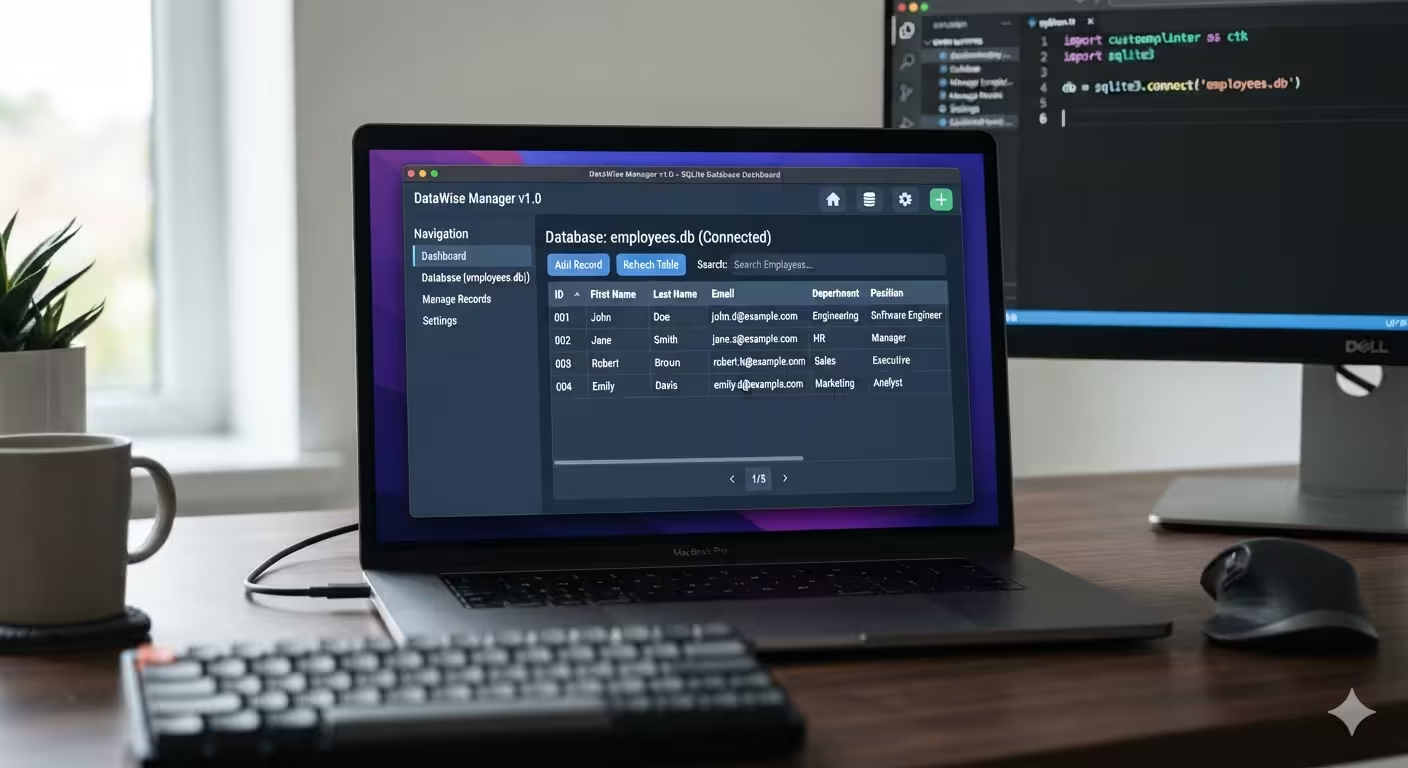
Simple SQLite Database Manager in Python with CustomTkinter
Building a database application does not always require a large framework or a web backend. With Python’s built-in sqlite3 library and the CustomTkinter GUI toolkit, you can create a lightweight desktop application for managing SQLite databases.
This project, database_manager_simple, demonstrates exactly that. The application provides a graphical interface for creating or opening SQLite database files, viewing tables, creating tables, adding columns and rows, and exporting selected records to a text file.
The complete source code is available on GitHub.
Technologies Used
The project is built around a small number of Python libraries:
- Python — the programming language used to build the application.
- CustomTkinter — provides the modern-looking graphical interface.
- SQLite — the database engine used to store the data.
sqlite3— Python’s built-in interface for working with SQLite.tkinter— used for dialogs, message boxes, file selection, and thettk.Treeviewdata grid.os— used to extract the database filename from its path.
The imports at the beginning of the program are:
import customtkinter as ctk
import sqlite3
from tkinter import filedialog, messagebox
import tkinter.ttk as ttk
import os
The program deliberately keeps the implementation simple by putting the application inside a single SimpleSQLiteManager class.
The Main Application Class
The application starts with the SimpleSQLiteManager class:
class SimpleSQLiteManager(ctk.CTk):
    """A simple SQLite database manager with GUI - all in one class"""
It inherits from ctk.CTk, which is the main CustomTkinter window.
The constructor initializes the window and database connection:
def __init__(self):
    super().__init__()

    self.title("Simple SQLite Manager")
    self.geometry("1000x700")

    self.db_connection = None

    self.setup_ui()
The window is given a title and a size of 1000×700 pixels.
The important variable here is:
self.db_connection = NoneThis stores the current SQLite connection. Initially there is no database connected, so the value is None.
The constructor then calls setup_ui() to build the interface.
Building the User Interface
The setup_ui() method creates the application’s tabbed interface:
def setup_ui(self):
    tabview = ctk.CTkTabview(self)
    tabview.pack(padx=10, pady=10, fill="both", expand=True)

    tab_connect = tabview.add("Connect")
    self.build_connect_tab(tab_connect)

    tab_explorer = tabview.add("Explorer")
    self.build_explorer_tab(tab_explorer)
There are two main tabs.
The Connect tab handles database files, while the Explorer tab is used to browse and modify database contents.
This separation makes the application easier to use because database connection operations are kept separate from data-management operations.
The Connect Tab
The connection interface is created by build_connect_tab().
It contains two important buttons:
ctk.CTkButton(
    frame,
    text="Create New Database File",
    command=self.create_new_database
).pack(pady=10)
and:
ctk.CTkButton(
    frame,
    text="Open Existing Database File",
    command=self.open_existing_database
).pack(pady=10)
The first button allows the user to create a new .db file.
The second lets the user select an existing SQLite database.
There is also a status label:
self.status_label = ctk.CTkLabel(
    frame,
    text="Status: Not Connected",
    wraplength=400
)
This is updated after the database connection succeeds.
Creating a New Database
When the user clicks Create New Database File, the application calls:
def create_new_database(self):
    path = filedialog.asksaveasfilename(
        defaultextension=".db",
        filetypes=[
            ("SQLite Databases", "*.db"),
            ("All files", "*.*")
        ]
    )

    if path:
        self.connect_database(path)
asksaveasfilename() opens a save dialog.
The program automatically suggests the .db extension.
Once the user chooses a location, the resulting path is passed to connect_database().
An important detail is that SQLite can create the database file when sqlite3.connect() is called if the file does not already exist.
Opening an Existing Database
Opening an existing database uses a similar approach:
def open_existing_database(self):
    path = filedialog.askopenfilename(
        filetypes=[
            ("SQLite Databases", "*.db"),
            ("All files", "*.*")
        ]
    )

    if path:
        self.connect_database(path)
This time, the program uses askopenfilename() instead of asksaveasfilename().
The selected database is then passed to the same connection function.
Connecting to SQLite
The actual connection is handled by connect_database():
def connect_database(self, path):
    try:
        self.db_connection = sqlite3.connect(path)

        filename = os.path.basename(path)

        self.status_label.configure(
            text=f"Status: Connected to {filename}"
        )

        messagebox.showinfo(
            "Success",
            f"Connected to:\n{filename}"
        )

        self.refresh_tables()

    except sqlite3.Error as e:
        messagebox.showerror(
            "Error",
            f"Connection failed: {e}"
        )
The key operation is:
self.db_connection = sqlite3.connect(path)This creates a connection between Python and the SQLite database file.
After connecting, os.path.basename() extracts just the filename so the interface can display something such as:
Status: Connected to example.dbThe application then calls refresh_tables() so the Explorer tab immediately knows which tables are available.
The Explorer Tab
The Explorer tab contains three major areas.
The first is the table selector and action buttons.
The second is the data grid.
The third contains buttons for modifying or exporting data.
The table dropdown is created with:
self.table_dropdown = ctk.CTkOptionMenu(
    top_frame,
    values=[""],
    command=self.display_table
)
When the selected table changes, display_table() is automatically called.
The application also provides buttons for:
- Refreshing the table list
- Creating a new table
- Adding a row
- Adding a column
- Exporting selected rows
Displaying Database Tables
The refresh_tables() function retrieves all table names from SQLite:
cursor = self.db_connection.cursor()

cursor.execute(
    "SELECT name FROM sqlite_master WHERE type='table';"
)

tables = [row[0] for row in cursor.fetchall()]
SQLite stores metadata about database objects in sqlite_master.
The query therefore retrieves the names of all database objects whose type is table.
The returned names are placed into the dropdown:
self.table_dropdown.configure(values=tables)
self.table_dropdown.set(tables[0])
The application automatically selects the first table and displays it.
If there are no tables, the dropdown is cleared and the grid is emptied.
Showing Table Data
Once a table is selected, display_table() loads its contents.
The core query is:
cursor.execute(f"SELECT * FROM {table_name}")The column names are obtained from the cursor:
columns = [desc[0] for desc in cursor.description]Then all rows are loaded:
rows = cursor.fetchall()The program uses a ttk.Treeview widget as its data grid.
First, the old grid is cleared:
self.clear_grid()Then the new columns are assigned:
self.data_grid["columns"] = columnsFor each column, the program creates a heading:
for col in columns:
    self.data_grid.heading(col, text=col)
    self.data_grid.column(
        col,
        anchor="w",
        minwidth=100,
        width=150
    )
Finally, every database row is inserted into the grid:
for row in rows:
    self.data_grid.insert(
        "",
        "end",
        values=row
    )
This turns the database table into a visual spreadsheet-like interface.
Clearing the Data Grid
The helper function clear_grid() removes all existing rows:
def clear_grid(self):
    self.data_grid.delete(
        *self.data_grid.get_children()
    )

    self.data_grid["columns"] = []
This is important when switching between tables because the interface needs to remove the previous table before displaying the next one.
Creating a New Table
The project also allows users to create tables through a graphical dialog.
The dialog requests a table name and lets users add columns.
Each column consists of two values:
name = ctk.CTkEntry(
    row,
    placeholder_text="Column Name"
)

dtype = ctk.CTkEntry(
    row,
    placeholder_text="Type (TEXT, INTEGER, etc.)"
)
The program stores these widgets in:
column_inputs = []This makes it possible to collect the values later when the user presses Create Table.
Building the CREATE TABLE Query
When the table is saved, the program collects the column definitions:
columns = []

for name_input, type_input in column_inputs:
    name = name_input.get()
    dtype = type_input.get() or "TEXT"

    if name:
        columns.append((name, dtype))
It then constructs the column definition string:
cols_string = ", ".join(
    [f"'{name}' {dtype}" for name, dtype in columns]
)
The SQL query becomes:
query = (
    f"CREATE TABLE IF NOT EXISTS "
    f"'{table_name}' ({cols_string})"
)
The query is executed and committed:
cursor.execute(query)
self.db_connection.commit()
Calling commit() saves the database modification.
Adding a Column
Existing tables can also be modified with the Add Column feature.
The application creates an SQL ALTER TABLE statement:
query = f"ALTER TABLE {table_name} ADD COLUMN '{name}' {dtype}"This allows a new column to be appended to an existing table.
After the change is committed, the table is displayed again:
self.display_table(table_name)This refreshes the interface so the new column becomes visible immediately.
Adding a Row
The Add Row feature creates an input field for every column in the selected table.
The program obtains the column names using:
columns = self.data_grid["columns"]It then creates an input box for each column.
After the user enters the values, the code creates parameter placeholders:
placeholders = ", ".join(
    ["?"] * len(values)
)
For example, three values would produce:
?, ?, ?The query is then executed with the actual values separately:
query = f"INSERT INTO {table_name} VALUES ({placeholders})"

cursor.execute(query, values)
Using parameter placeholders for the row values is preferable to inserting raw user input directly into the SQL statement.
Afterward, the transaction is committed:
self.db_connection.commit()and the table is refreshed.
Exporting Rows to a Text File
The application also includes a simple export feature.
First, it determines which rows the user selected:
selected = self.data_grid.selection()If nothing is selected, a warning is displayed.
The program then asks the user where to save the .txt file:
filepath = filedialog.asksaveasfilename(
    defaultextension=".txt",
    filetypes=[
        ("Text Files", "*.txt"),
        ("All files", "*.*")
    ]
)
The column names are written first:
columns = self.data_grid["columns"]

f.write(", ".join(columns) + "\n")
Then each selected row is converted into a comma-separated line:
values = self.data_grid.item(item)["values"]
line = ", ".join(map(str, values))
f.write(line + "\n")
This provides a simple way to export selected database records without introducing an additional export library.
Error Handling
The application uses try/except blocks around database operations.
For example:
try:
    self.db_connection = sqlite3.connect(path)
except sqlite3.Error as e:
    messagebox.showerror(
        "Error",
        f"Connection failed: {e}"
    )
This prevents database errors from immediately terminating the application and instead presents the problem to the user through a message box.
Similar error handling is used when creating tables, adding columns, inserting rows, and exporting data.
Starting the Application
At the bottom of the file, the application is started with:
if __name__ == "__main__":
    app = SimpleSQLiteManager()
    app.mainloop()
The first line makes sure the application only starts automatically when the file is executed directly.
Then an instance of SimpleSQLiteManager is created:
app = SimpleSQLiteManager()Finally:
app.mainloop()starts the Tkinter event loop.
The event loop waits for actions such as button clicks, dropdown changes, and dialog interactions.
Overall Architecture
Despite providing several database-management features, the application uses a relatively straightforward structure:
SimpleSQLiteManager
│
├── GUI initialization
│
├── Connect tab
│   ├── Create database
│   ├── Open database
│   └── Connection status
│
├── Explorer tab
│   ├── Table selector
│   ├── Refresh tables
│   ├── Create table
│   ├── Data grid
│   ├── Add row
│   ├── Add column
│   └── Export rows
│
└── SQLite connection
    ├── SELECT
    ├── CREATE TABLE
    ├── ALTER TABLE
    └── INSERT
This makes the project useful as a small example of how a Python GUI can interact directly with a local relational database.
Things to Improve
The project is intentionally simple, but several areas could be improved for a production-quality database manager.
For example, SQL identifiers such as table names and column names are incorporated directly into SQL strings. A more robust implementation should validate or safely quote identifiers before using them.
The application also does not currently provide features such as deleting rows, editing existing cells, deleting columns, deleting tables, database schema inspection, or searching large tables.
Another potential improvement would be adding support for additional SQLite data types and constraints such as primary keys, NOT NULL, UNIQUE, and default values.
The data grid could also be extended with pagination or filtering so that very large tables do not have to be loaded into memory at once.
Conclusion
This project is a good example of combining Python GUI programming with SQLite database operations.
With CustomTkinter, the application provides a modern interface, while Python’s built-in sqlite3 module handles the database connection and SQL operations.
The result is a small standalone database manager capable of creating and opening SQLite databases, displaying tables, creating new tables, adding columns and rows, and exporting selected records.
You can explore the complete implementation in the database_manager_simple GitHub repository.

Written by
Benmalek Zohir
Founder, AI Engineer & Full Stack Developer
Benmalek Zohir is an AI Engineer, Full Stack Developer, and technology enthusiast focused on artificial intelligence, software development, and emerging technologies. He is the founder of SoftwareJournal.blog, where he shares practical insights, software discoveries, AI tools, and the latest developments in technology.
Related reading
- Building a Python Image Watermark Tool with Tkinter and Pillow: A Deep Dive into the `watermarkapp` Project33 min
- Dir-To-Txt Explained: How This Python Tkinter App Merges an Entire Folder Into One TXT File6 min
- Building a Desktop Image-to-PDF Converter with Python, Tkinter, Pillow, and ReportLab8 min