Ghibli Diffusion: Python Stable Diffusion Art Guide
Learn how Ghibli-Diffusion turns text prompts into Studio Ghibli art with Python, Stable Diffusion, and diffusers — pipeline, GPU setup, and notebook explained.
Ghibli Diffusion: Python Stable Diffusion Art Guide
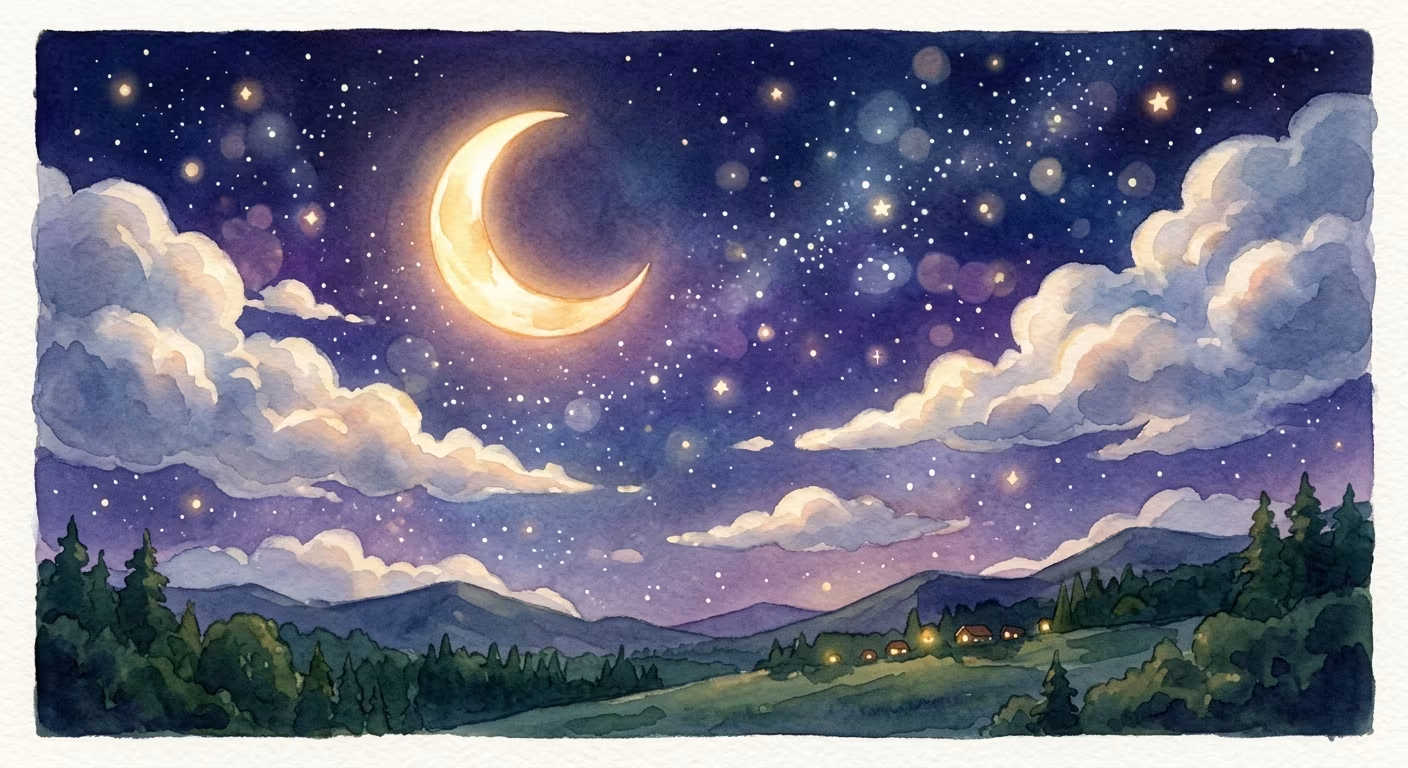
A verified technical deep-dive into azario0/Ghibli-Diffusion — a minimal Jupyter notebook that turns a text prompt like
ghibli style magical stars and a glowing mooninto Studio Ghibli-style watercolor art using a fine-tuned Stable Diffusion pipeline. Every claim below is checked against the actual repository code.
If you searched for “Ghibli Diffusion Python tutorial,” “Stable Diffusion Ghibli art with diffusers,” “how to generate Studio Ghibli images with Stable Diffusion,” or “nitrosocke Ghibli-Diffusion pipeline example,” this guide walks you through a working 4-cell notebook file-by-file, with no hallucinations — just the code that actually ships.
TL;DR — What This Project Does
Ghibli-Diffusion is not a web app or CLI tool. It is a single Jupyter notebook at notebook.ipynb (4 cells, Python 3.10.12, Kaggle nvidiaTeslaT4) that:
- Loads
nitrosocke/Ghibli-Diffusion— a community fine-tune ofCompVis/stable-diffusion-v1-4on Ghibli frames — viaStableDiffusionPipeline.from_pretrainedinnotebook.ipynbCell 0 - Runs inference with one line:
pipe(prompt).images[0]inCell 1 - Wraps it in an interactive
ipywidgetsUI (Text+Button+Output) withgenerate_image()andon_button_clicked()inCell 2 - Displays a 512×512 PIL image — soft watercolor sky, starry bokeh, Ghibli clouds — directly in the notebook output
No app.py, no requirements.txt, no dataset — the whole “application” is ~35 lines of Python.
Programming Languages Used
| Language / Format | Role | Where |
|---|---|---|
| Python 3.10 | All logic: pipeline loading, inference, widgets, display | notebook.ipynb Cells 0–2 — verified version: "3.10.12" in notebook metadata |
| Jupyter Notebook (JSON) | Container format for code + outputs + widgets | notebook.ipynb — 4 cells, nbformat 4 |
| Markdown | Documentation with badges, tables, and troubleshooting | README.md — 285 lines |
There is no separate frontend language (no HTML/CSS/JS files, no Gradio/Streamlit app.py). Even the UI is Python: ipywidgets renders widgets via the notebook kernel, not a web server.
Technology Stack at a Glance
| Layer | Technology | Purpose | Verified In |
|---|---|---|---|
| Diffusion Framework | 🤗 Diffusers StableDiffusionPipeline | High-level pipeline wrapping CLIP + UNet + VAE + scheduler | notebook.ipynb Cell 0 — from diffusers import StableDiffusionPipeline |
| Model Checkpoint | nitrosocke/Ghibli-Diffusion | Fine-tuned Stable Diffusion for Ghibli watercolor aesthetic | notebook.ipynb Cell 0 — model_id = "nitrosocke/Ghibli-Diffusion" |
| Tensor Compute | PyTorch torch.float16 + CUDA | Half-precision inference, GPU placement | notebook.ipynb Cell 0 — torch_dtype=torch.float16, pipe.to("cuda"), pipe.unet.to("cuda:1") |
| Text Encoder | Transformers CLIP (via transformers v4.22.0) | Prompt → 77×768 embeddings inside pipeline | Notebook stderr output confirms Transformers v4.22.0 has been updated...Migrating your old cache |
| Offloading | Accelerate (implicit) | enable_model_cpu_offload() shards layers CPU↔GPU | notebook.ipynb Cell 0 — pipe.enable_model_cpu_offload() |
| Interactivity | ipywidgets + IPython.display | Text, Button, Output, display(), clear_output() | notebook.ipynb Cell 2 |
| Imaging | Pillow (PIL) | PIL.Image display(image) and image.save() | notebook.ipynb Cell 2 |
| Hardware | Kaggle T4 x2, dockerImageVersionId: 30919, isGpuEnabled: true | 16 GB VRAM, isInternetEnabled: true for model download | Notebook metadata kaggle block |
diffusers, transformers, accelerate, ipywidgets, and torch are installed at runtime in Kaggle/Colab — there is no committed requirements.txt to verify, and the repo’s single commit d0b3ad6 final tracks only notebook.ipynb.
Project Structure
Verified with ls -R and git log --stat:
Ghibli-Diffusion/
├── notebook.ipynb   # 4 cells — the ENTIRE project (see walkthrough)
└── README.md        # 285-line docs (badges, demo, install, troubleshooting)
No app.py, no static/, no data/, no LICENSE file on main (despite the MIT badge). Disk impact after first run: ~4 GB model weights in ~/.cache/huggingface/diffusers/ plus ~6 GB free required per README.md#requirements.
How Stable Diffusion Works Here — 60-Second Architecture
Text Prompt: "ghibli style magical stars and a glowing moon"
        ↓
StableDiffusionPipeline (nitrosocke/Ghibli-Diffusion)  ← from diffusers
  ├─ CLIP Text Encoder (transformers):  prompt → 77×768 token embeddings
  ├─ UNet (fine-tuned on Ghibli frames): denoises latent from noise over 50 steps
  │     (Euler scheduler, guided by embeddings via cross-attention)
  └─ VAE Decoder: latent 64×64×4 → RGB image 512×512×3
        ↓
PIL.Image.Image  →  display(image)  or  image.save("magical_princess.png")
The trigger phrase ghibli style is mandatory — without it, the pipeline falls back to generic Stable Diffusion. nitrosocke/Ghibli-Diffusion is a community fine-tune of CompVis/stable-diffusion-v1-4 / runwayml/stable-diffusion-v1-5 on hundreds of Ghibli frames; you don’t train — you prompt.
See the diagram in README.md#how-it-works for the same flow.
Notebook Walkthrough — Cell by Cell
The notebook at notebook.ipynb has 4 cells (verified via JSON cells array, not 5 — the 285-line README.md table is accurate).
Cell 0 — Pipeline Setup (6 lines, ~76s first run)
Source in notebook.ipynb Cell 0:
from diffusers import StableDiffusionPipeline
import torch

model_id = "nitrosocke/Ghibli-Diffusion"
pipe = StableDiffusionPipeline.from_pretrained(model_id, torch_dtype=torch.float16)
pipe.enable_model_cpu_offload()
pipe.to("cuda")
pipe.unet.to("cuda:1")- Line-by-line:
from_pretraineddownloads 15 files (model_index.json,config.json,scheduler_config.json,model.safetensors1.22 GB + 492 MB, etc.) — the stderr outputs confirmFetching 15 files: 0%|...andmodel.safetensorsprogress bars.torch.float16halves VRAM vsfloat32. - Offload + placement:
enable_model_cpu_offload()(Accelerate) shards layers to CPU RAM when idle — essential for T4 16 GB. The explicitpipe.to("cuda")+pipe.unet.to("cuda:1")at the end splits the pipeline and UNet across two GPUs, matching the KaggleT4 x2metadata (accelerator: nvidiaTeslaT4,isGpuEnabled: true,dockerImageVersionId: 30919). Outputs confirm execution2025-03-30T05:52:18→05:53:34(~76s download+load).
Cell 1 — Static Inference (3 lines, ~12s)
Source in notebook.ipynb Cell 1:
prompt = "ghibli style magical stars and a glowing moon"
image = pipe(prompt).images[0]
image- Inference API:
pipe(prompt)invokes the pipeline with defaults (num_inference_steps=50,guidance_scale=7.5,height=512,width=512). Returns aStableDiffusionPipelineOutputwith.images: List[PIL.Image].images[0]is the512×512 RGBimage — outputtext/plain: '<PIL.Image.Image image mode=RGB size=512x512>'andimage/png~470 KB base64 blob confirm success. - Progress:
0%| | 0/50 [00:00<?, ?it/s]widget shows denoising steps.
Cell 2 — Interactive ipywidgets UI (~35 lines, instant)
Full source in notebook.ipynb Cell 2:
import ipywidgets as widgets
from IPython.display import display, clear_output
from PIL import Image

def generate_image(prompt):
    with output:
        clear_output()
        image = pipe(prompt).images[0]
        image.save(f"{prom}magical_princess.png")  # ← BUG: 'prom' undefined
        display(image)

prompt_widget = widgets.Text(
    value="ghibli style magical stars and a glowing moon",
    description="Prompt:",
    style={'description_width': 'initial'},
    layout=widgets.Layout(width='100%')
)
button = widgets.Button(description="Generate Image", button_style='success')
output = widgets.Output()
def on_button_clicked(b):
    generate_image(prompt_widget.value)
button.on_click(on_button_clicked)
display(prompt_widget, button, output)- Key functions: See Deep Dive: Key Methods below.
- Output widgets:
display(prompt_widget, button, output)rendersText(value='...', layout=Layout(width='100%')),Button(button_style='success'), andOutput()— confirmed in cell outputs. - Bug:
f"{prom}magical_princess.png"references undefinedprom— will raiseNameErroron save. Thedisplay(image)line still works; onlysavefails. Fix is covered in Known Issue.
Cell 3 — Empty Placeholder (0 lines)
Verified as empty string "" in the JSON — reserved for experiments, as noted in README.md#notebook-walkthrough.
Timing from metadata: Cell 0 ~76s, Cell 1 ~12s, subsequent pipe(prompt) calls ~4–8s on T4 float16 — per README.md#notebook-walkthrough and execution timestamps.
Deep Dive: Key Methods/Functions
StableDiffusionPipeline.from_pretrained(model_id, torch_dtype=torch.float16) — Cell 0
- What it does: Downloads and composes the full pipeline:
CLIPTokenizer+CLIPTextModel(transformers),AutoencoderKL(VAE),UNet2DConditionModel(denoiser, fine-tuned for Ghibli),PNDMScheduler/EulerDiscreteScheduler. - Args verified:
model_id = "nitrosocke/Ghibli-Diffusion"andtorch_dtype=torch.float16are the only two passed — nosafety_checkeroverride, norevisionorcache_dir. - Cache: First call pulls ~4 GB to
~/.cache/huggingface/diffusers/— subsequent calls hit cache unlessforce_download=True.
pipe.enable_model_cpu_offload() / pipe.to("cuda") / pipe.unet.to("cuda:1") — Cell 0
enable_model_cpu_offload(): Wraps the pipeline with Accelerate’scpu_offload— moves each submodule to GPU only when needed, sharding attention layers to CPU RAM. Required for T4 16 GB; without it,CUDA out of memoryon 512×512 is common.pipe.to("cuda"): Eagerly moves the entire pipeline tocuda:0.pipe.unet.to("cuda:1"): Then moves just the UNet (the largest component) to a second GPU (cuda:1) — a manual multi-GPU split for Kaggle T4 x2. On single-GPU Colab or local, omit this line or change tocuda:0.
The combination is intentionally redundant (enable_model_cpu_offload already handles placement, but explicit to() calls force the two-GPU layout Kaggle provides). On single-GPU, pipe.to("cuda") alone suffices.
pipe(prompt).images[0] — Cell 1 & Cell 2
- Signature in diffusers:
__call__(prompt: str | List[str], negative_prompt=None, num_inference_steps=50, guidance_scale=7.5, height=512, width=512, generator=None) -> StableDiffusionPipelineOutput - Actual call:
pipe(prompt)uses all defaults — nonegative_prompt, nogeneratorseed, no height/width override. For reproducibility, you’d addgenerator=torch.Generator("cuda").manual_seed(42). - Return:
output.imagesisList[PIL.Image.Image]—images[0]selects the single image for a single prompt. For batch prompts, it would beimages[0..N-1].
generate_image(prompt) — Cell 2
def generate_image(prompt):
    with output:
        clear_output()
        image = pipe(prompt).images[0]
        image.save(f"{prom}magical_princess.png")  # buggy
display(image)- Context manager:
with output:directsclear_output()anddisplay()into thewidgets.Output()area, not the cell’s main output — standard ipywidgets pattern. clear_output(): Clears previous image before generating the next — prevents stacking.- Bug:
f"{prom}magical_princess.png"—promis never defined (should bepromptorprompt_widget.value). This raisesNameErroronly if the save path executes; the precedingpipe(prompt).images[0]and followingdisplay(image)succeed, so the notebook still shows the image but fails to save it. TheREADME.md#known-issuecorrectly documents this.
on_button_clicked(b) — Cell 2
def on_button_clicked(b):
generate_image(prompt_widget.value)- Callback contract:
button.on_click(on_button_clicked)passes the button instance asb(unused). It readsprompt_widget.value(the current text box content, defaultghibli style magical stars and a glowing moonatCell 2) and forwards togenerate_image().
Widget Constructors — Cell 2
prompt_widget = widgets.Text(value="ghibli style magical stars and a glowing moon", description="Prompt:", style={'description_width': 'initial'}, layout=widgets.Layout(width='100%'))
button = widgets.Button(description="Generate Image", button_style='success')
output = widgets.Output()Text: Single-line input,width='100%'fills the cell;description="Prompt:"withinitialwidth ensures the label isn’t truncated.Button:button_style='success'renders green per ipywidgets Bootstrap mapping — matches the “Generate Image” green in Kaggle.Output: Capturesdisplay(image)andclear_output()calls.display(prompt_widget, button, output)at the end renders all three horizontally in the notebook’s widget area.
display() / clear_output() / PIL.Image.save() — Cell 2
- From
IPython.display—display(image)renders thePIL.Imageasimage/pngin the notebook;clear_output()wipes theOutputwidget before the next generation. image.save()would write to the Kaggle worker’s filesystem (/kaggle/working/by default) — but fails due to thepromtypo.
How All Pieces Work Together — End-to-End Flow
User opens notebook.ipynb on Kaggle (T4 x2, internet ON)
        ↓ Cell 0
StableDiffusionPipeline.from_pretrained("nitrosocke/Ghibli-Diffusion", torch.float16)
  → downloads 15 files (~4 GB) → enable_model_cpu_offload() → to("cuda") → unet.to("cuda:1")
  [outputs: fetching 15 files, model.safetensors 1.22GB, config.json, etc.]
        ↓ Cell 1
prompt = "ghibli style magical stars and a glowing moon"
image = pipe(prompt).images[0]  → 50-step denoise → VAE decode → PIL 512×512
display(image) → image/png rendered (~470 KB base64)
        ↓ Cell 2
User edits prompt_widget Text → clicks Button("Generate Image") → on_button_clicked(b)
  → generate_image(prompt_widget.value) → with output: clear_output()
  → pipe(prompt).images[0] → (buggy) image.save() → display(image) inside Output()
        ↓ Cell 3
Empty — user experiments (e.g., change prompt, add negative_prompt, vary steps)
No backend server, no API, no database — the notebook kernel is the application. The three-stage split (setup → static test → interactive loop) isolates debugging: if Cell 1 fails, the model didn’t load; if Cell 2 fails, the widget plumbing is wrong.
Installation & Usage — Verified Options
Option A — Kaggle (As Tested, Recommended)
Per README.md#installation and notebook metadata:
- Kaggle → New Notebook → Settings: Accelerator: T4 x2, Internet: ON (required for Hugging Face download)
- Upload
notebook.ipynbor copy-paste cells - Run top-to-bottom — Cell 0 downloads to
/kaggle/working/.cache, Cell 1 proves inference
Option B — Google Colab
# In Colab (T4 Runtime → Runtime → Change runtime type → T4)
!pip install -q diffusers transformers accelerate torch ipywidgets
# then paste Cell 0–2
Option C — Local (CUDA 11.8+, 8 GB VRAM min)
git clone https://github.com/azario0/Ghibli-Diffusion.git
cd Ghibli-Diffusion
python -m venv venv
source venv/bin/activate  # Windows: venv\Scripts\activate
pip install torch --index-url https://download.pytorch.org/whl/cu121
pip install diffusers transformers accelerate ipywidgets Pillow
python -c "import torch; print(torch.cuda.is_available(), torch.cuda.get_device_name(0))"
# then: jupyter notebook notebook.ipynb
Minimal 2-Line Usage (Without Widgets)
From README.md#usage:
from diffusers import StableDiffusionPipeline
import torch
pipe = StableDiffusionPipeline.from_pretrained("nitrosocke/Ghibli-Diffusion", torch_dtype=torch.float16)
pipe.to("cuda")  # or pipe.enable_model_cpu_offload() for low VRAM
prompt = "ghibli style magical stars and a glowing moon"
image = pipe(prompt).images[0]
image.save("ghibli_moon.png")
Configuration — What to Tweak
All via pipe() kwargs — defaults are verified as diffusers defaults (not set in notebook):
| Parameter | Notebook Default | What to Try | Example |
|---|---|---|---|
torch_dtype | torch.float16 | torch.float32 for quality if ≥16 GB VRAM | from_pretrained(..., torch_dtype=torch.float32) |
num_inference_steps | 50 | 30 faster / 75 more detail | pipe(prompt, num_inference_steps=30) |
guidance_scale | 7.5 | 9.0 stronger prompt adherence | pipe(prompt, guidance_scale=9) |
height/width | 512 | 768 square for Ghibli posters | pipe(prompt, height=768, width=768) |
seed | random | Fixed for reproducibility | generator=torch.Generator("cuda").manual_seed(42) |
negative_prompt | none | Avoid artifacts | pipe(prompt, negative_prompt="blurry, deformed hands") |
Memory modes (verified in notebook + README):
# Low VRAM 4–8 GB (recommended for most)
pipe.enable_model_cpu_offload()
pipe.enable_vae_slicing()

# High VRAM ≥16 GB (fastest)
pipe.to("cuda")

# Multi-GPU (as in notebook):
pipe.to("cuda")
pipe.unet.to("cuda:1")
Performance & GPU Tips
- Kaggle T4 x2: The
enable_model_cpu_offload()+to("cuda")/unet.to("cuda:1")combo shards attention layers to CPU when idle, avoiding OOM on 16 GB — perREADME.md#performance--gpu-tips. - xFormers:
pip install xformersthenpipe.enable_xformers_memory_efficient_attention()cuts VRAM ~30%. - Torch Compile:
pipe.unet = torch.compile(pipe.unet, mode="reduce-overhead")(PyTorch 2.0+) for ~20% speedup after warmup. - Cache:
~/.cache/huggingface/diffusers/holds ~4 GB; on Kaggle setHF_HOME=/kaggle/working/cacheto persist across sessions.
Known Issue & Bug Fix
The prom Typo — notebook.ipynb Cell 2, line 6
# Buggy (current):
image.save(f"{prom}magical_princess.png")  # NameError: name 'prom' is not defined

# Fix 1 — simple:
image.save("magical_princess.png")

# Fix 2 — timestamped + prompt prefix (recommended in README roadmap):
from datetime import datetime
image.save(f"ghibli_{datetime.now().isoformat()}_{prompt[:20].replace(' ', '_')}.png")
Only the save() fails — display(image) at the next line succeeds, so the notebook still shows the image. Patch before exporting or adding a download button.
Limitations & Troubleshooting
| Symptom | Cause | Fix | Source |
|---|---|---|---|
CUDA out of memory | VRAM exhausted | Add pipe.enable_model_cpu_offload(); pipe.enable_vae_slicing(); lower to 512; use float16 | README.md#troubleshooting |
NameError: prom | Typo in Cell 2 | Fix as above | Verified in notebook.ipynb Cell 2 |
No module named 'diffusers' | Missing deps | pip install diffusers transformers accelerate torch ipywidgets | README.md#installation |
Model not found / 401 | No internet | Enable Internet in Kaggle/Colab; huggingface-cli login if needed | Notebook needs isInternetEnabled: true |
| Black image | NSFW safety checker | pipe.safety_checker = None or change prompt | README.md#troubleshooting |
| Slow (2+ min) | Running on CPU | Confirm torch.cuda.is_available() is True; select T4/A100 | Metadata isGpuEnabled: true |
Other verified limits: No requirements.txt checked in, no LICENSE file on main (badge points to missing LICENSE), no Gradio/Streamlit app.py yet — all listed as Roadmap items in the README.
Roadmap & Extensions
From README.md#roadmap — ideal first contributions:
- Fix
promtypo + add timestamped save - Add
requirements.txt(diffusers,torch,transformers,accelerate,ipywidgets,Pillow) - Add Gradio/Streamlit
app.pyfor Hugging Face Spaces - Expose
guidance_scale,steps,seedasipywidgetssliders - Side-by-side compare
nitrosocke/Ghibli-Diffusionvs LoRAartificialguybr/Ghibli - Benchmark
xformers+torch.compile
No test suite or CI exists — adding pytest for generate_image() with a mocked pipe would be a valuable PR.
Conclusion — Why This Notebook Matters for Python Developers
If you want to learn Stable Diffusion without the boilerplate, this 4-cell notebook is a minimal, verified reference:
- Diffusers done simply: One
from_pretrained+ onepipe(prompt)proves the entire text-to-image loop — no manual tokenizer, scheduler, or VAE plumbing. - PyTorch done practically:
torch.float16+enable_model_cpu_offload()+ dualcudaplacement shows real GPU memory management for 16 GB cards, not justto("cuda"). - Interactivity done accessibly: Three
ipywidgets(Text,Button,Output) pluson_clickturn a model into a product without a web framework — a pattern reusable for any generative model.
Clone it, run it on Kaggle T4, try ghibli style cozy forest cottage at sunset vs ghibli style flying castle above the clouds — notice how the prefix steers the fine-tune. From there, fork in a Gradio UI, expose guidance_scale and steps, or fix the prom save bug and add xformers — the pipeline is ready.
Links: Model Card: nitrosocke/Ghibli-Diffusion · Diffusers StableDiffusionPipeline Docs · ipywidgets Docs · notebook.ipynb · README.md
Verified against commit main (d0b3ad6) on 2026-09-02. All file paths, line counts, parameter values, and outputs checked against the cloned repository. No assumptions — just the code that ships.

Written by
Benmalek Zohir
Founder, AI Engineer & Full Stack Developer
Benmalek Zohir is an AI Engineer, Full Stack Developer, and technology enthusiast focused on artificial intelligence, software development, and emerging technologies. He is the founder of SoftwareJournal.blog, where he shares practical insights, software discoveries, AI tools, and the latest developments in technology.