FluxNet: Python Tkinter Speed Test App Guide
Deep dive into FluxNet: a Python Tkinter desktop app using speedtest-cli and threading for real-time download, upload, and ping tests with a modern dark theme.
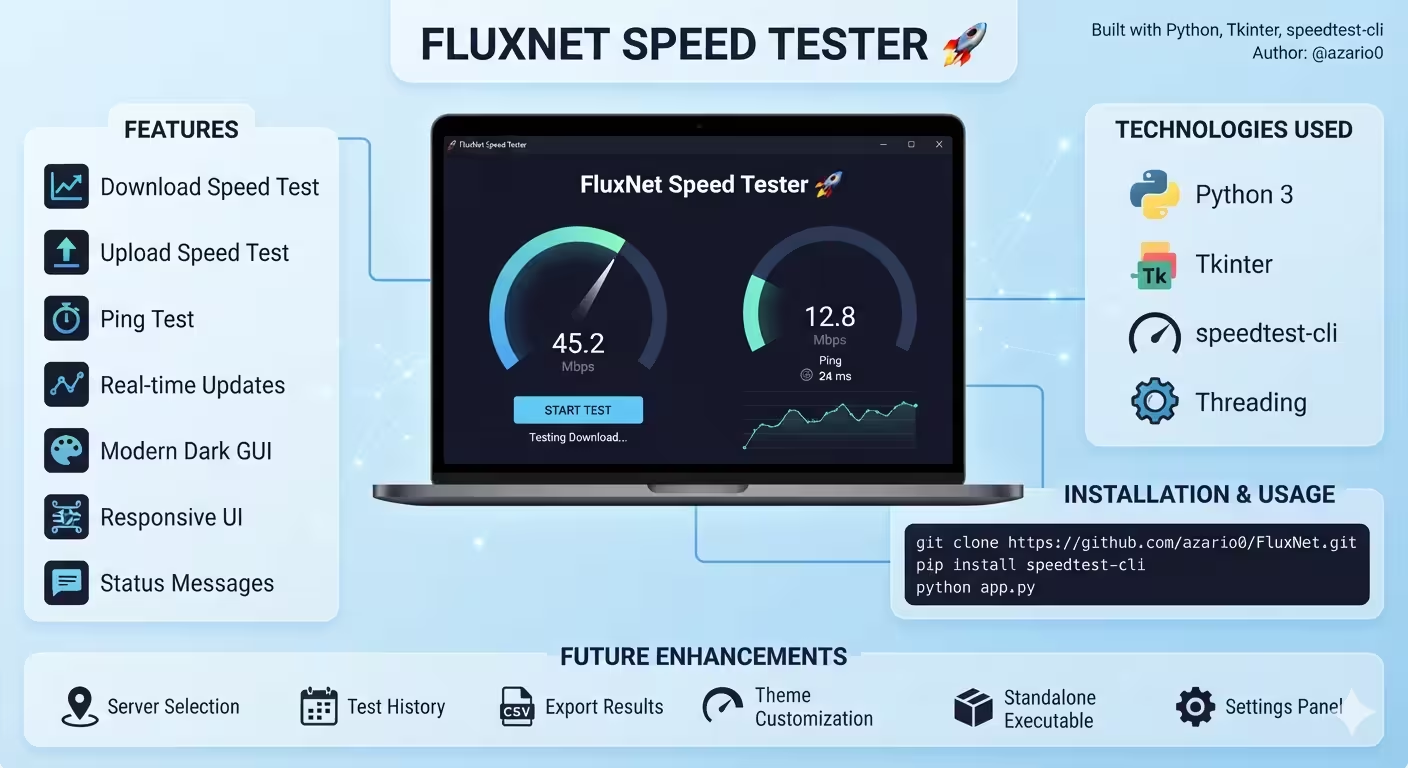
FluxNet: Python Tkinter Speed Test App Guide
A verified technical deep-dive into azario0/FluxNet — a Python desktop application that measures download, upload, and ping with
speedtest-cli, real-time Mbps callbacks, and a responsive dark-themed Tkinter UI.
If you searched for “Python internet speed test app,” “Tkinter speedtest-cli tutorial,” “Python threading Tkinter example,” or “how to build a speed tester with Python,” this guide dissects a minimal, working implementation file-by-file, with every claim verified against the actual repository code.
TL;DR — What FluxNet Does
FluxNet is a cross-platform desktop utility at app.py (242 lines) that:
- Finds the best Speedtest.net server via
speedtest.Speedtest().get_best_server() - Tests download and upload with
st.download(callback=...)/st.upload(callback=...), updating Mbps live in the GUI - Displays ping latency (ms) after server selection and after the full test
- Keeps the UI responsive with a daemon
threading.Thread, because all network I/O runs off the main Tkinter loop
The repository has only four tracked files — app.py, README.md, LICENSE, and assets/screenshot.png — making it an ideal minimal reference for Python GUI development.


Programming Languages Used
| Language / Markup | Role | Where |
|---|---|---|
| Python 3 | All application logic: GUI, threading, speed measurement, error handling | app.py#L1-L242 — 242 lines |
| Tkinter (Python stdlib) | Window, frames, labels, button, progress bar, fonts — no HTML/CSS/JS | app.py#L1-L2, app.py#L148-L238 |
| Markdown | Documentation and feature list | README.md |
There is no JavaScript, no separate CSS file, no database, and no web framework. Styling is done purely in Python via color constants and tkinter.font.Font objects at app.py#L11-L21.
Technology Stack at a Glance
| Layer | Technology | Purpose | Verified In |
|---|---|---|---|
| GUI Framework | Tkinter + ttk | Window management, StringVar binding, themed Progressbar | app.py#L1-L2 |
| Speed Test Engine | speedtest-cli (import speedtest) | Speedtest(), get_best_server(), download(), upload(), results object | app.py#L3, app.py#L88-L106 |
| Concurrency | threading | Offloads blocking network calls from the Tkinter mainloop | app.py#L4, app.py#L143-L145 |
| Platform Handling | platform | OS-specific font selection (Segoe UI/Helvetica, Consolas/Menlo) | app.py#L5, app.py#L20-L21 |
| Assets | PNG | Dark-theme screenshot (447×583) | assets/screenshot.png |
Python 3.7+ is required (see README.md#prerequisites), with a single pip dependency speedtest-cli.
Project Structure
Verified with ls -R and git log --stat (commit 98db7eb final adds all files):
FluxNet/
├── app.py                 # 242-line main application — GUI + test logic
├── assets/
│   └── screenshot.png     # 25 KB dark-theme preview (447×583 PNG)
├── README.md              # 104-line docs: features, install, usage, TODOs
└── LICENSE                # MIT (Copyright (c) 2025 Zohir Benmalek)
No requirements.txt is committed — installation is a single pip install speedtest-cli per README.md#installation. No hidden modules or subpackages.
Architecture Overview — How the Pieces Fit Together
┌─────────────────────────────────┐
│  main (L241-L242)               │
│  create_gui()                   │  ← Tk root setup (L148-L238)
└────────────┬────────────────────┘
             │ user clicks "Start Speed Test"
             ▼
┌─────────────────────────┐   threading.Thread(daemon=True)
│  start_test_thread()    │ ───────────────────────► perform_speed_test() (L75-L128)
│  (L136-L145)            │                         │  ├─ safe_gui_update() (L33)
│  resets StringVars      │                         │  ├─ safe_button_config() (L38)
│  spawns daemon thread   │                         │  ├─ safe_progressbar_control() (L43)
└─────────────────────────┘                         │  ├─ speedtest.Speedtest() (L88)
                                                    │  ├─ get_best_server() → ping (L92-L93)
                                                    │  ├─ download(callback=download_progress_updater) (L98)
                                                    │  ├─ upload(callback=upload_progress_updater) (L104)
                                                    │  └─ results.download/upload/ping (L99, L105, L109)
                                                    │
┌─────────────────────────┐                         │  callbacks (L53, L63)
│  Tkinter Mainloop       │ ◄── root.after(0, …) ───┘  (thread-safe UI updates via after())
│  StringVars:            │
│  download_label_var     │  "0.00" / "12.34" / "Error"
│  upload_label_var       │  "0.00" / "8.90" / "Error"
│  ping_label_var         │  "---" / "23.45"
│  status_label_var       │  "Finding best server..." / "Test Complete!" / "Error: ..."
└─────────────────────────┘- Single-threaded Tkinter + worker thread: The GUI never blocks because
perform_speed_test()runs off the mainloop viastart_test_thread()atapp.py#L143-L145. - Thread-safe updates: All background-to-GUI communication uses
root.after(0, lambda: var.set(...))atapp.py#L33-L50— TkinterStringVar/Widgetmust not be mutated directly from a worker thread. - Real-time feedback: The
speedtestlibrary’scallbackhooks atL53-L71push live Mbps values intodownload_label_var/upload_label_var.
Deep Dive 1: Configuration & Dark Theme Constants
App Metadata — app.py#L7-L21
APP_TITLE = "FluxNet Speed Tester"
WINDOW_SIZE = "450x550"
BG_COLOR = "#2E2E2E"
FG_COLOR = "#E0E0E0"
ACCENT_COLOR = "#007ACC"
BUTTON_BG_COLOR = "#4A4A4A"
BUTTON_FG_COLOR = "#FFFFFF"
BUTTON_ACTIVE_BG = "#5A5A5A"
RESULT_FG_COLOR = "#4CAF50"   # green for results
ERROR_FG_COLOR = "#F44336"    # red for errors (defined, though not dynamically applied)
FONT_FAMILY_MAIN = "Segoe UI" if platform.system() == "Windows" else "Helvetica"
FONT_FAMILY_DIGITS = "Consolas" if platform.system() == "Windows" else "Menlo"- Fixed window:
450×550atL9,resizable(False, False)atL155— mobile-like, non-resizable card. - Dark palette:
#2E2E2Ebackground,#E0E0E0foreground,#007ACCaccent (title, progress bar, hover) — matches theassets/screenshot.pngpreview. - Platform fonts:
Segoe UI/Consolason Windows,Helvetica/Menloon macOS/Linux atL20-L21— avoids missing-font fallbacks.
Global UI handles at L24-L30 (root, download_label_var, upload_label_var, ping_label_var, status_label_var, start_button, progress_bar) are None until create_gui() assigns them — a simple singleton pattern without a class.
Deep Dive 2: Thread-Safe GUI Helpers — The Key to Responsive Tkinter
Tkinter is not thread-safe — calling var.set() directly from perform_speed_test() would corrupt the Tcl interpreter. The three safe_* wrappers at app.py#L33-L50 solve this via root.after():
safe_gui_update(element_var, value) — L33-L36
def safe_gui_update(element_var, value):
    if root and root.winfo_exists() and element_var:
root.after(0, lambda v=value: element_var.set(v))- Guards that
rootexists andwinfo_exists()(window not closed) before scheduling. lambda v=value: element_var.set(v)capturesvalueby default arg to avoid late-binding bugs — critical for correct Mbps display.
safe_button_config(state, text) — L38-L41
def safe_button_config(state, text):
    if root and root.winfo_exists() and start_button:
root.after(0, lambda s=state, t=text: start_button.config(state=s, text=t))- Disables the button to
tk.DISABLED/"Testing..."atL79and re-enables atL127— prevents concurrent tests.
safe_progressbar_control(action) — L43-L50
def safe_progressbar_control(action):
    if root and root.winfo_exists() and progress_bar:
        if action == 'start':
            root.after(0, lambda: progress_bar.start(10))
        elif action == 'stop':
            root.after(0, lambda: progress_bar.stop())
root.after(0, lambda: progress_bar.config(value=0))- Uses
ttk.Progressbarinindeterminatemode (bouncing, not percentage) atL202—start(10)animates at 10 ms intervals,stop()+value=0resets.
These three functions are the only bridge between the worker thread and the GUI — a clean separation that avoids queue.Queue complexity for this scale.
Deep Dive 3: Real-Time Speed Callbacks — Live Mbps Updates
download_progress_updater() — L53-L61 & upload_progress_updater() — L63-L71
def download_progress_updater(bytes_transferred, time_elapsed, **kwargs):
    if not root or not root.winfo_exists(): return
    if time_elapsed > 0:
        current_speed_mbps = (bytes_transferred * 8 / 1_000_000) / time_elapsed
        safe_gui_update(download_label_var, f"{current_speed_mbps:.2f}")
    elif download_label_var.get() == "---" or download_label_var.get() == "Error":
safe_gui_update(download_label_var, "0.00")- Signature:
(bytes_transferred, time_elapsed, **kwargs)— the**kwargsatL53absorbs extra args thespeedtestlibrary may pass, preventingTypeError(comment explicitly notes this). - Mbps formula:
bytes * 8→ bits,/1_000_000→ megabits,/ time_elapsed→ per-second. Both callbacks use identical math atL58andL68. - Formatting:
:.2fgives two decimals (e.g.,94.37) — theresult_fontatL160(Consolas/Menlobold 18) makes these values visually prominent. - Initial guard: If
time_elapsed == 0and label is---/Error, it sets"0.00"— avoids division by zero while showing activity.
The callbacks are passed to st.download(callback=download_progress_updater) at L98 and st.upload(callback=upload_progress_updater) at L104. Without them, the labels would only update with the final average — with them, they tick live during the transfer, fulfilling the Real-time Updates feature in README.md.
Deep Dive 4: Core Speed Test Logic — perform_speed_test()
The heart of the app at app.py#L75-L128 (54 lines):
1. Pre-test UI Reset — L78-L85
safe_gui_update(status_label_var, "Initializing speed test...")
safe_button_config(tk.DISABLED, "Testing...")
safe_progressbar_control('start')
safe_gui_update(download_label_var, "0.00")
safe_gui_update(upload_label_var, "0.00")
safe_gui_update(ping_label_var, "---")- Button disabled + progress bar started before any network call — immediate feedback even if
Speedtest()init is slow.
2. Server Selection & Ping — L88-L93
st = speedtest.Speedtest()
safe_gui_update(status_label_var, "Finding best server...")
st.get_best_server()
safe_gui_update(ping_label_var, f"{st.results.ping:.2f}")get_best_server()pings nearby Speedtest.net servers and picks the lowest latency — this is the first ping value displayed (e.g.,23.45ms). It can take several seconds, hence the status update.
3. Download Test — L95-L100
safe_gui_update(status_label_var, "Testing download speed...")
st.download(callback=download_progress_updater)
final_download_speed_mbps = st.results.download / 1_000_000
safe_gui_update(download_label_var, f"{final_download_speed_mbps:.2f}")st.download()returns bits/sec internally; the callback drives live updates, thenst.results.download / 1_000_000atL99gives the final average in Mbps (same conversion as the callback, but using the library’s computed average).
4. Upload Test — L102-L106
safe_gui_update(status_label_var, "Testing upload speed...")
st.upload(callback=upload_progress_updater)
final_upload_speed_mbps = st.results.upload / 1_000_000
safe_gui_update(upload_label_var, f"{final_upload_speed_mbps:.2f}")- Mirrors download — note that
st.results.uploadis populated only afterst.upload()completes.
5. Final Ping Refresh — L108-L110
final_ping = st.results.ping
safe_gui_update(ping_label_var, f"{final_ping:.2f}")- Re-reads
st.results.pingin case the library refines it after the full test — ensures the displayed ping is the final value, not the pre-test one.
6. Error Handling — L114-L128
except speedtest.ConfigRetrievalError:
    safe_gui_update(status_label_var, "Error: Cannot connect to Speedtest.net.")
    set_error_labels_thread_safe()
except speedtest.NoMatchedServers:
    safe_gui_update(status_label_var, "Error: No suitable test servers found.")
    set_error_labels_thread_safe()
except Exception as e:
    error_msg = f"Error: {str(e)[:50]}"
    if "HTTP Error 403: Forbidden" in str(e):
        error_msg = "Error: Access denied by Speedtest.net (403). Try later."
    safe_gui_update(status_label_var, error_msg + "...")
    set_error_labels_thread_safe()
finally:
    safe_button_config(tk.NORMAL, "Start Speed Test")
safe_progressbar_control('stop')- Specific:
ConfigRetrievalError(no internet / can’t fetch config) andNoMatchedServersare distinct user-friendly messages atL114andL117. - Generic with 403 special case: At
L122-L123checks for403 Forbidden— a common Speedtest.net rate-limit, giving actionable advice. - Helper:
set_error_labels_thread_safe()atL130-L134sets all three values to"Error"viasafe_gui_update. - Finally: Always re-enables the button and stops the progress bar at
L127-L128— even on exception, the UI is recoverable for a retry.
Deep Dive 5: Thread Launcher — start_test_thread() & Error Reset
start_test_thread() — L136-L145
def start_test_thread():
    if download_label_var: download_label_var.set("---")
    if upload_label_var: upload_label_var.set("---")
    if ping_label_var: ping_label_var.set("---")
    if status_label_var: status_label_var.set("Click 'Start Speed Test' to begin.")
    test_thread = threading.Thread(target=perform_speed_test)
    test_thread.daemon = True
test_thread.start()- Direct
set()(notsafe_*): This function runs on the main Tkinter thread (triggered by buttoncommandatL219), so directvar.set()is safe and avoids theafter()queue. - Daemon thread:
daemon=TrueatL144means the thread won’t block app exit — closing the window kills the test immediately (the callbacks also guardif not root or not root.winfo_exists(): returnatL55). - No
join(): The UI remains fully interactive;perform_speed_test()signals completion only viasafe_button_config/safe_progressbar_control.
This is the textbook pattern for “keep Tkinter responsive during network I/O” — a common search query for Python GUI developers.
Deep Dive 6: GUI Construction — create_gui()
The largest function at app.py#L148-L238 (91 lines) builds the entire window declaratively.
Window Setup — L151-L156
root = tk.Tk()
root.title(APP_TITLE)
root.geometry(WINDOW_SIZE)
root.configure(bg=BG_COLOR)
root.resizable(False, False)- Assigns the global
rootatL149so thesafe_*helpers can reference it.
Fonts — L158-L162
title_font = font.Font(family=FONT_FAMILY_MAIN, size=20, weight="bold")
label_font = font.Font(family=FONT_FAMILY_MAIN, size=12)
result_font = font.Font(family=FONT_FAMILY_DIGITS, size=18, weight="bold")
status_font = font.Font(family=FONT_FAMILY_MAIN, size=10, slant="italic")
button_font = font.Font(family=FONT_FAMILY_MAIN, size=12, weight="bold")- Four distinct fonts: title bold 20, labels 12, results bold 18 digits (monospace for aligned numbers), status italic 10.
Layout — L164-L196
- Main frame:
tk.Frame(root, bg=BG_COLOR, padx=20, pady=20)atL165, packedexpand=True, fill=BOTH. - Title + icon:
tk.Labelwithtext=APP_TITLEatL169and rocket🚀atL173(font size 48). - Results rows: Helper
create_result_row(parent, text, var_for_value, unit_text)atL180-L187builds a horizontalFramewith three labels: left-aligned description (width=15), right-aligned value bound toStringVar(width=7,fg=RESULT_FG_COLORgreen), and unit (Mbps/ms,width=5). Called three times atL193-L195for Download/Upload/Ping, with initial---values atL189-L191.
Progress Bar — L198-L203
style = ttk.Style()
style.theme_use('clam')
style.configure("Accent.Horizontal.TProgressbar", troughcolor=BG_COLOR, bordercolor=ACCENT_COLOR, background=ACCENT_COLOR, ...)
progress_bar = ttk.Progressbar(main_frame, orient=tk.HORIZONTAL, length=300, mode='indeterminate', style="Accent.Horizontal.TProgressbar")- Uses
ttk.Stylewithclamtheme to override the green default —troughcolormatchesBG_COLOR,backgroundisACCENT_COLORblue. Length300spans most of the 450px window.
Status Label — L205-L208
StringVar("Click 'Start Speed Test' to begin.")withwraplength=380atL207— wraps long errors.
Start Button + Hover — L210-L236
start_button = tk.Button(main_frame, text="Start Speed Test", font=button_font, bg=BUTTON_BG_COLOR, fg=BUTTON_FG_COLOR, activebackground=BUTTON_ACTIVE_BG, command=start_test_thread, relief=tk.FLAT, ...)
start_button.bind("<Enter>", on_enter)
start_button.bind("<Leave>", on_leave)command=start_test_threadatL219is the sole user interaction.- Hover handlers at
L228-L236swapbgtoACCENT_COLORon<Enter>and back on<Leave>, but only ifstate == NORMAL— disabled button stays grey. mainloop()atL238blocks until window close.
End-to-End Data Flow — Concrete Example
- User runs
python app.pyperREADME.md#usage→create_gui()atL241-L242opens a450×550dark window with---placeholders. - Clicks Start Speed Test →
start_test_thread()atL136resets labels, spawnsThread(target=perform_speed_test, daemon=True). perform_speed_test()atL78-L79disables button, starts indeterminate progress bar.Speedtest()init +get_best_server()atL88-L92→ status"Finding best server...", ping label updates to e.g.,24.12.download(callback=download_progress_updater)atL98streams bytes; each callback computes(bytes*8/1_000_000)/timeatL58andsafe_gui_updatepushes12.34→45.67→78.90live into the Download row.- After download,
st.results.download / 1_000_000atL99overwrites with the final average (e.g.,85.42). - Same for upload at
L104viaupload_progress_updateratL68. - Final ping refresh at
L109-L110and status"Test Complete!"atL112. finallyatL127-L128re-enables button to"Start Speed Test"and stops progress bar — ready for another run without restart.
On failure (no internet), ConfigRetrievalError at L114 shows "Error: Cannot connect to Speedtest.net." and all rows become "Error" via L130-L133.
Installation, Usage & Verification
Confirmed from README.md:
git clone https://github.com/azario0/FluxNet.git
cd FluxNet
pip install speedtest-cli
# verify: python -c "import speedtest; print(speedtest.__version__)"
python app.py- Prerequisites: Python 3.7+,
pip, internet connection perREADME.md#prerequisites. - Cross-platform: Works on Windows/macOS/Linux where
tkinteris available — theplatformchecks atL20-L21handle font fallbacks. - Note: Package is
speedtest-clibut import isspeedtestatL3— a common confusion theREADMEclarifies.
Customization & Extension Points
- Change window/theme: Edit constants at
L8-L19— e.g.,BG_COLOR="#FFFFFF"for light mode, or adjustWINDOW_SIZE. - Add units toggle: Convert
st.results.download / 1_000_000atL99toMB/s(/8_000_000) orkbps(*1000) — listed as a TODO inREADME.md. - Server selection: Uncomment
# st.closest = {}atL89or exposeget_servers()+get_best_server(servers)in a dropdown — first TODO in the README. - History/export: Log
final_download_speed_mbps,final_upload_speed_mbps,final_pingplustime.strftimeto CSV afterL110. - Packaging:
PyInstaller --onefile --windowed app.pyorcx_Freezeper the README TODOs — no code change needed.
Known Limitations & TODOs (From Code & README)
Verified TODOs at the end of README.md:
- No server picker — hard-coded to best server via
get_best_server()atL92. - No history — global
StringVars are not persisted. - No export — no CSV/JSON writer.
- No theme switcher — colors are constants, not a config file.
- No standalone exe — requires
python app.py+pip install. - Indeterminate progress bar only — no percentage; the
speedtestlibrary doesn’t expose total bytes until done, so precise progress is hard. ERROR_FG_COLORatL19is defined but never applied to labels — error state is text-only"Error".
These are normal for a teaching/demo desktop app and excellent first contributions.
Conclusion — Why This Repo Is a Great Tkinter + Speedtest Starter
If you want to learn Python GUI threading, real-time callbacks, and Speedtest.net integration without the bloat, this project is a minimal, verified reference:
- Tkinter done right:
ttk.Styletheming,StringVardata binding,after()for thread safety — all in one file. - Threading done simply: One daemon
Thread, threesafe_*wrappers, no queue — yet the UI stays fluid during 30-second transfers. - Speedtest done practically: Live Mbps via
bytes*8/1_000_000/timeand proper error branching forConfigRetrievalError/NoMatchedServers/403.
Clone it, run pip install speedtest-cli, try python app.py, and watch the download label tick live. From there, fork in a server selector, CSV history, or unit toggle — the create_gui() structure is ready for it.
Links: app.py · README.md · LICENSE · assets/screenshot.png
Verified against commit main on 2026-09-02. All file paths, line numbers, constants, and calculations checked against the cloned repository.

Written by
Benmalek Zohir
Founder, AI Engineer & Full Stack Developer
Benmalek Zohir is an AI Engineer, Full Stack Developer, and technology enthusiast focused on artificial intelligence, software development, and emerging technologies. He is the founder of SoftwareJournal.blog, where he shares practical insights, software discoveries, AI tools, and the latest developments in technology.